After you approve a quote, the creator makes a draft and you review it. Then they publish the post and ask you to confirm the job is complete. Confirming closes that creator's work order and charges your card, so check the posts before you confirm.
Follow the work on the board
Open your campaign and click Campaign Management. After approval, each creator moves through these columns:
| Column | What's happening | Your button |
|---|---|---|
| Drafting | The creator is making the draft. | Chase Draft 1 sends them a reminder. |
| Draft Ready | A draft is waiting for your review. | Approve 2 opens the draft. |
| Publishing | You approved the draft, and the creator is publishing it. | Chase Publish 3 sends them a reminder. |
| Completion Request | The creator has posted and says the job is done. | Confirm Completion 4 opens their side panel. |
| Closed | The work order is finished. | None. |
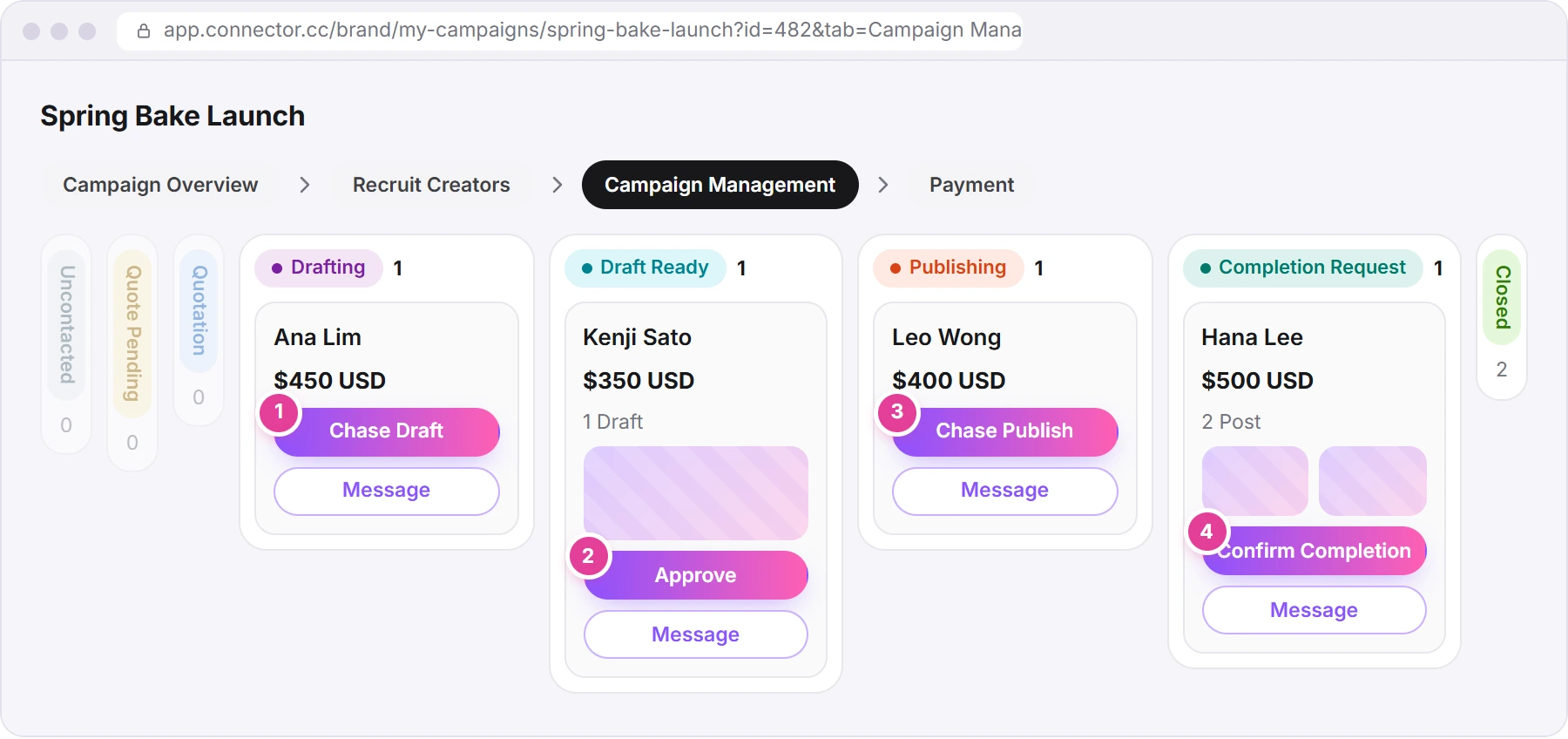
Each card from Drafting to Completion Request also has Message, which opens the creator's side panel and chat. A red dot on it means unread messages. You can also chat with every creator, and use the same buttons, in Messages (see Messages). The board updates by itself. For every status and label, see What each status means.
Review a draft
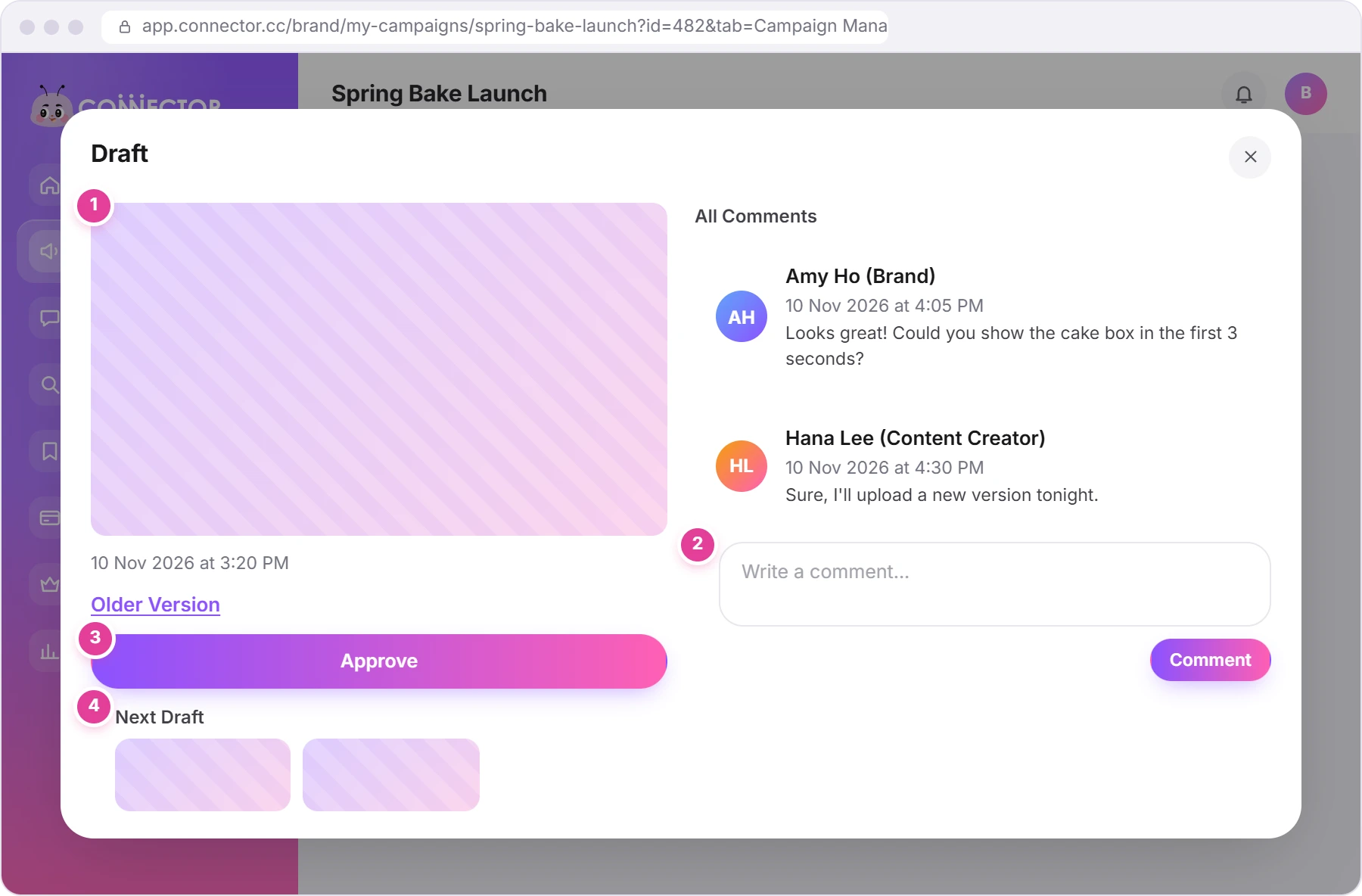
- Click Approve on a Draft Ready card, or click the draft's picture. The draft opens.
- Look at the draft 1. If the creator has uploaded more than one version, Older Version shows the earlier ones.
- To ask for changes, leave a comment 2. Type in "Write a comment..." and click Comment (or press Ctrl+Enter). The creator replies and uploads a new version.
- When you're happy, click Approve 3. The button changes to Approved. No other message appears.
There's no "Request changes" button
Comments are how you ask for changes. Say exactly what to change, and the creator uploads a new version. The newest version is the one you see; earlier ones move to Older Version.
If the creator sent several drafts, Next Draft 4 shows the others still waiting. In the side panel, the Draft section lists every draft with its comments and Pending or Approved, and its heading shows "Pending Approval: 2 Items" while some are waiting.
Once the draft is approved, the creator publishes it and their card shows under Publishing.
Check the posts
When the creator has published, they add the post in Connector Club and declare the job complete. Their card moves to Completion Request, with the number of posts and small pictures of them.
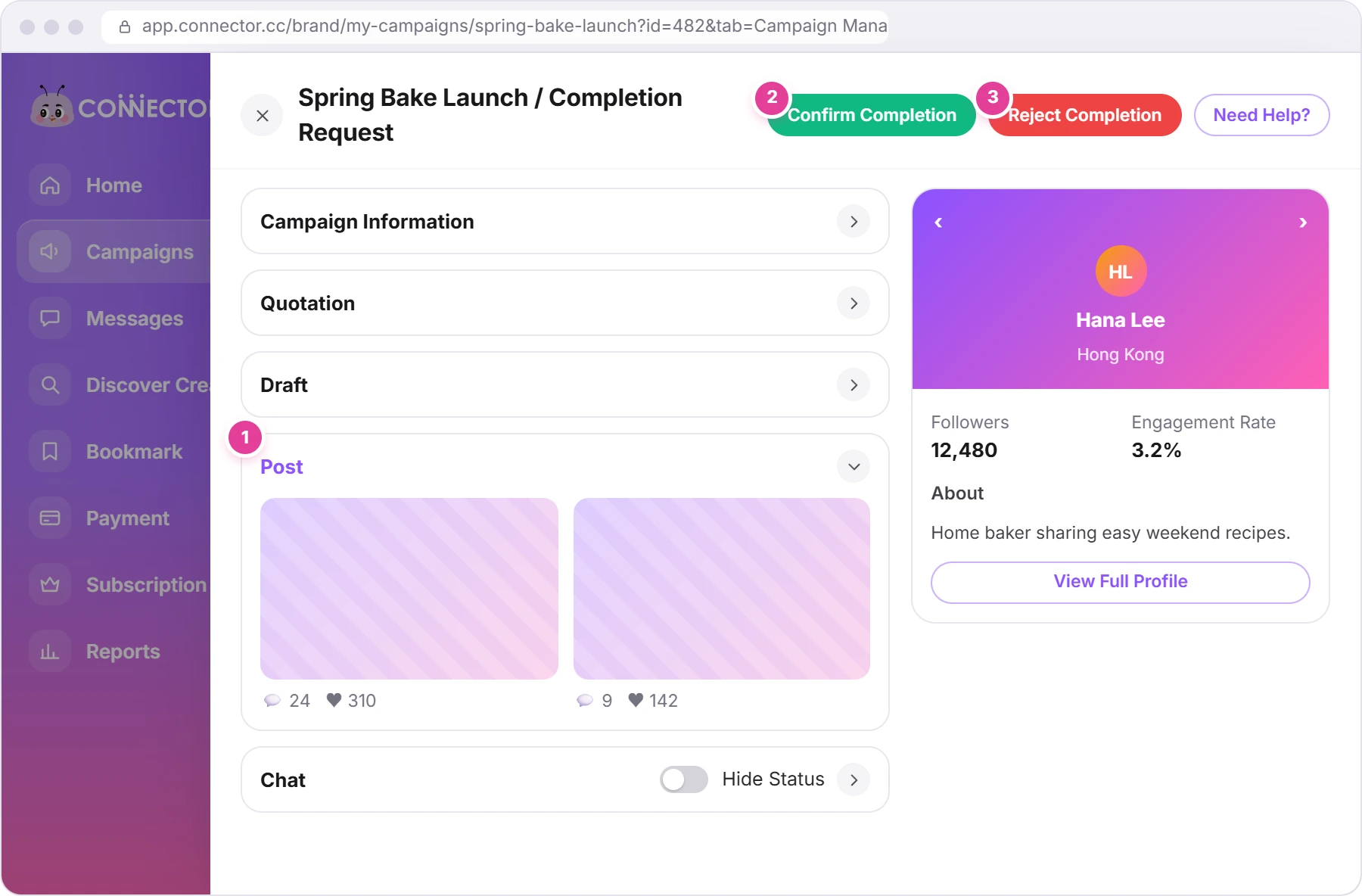
- Click the card, or its Confirm Completion button. Both only open the side panel: nothing is confirmed yet.
- Open the Post section 1. Each tile shows a screenshot of the post with its comment and like counts. Click a tile to open the live post in a new tab.
- Check the post against your brief.
The pictures on the board card open the screenshot, not the live post. Use the side panel to see the real post.
There's no separate button to approve a post. Confirm Completion 2 is how you accept it. If it isn't right, click Reject Completion 3 (see "Reject a completion request" below).
Confirm completion and pay
- Click Confirm Completion (green) at the top of the side panel.
- Read "Confirm Job Completion". By confirming, you agree the creator delivered everything in the brief and no more changes are needed. It closes this creator's work order and releases their payment 1.
- Click Confirm 2.
- Pay. If you have one saved card, it's charged straight away. If you have none, or several, a Pay Now window opens: pick a card 3 (or click Add New Card), then click Pay Now 4.
- Wait. "Please do not refresh the page" and "Payment is processing..." cover the screen. Your bank may ask you to confirm.
- Done. You'll see "Completion request confirmed successfully", and the creator moves to Closed.
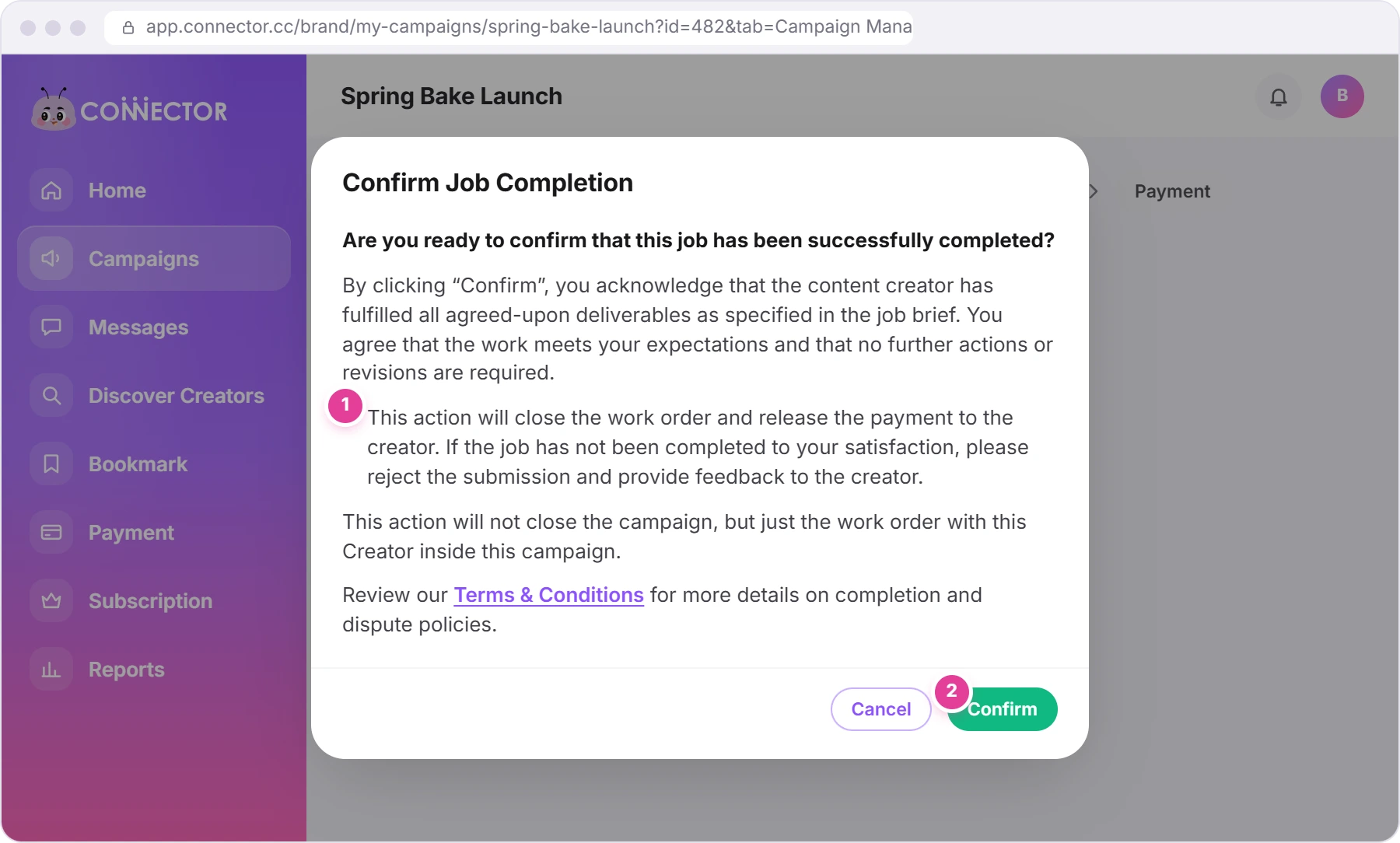
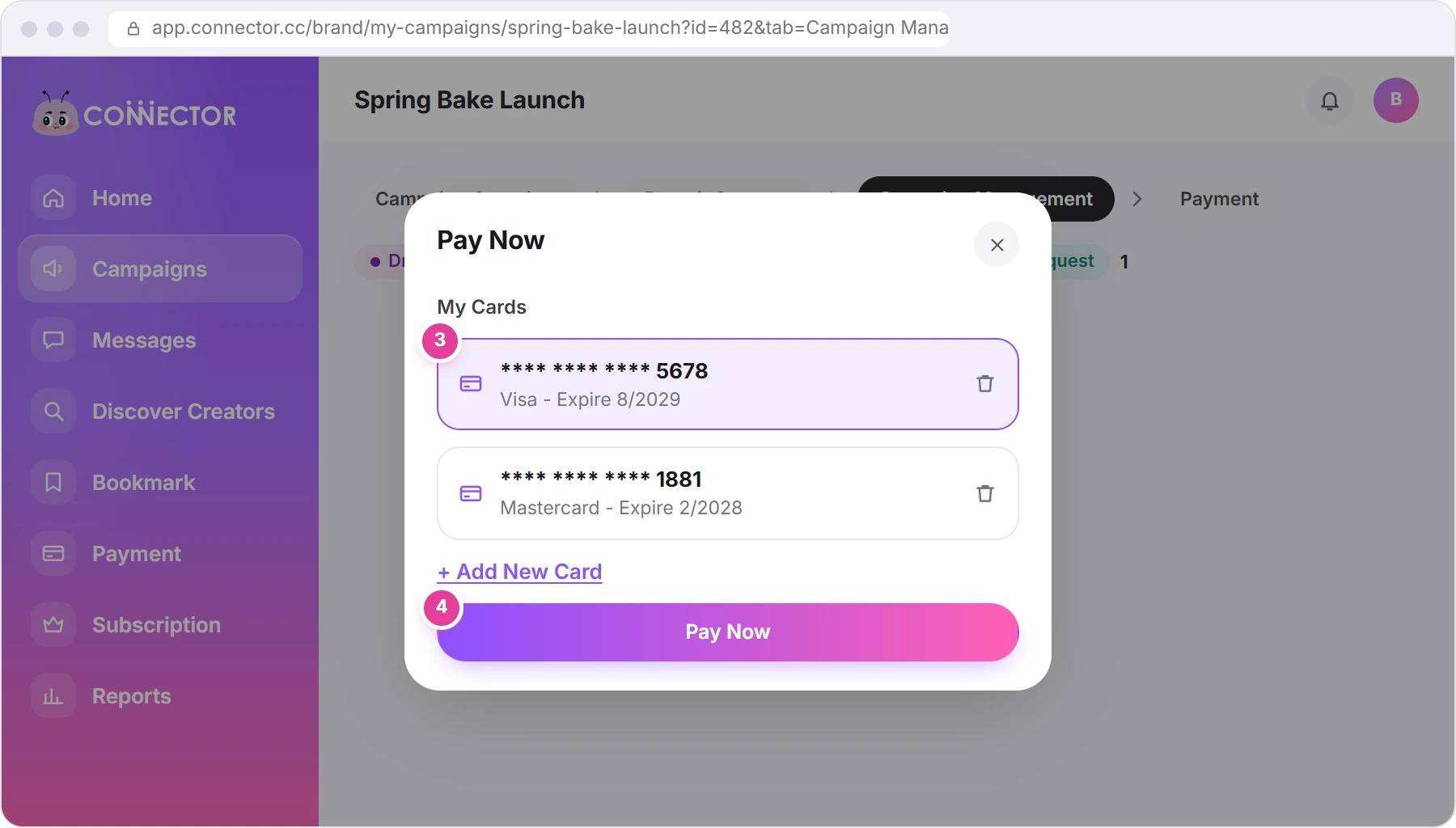
What's charged: the creator's current price (the quote you approved, plus any budget increase or new price you approved since) plus the 5% platform charge. Payments, invoices and saved cards explains it, and where to find the invoice.
Product-only jobs (a quote of 0) are closed without a card charge: Confirm closes the work order.
If the payment fails, you'll see an error message and the creator stays under Completion Request. Nothing is charged. With one saved card, the app always charges that card, so to pay with a different card, add it in Saved Cards first (see Payments). Then click Confirm Completion again. With more than one card, pick the card in the Pay Now window.
Reject a completion request
If the work isn't finished or doesn't match the brief:
- Click Reject Completion (red) at the top of the side panel.
- Give a reason in "Enter Reason...". It's required: tell the creator clearly what to fix.
- Click Confirm. You'll see "Completion request rejected successfully". The creator's card moves back to Drafting, and the creator fixes the work and sends it again. Nothing is charged.
One creator, or the whole campaign
- Confirm Completion closes one creator's work order and charges for that creator. The campaign keeps running.
- Complete Campaign, to the right of the campaign's tabs, closes the whole campaign. It charges nothing by itself. Every creator whose quote you approved has to be under Closed first; if one isn't, you'll see an error message. Creators you haven't approved don't hold it up.
To complete the campaign, click Complete Campaign, read "Confirm Campaign Completion" and click Confirm. (The text says to click "Submit", but the button is Confirm.) You'll see "Campaign completed successfully" and go back to your campaign list. After that, the campaign's buttons are turned off.
When something goes wrong: Need Help?
Need Help? 1 at the top right of the side panel shows different choices 2 at each step:
| Step | Choices |
|---|---|
| Uncontacted | Check Help Guides only |
| Quote Pending, Quotation | Hide this creator: archives them |
| Drafting | Request help from customer service; Hide this creator: here it ends your contract |
| Draft Ready, Publishing | Request help from customer service |
| Completion Request | Work submitted is incomplete; Raise Dispute |
| Closed | Raise Dispute |
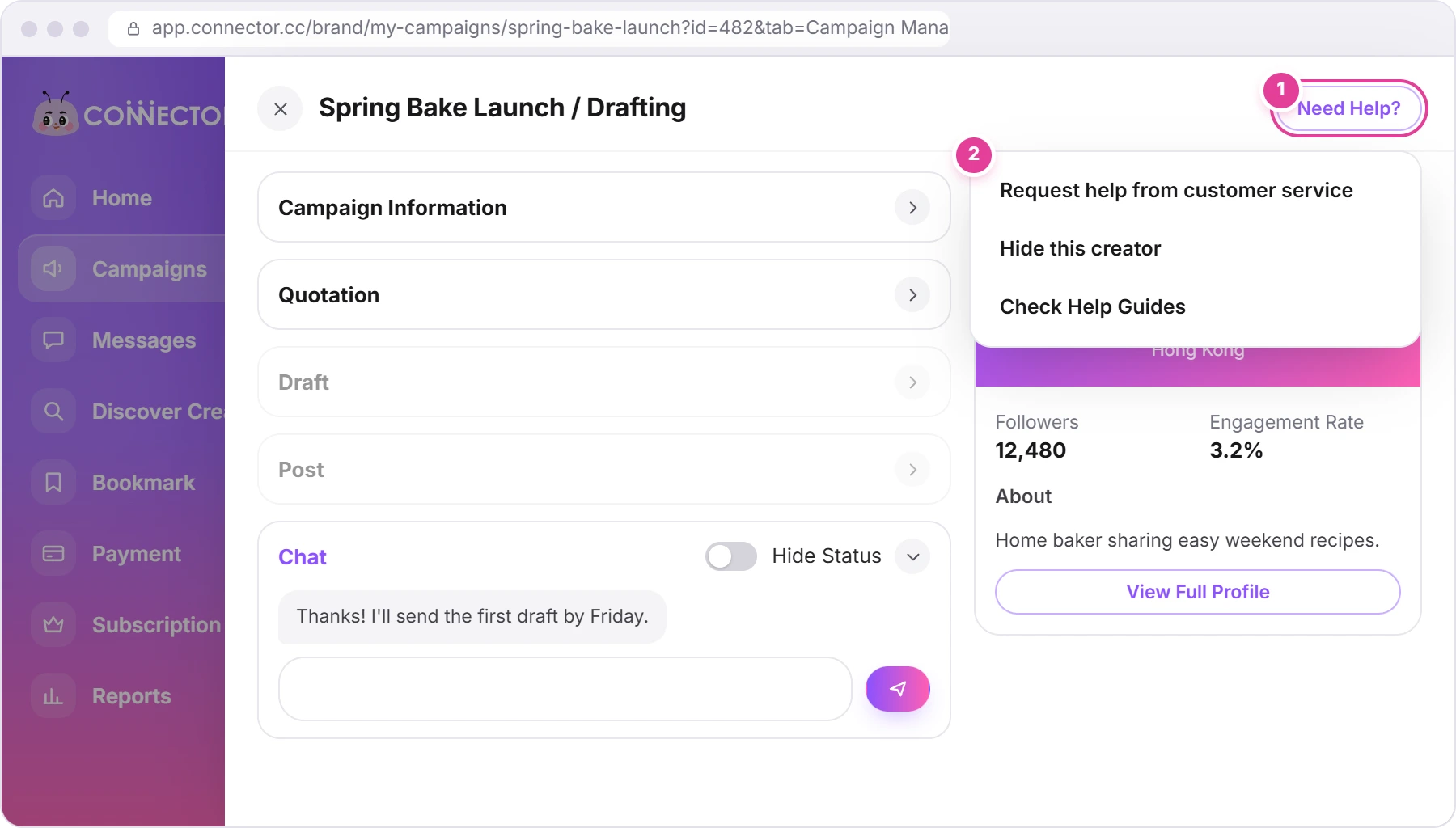
Check Help Guides is always there. Raise Dispute disappears once you've raised one.
- Request help from customer service asks "Request Customer Support?". Our team can help with problems such as a creator who stopped replying, or help you end the job. Click Request help to open the dispute form with that reason filled in.
- Hide this creator at the Drafting step asks "Terminate and hide creator?". Terminate & hide cancels your contract with the creator. Use it only if they've stopped replying or are no longer taking part. Their card then shows a red "Terminated" label, and the creator sees "Terminated by brand".
- Work submitted is incomplete asks "Request a Revision First?". Request Revision rejects the completion request so the creator can fix it, as above. Proceed to Dispute opens the dispute form instead.
- Raise Dispute opens the dispute form.
The dispute form: the reason is filled in for you, or you pick one under Select Reason. Describe the problem under Description (required). Add files with Add Files under Upload Supporting Documents: pictures up to 10 MB, documents up to 50 MB, videos up to 500 MB. Then click Submit Dispute. You'll see "Dispute raised successfully". Connector Club staff join the chat, and a red bar at the top of the side panel says "Dispute has been submitted. Our staff will follow up on this matter and update you soon."
If a creator withdraws from a job, their card shows a red "Withdrawn" label.
Did this answer your question?
Thanks. It helps us know which guides work.
Sorry about that. Tell us what was missing and we’ll answer you and fix the guide. WhatsApp us