
Signing up as a creator has three parts: a short form, a 6-digit code we email you, and three steps that build your profile (link your accounts, choose your skills, check and submit). You can stop at any point: the app brings you back to the unfinished step next time you log in.
Brands see your Display Name and your linked accounts' numbers. Your first and last name, and your email, are not shown to them.
Before you start
- An email address you can open now. The code goes there.
- Your mobile number.
- Your names in English letters. First Name, Last Name and Display Name accept the letters A to Z only. See the warning below.
- A social account to link: an Instagram professional account, a Facebook Page, a YouTube channel or a TikTok account. Each platform has a minimum number of followers.
- A password of at least 8 characters.
To change the app's language, tap the globe icon at the top of the sign-up pages: English, 中文 or 한국어.
Choose Content Creator
- Open the sign-up page at app.connector.cc/register.
- Tap Content Creator 1. Its card gets a coloured border.
- Tap Create Account 2. If you didn't pick a card, you'll see "Please select a role".
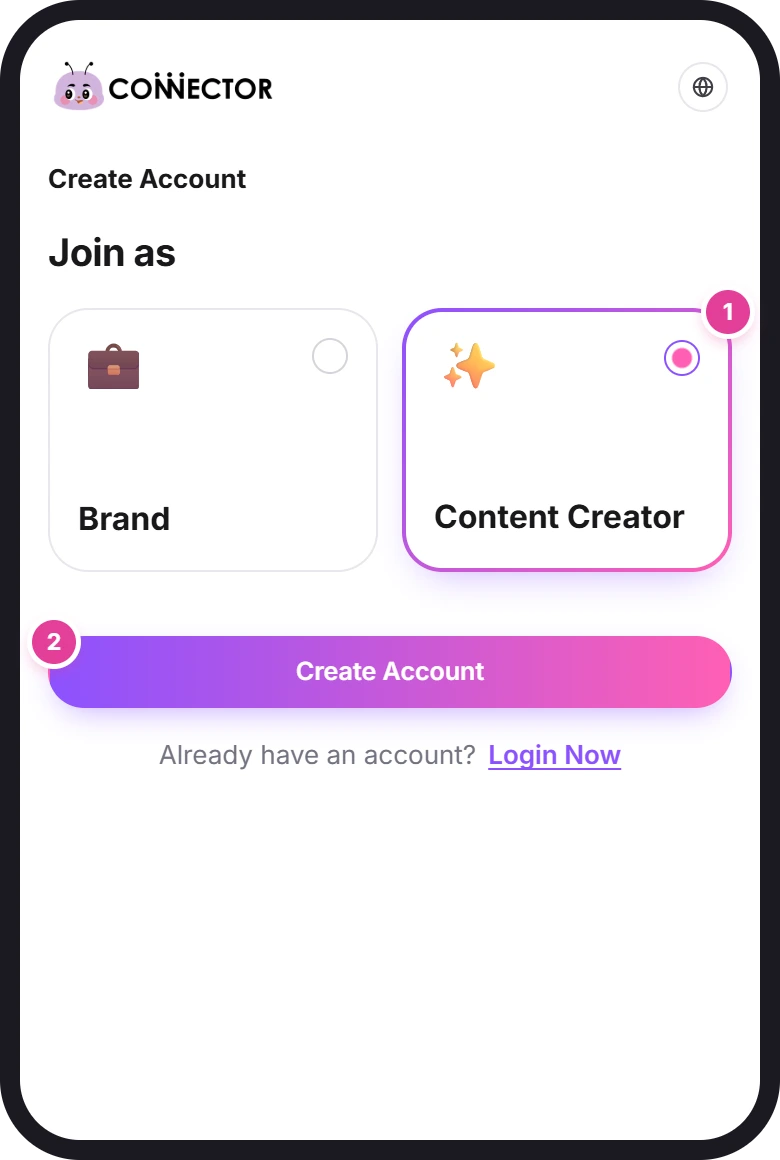
Already have an account? Tap Login Now at the bottom instead.
Fill in the sign-up form
The form opens with "A new journey begins here 🚀". Fields with a red * are required.
| Field | What to enter | Rules |
|---|---|---|
| First Name, Last Name | Your own name. The ⓘ next to First Name reminds you that brands don't see it. | English letters only. |
| Display Name 1 | The name brands see. The ⓘ tip recommends the name you're best known by online. | English letters only. |
| An address you can open now. | Must be a full email address. | |
| Mobile Number 2 | Pick your country code first (Hong Kong +852 is already chosen; Hong Kong and Singapore are at the top of the list), then type your number in the box next to it. | 8 to 16 characters. |
| Country | Pick from the list. You can type to search it. | Required. |
| Currency 3 | USD, HKD or SGD. | It starts on USD. |
| Gender | Male, Female or Other. | Optional. |
| Password | Any characters. | At least 8 characters. |
| Confirm Password | The same password again. | Must match. |
Once you tap into a field, a Google reCAPTCHA box appears near the bottom of the form. Under it, "By signing up, you agree to the Terms of Service and Privacy Policy." When everything is filled in, tap Continue 4.
Names: English letters only
First Name, Last Name and Display Name accept only the letters A to Z (capital or small), with single spaces between words. Chinese, Japanese and Korean characters, numbers, accents, dots, underscores, hyphens and apostrophes all give "Only letters are allowed". So "陳小明", "Zoë" or a handle like "mia.chan_hk" won't go through; write "Chan Siu Ming", "Zoe" or "Mia Chan" instead.
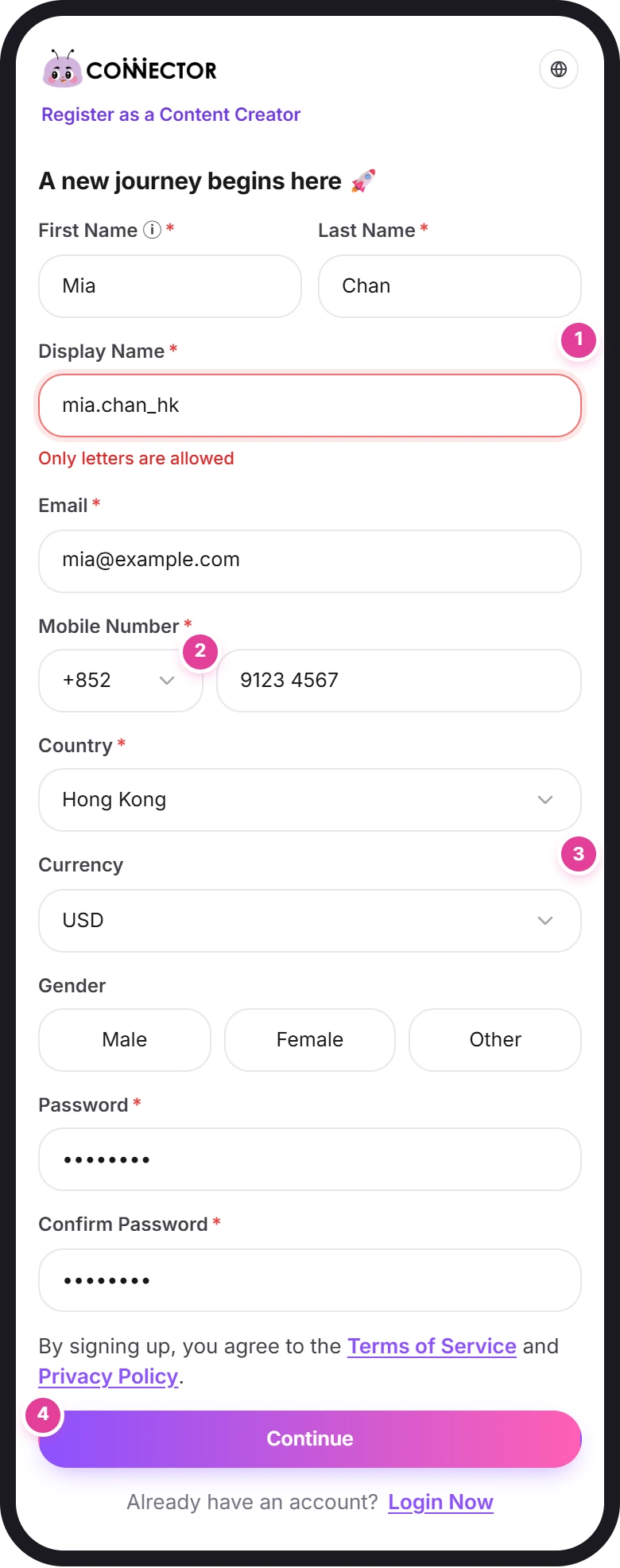
If the app can't create the account, a red message pops up at the top of the screen for a few seconds. For example, "📧 Oops. This email is already registered. Try logging in or use a different one." means the email already has an account: use Login Now instead.
Signing up with Google
On the log-in page you can log in with Google. If that Google account has no Connector Club account yet, the app takes you to sign-up. Choose Content Creator, and you'll find your first name, last name and email already filled in from Google. The email can't be changed, and the names must still be in English letters. If Google has already confirmed your email, you skip the email code below.
Confirm your email
After Continue, "Confirm your email" shows the address the code was sent to.
- Find our email with your 6-digit code.
- Type the code into the six boxes 1. Fill all six: Submit can be tapped with fewer, but the code is then refused.
- Tap Submit 2 before the timer runs out. If the code is right, the first sign-up step opens.
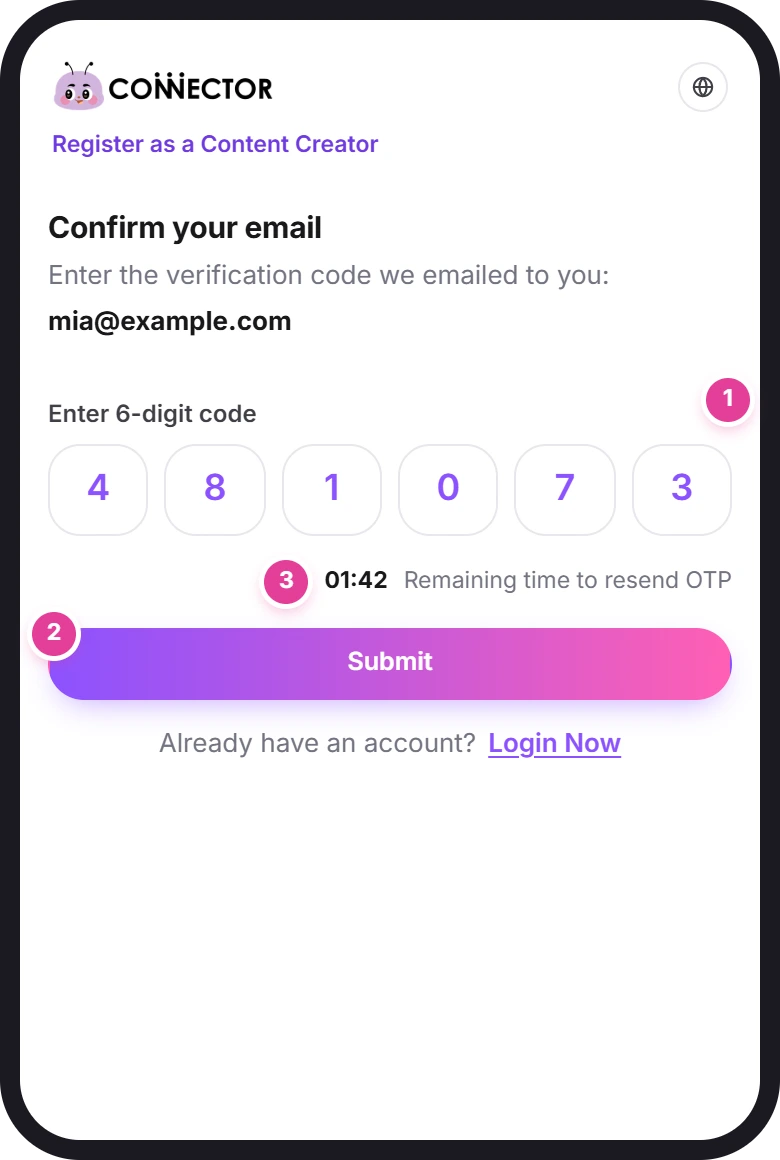
Each code works only until the timer 3 runs out. "Remaining time to resend OTP" counts down from 02:00. When it ends, it turns into Resend OTP. Tap it to get a new code: you'll see "Resend OTP Successfully", the boxes clear and the timer starts again. No email? Check your spam folder, then tap Resend OTP when it appears.
Only the newest code works. If you leave this page, log in later with your email and password: the app emails you a new code and brings you back here. Use the code from the newest email.
Finish your profile in three steps
The sign-up steps open after the code. At the top of the first two you'll see the globe icon and Sign out.
Step 1: Link your social media accounts
Turn on the switch next to a platform, tap its login button, log in on the platform's own page and allow everything it asks for. The app checks that the account has enough followers, then shows "Account linked successfully". Next stays grey until at least one account is linked, and until every linked account is verified: if a row shows Verify Account, tap it and log in again, or tap Remove Account. The full guide is Link your social accounts; every message and its fix is in Fix problems linking your social accounts.
Step 2: Select Skills
"Select Skills" helps the app recommend brands to you on your dashboard.
- Tap the skills that describe your content 1. A chosen skill fills with colour. Tap it again to remove it.
- Choose between 1 and 5 skills. With none you'll see "Please select at least 1 Categories"; with too many, "You can't select more than the maximum allowed".
- Tap Next 2.
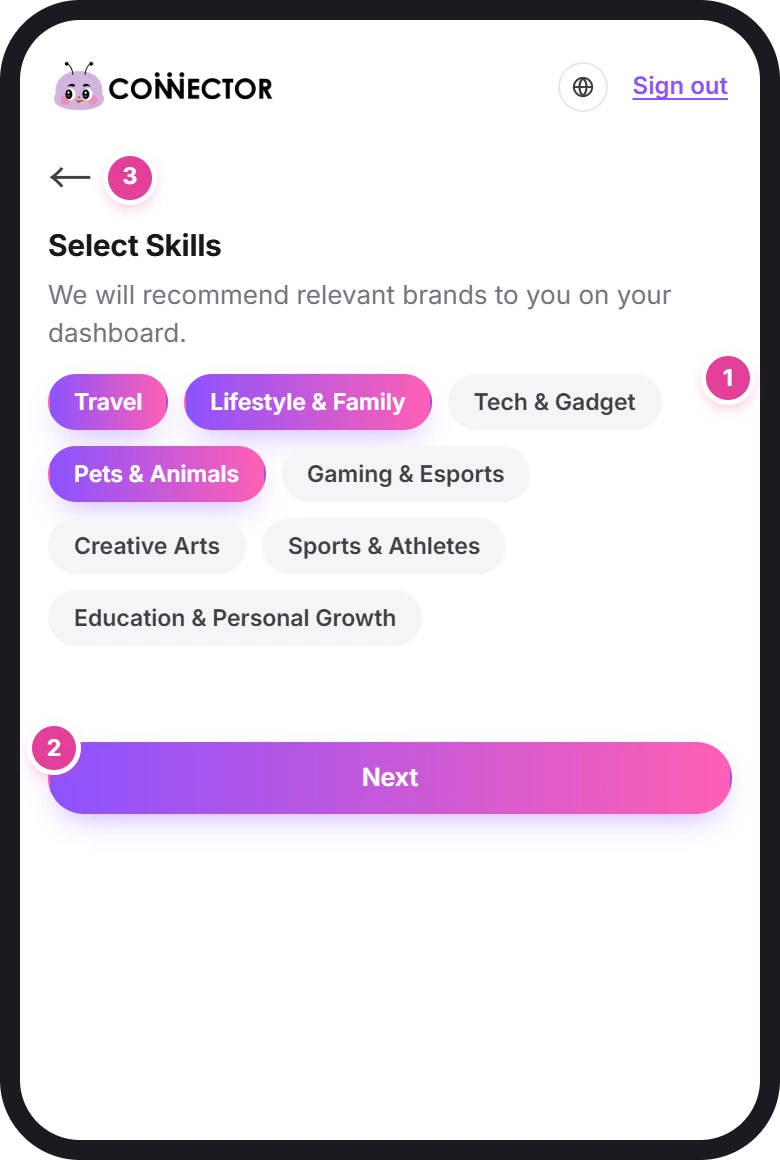
The arrow at the top left 3 takes you back to linking your accounts.
Step 3: Check your profile and Submit
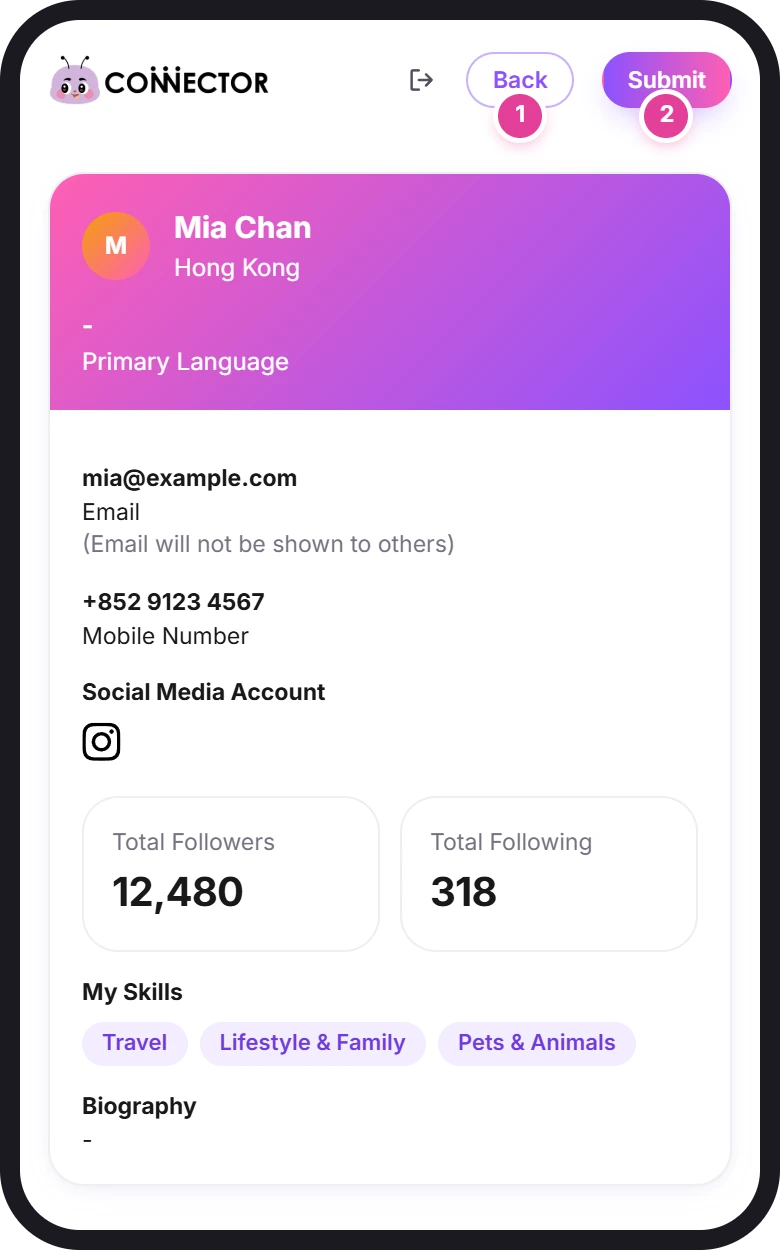
The last step shows your profile as it's saved: Display Name, country, email (with "Email will not be shown to others"), mobile number, your linked accounts with Total Followers and Total Following, and My Skills.
- Check the details. To change your skills, tap Back 1.
- Tap Submit 2. Your account is ready, and the app opens your Home page.
If you stop halfway
- Your progress is kept step by step. Close the app whenever you like.
- At your next log-in, the app opens the step you hadn't finished. Until all three steps are done, any other page of the app brings you back to them.
- If you never entered the email code, logging in emails you a new code and opens "Confirm your email". Use the code from the newest email; older codes no longer work.
- To leave, tap Sign out at the top. On the last step it's the icon to the left of Back.
If you see a message
Messages that pop up at the top of the screen disappear after a few seconds.
| What you see | What it means | What to do |
|---|---|---|
| Please select a role | You tapped Create Account without choosing a card. | Tap Content Creator, then Create Account. |
| This is a required field, Email is required, Mobile number is required, Password is required | That box is empty. | Fill it in. |
| Only letters are allowed | A name has something other than English letters: Chinese, Japanese or Korean characters, numbers, accents, dots, underscores, hyphens, apostrophes, or two spaces in a row. | Use the letters A to Z, with single spaces. |
| Please enter a valid email | The address is missing the @ or the ending. | Check it for typos. |
| Please enter a valid mobile number | The number is shorter than 8 or longer than 16 characters. | Type only your number; the country code goes in the box to its left. |
| Country is required | No country is picked. | Pick one from the list. |
| Must contain at least 8 characters | The password is too short. | Use 8 characters or more. |
| Passwords must match | The two passwords are different. | Type the same password in both boxes. |
| 📧 Oops. This email is already registered. Try logging in or use a different one. | The email already has a Connector Club account. | Tap Login Now and log in. |
| This phone number is already in use. Please try with another one. | Another account already uses this mobile number. | Log in to that account, or use a different number. |
| ⏳ This OTP has expired. Request a new one to continue. | The timer ran out before you tapped Submit. | Tap Resend OTP and use the new code. |
| ❌ That OTP doesn’t seem right. Double-check and try again. | The code is wrong, incomplete, or not the newest one. | Find the newest email and type all six digits again. |
| Please select at least 1 Categories / You can't select more than the maximum allowed | Too few or too many skills. | Choose between 1 and 5. |
| Next stays grey on the linking step | No account is linked yet, or a linked account still shows Verify Account. | See Link your social accounts. |
Did this answer your question?
Thanks. It helps us know which guides work.
Sorry about that. Tell us what was missing and we’ll answer you and fix the guide. Email us