Linking a social account is how Connector Club reads your real follower and engagement numbers and shows them to brands. You need at least one linked account to finish signing up.
Brands see your Display Name and your linked accounts' numbers. They don't see your first and last name or your email.
Before you start
- Instagram: a professional account (Business or Creator). Personal accounts can't be linked. You don't need a Facebook Page.
- Facebook: a Facebook Page you manage. A personal profile on its own can't be linked.
- YouTube: a channel on the Google account you log in with, with a handle (the @name).
- TikTok: your TikTok login.
- Enough followers. Each platform has a minimum number of followers or subscribers. If an account is below it, the app tells you when you link it.
- A computer helps. If linking keeps failing on your phone, try a computer browser. The app suggests the same.
Link an account while signing up
After you confirm your email, the first sign-up step is Link your social media accounts.
- Turn on the switch next to the platform 1. The login button only appears once the switch is on.
- Tap "Login in your Instagram account" 2 (or Facebook, Youtube, TikTok). You go to that platform's own login page. Log in, and allow everything it asks for.
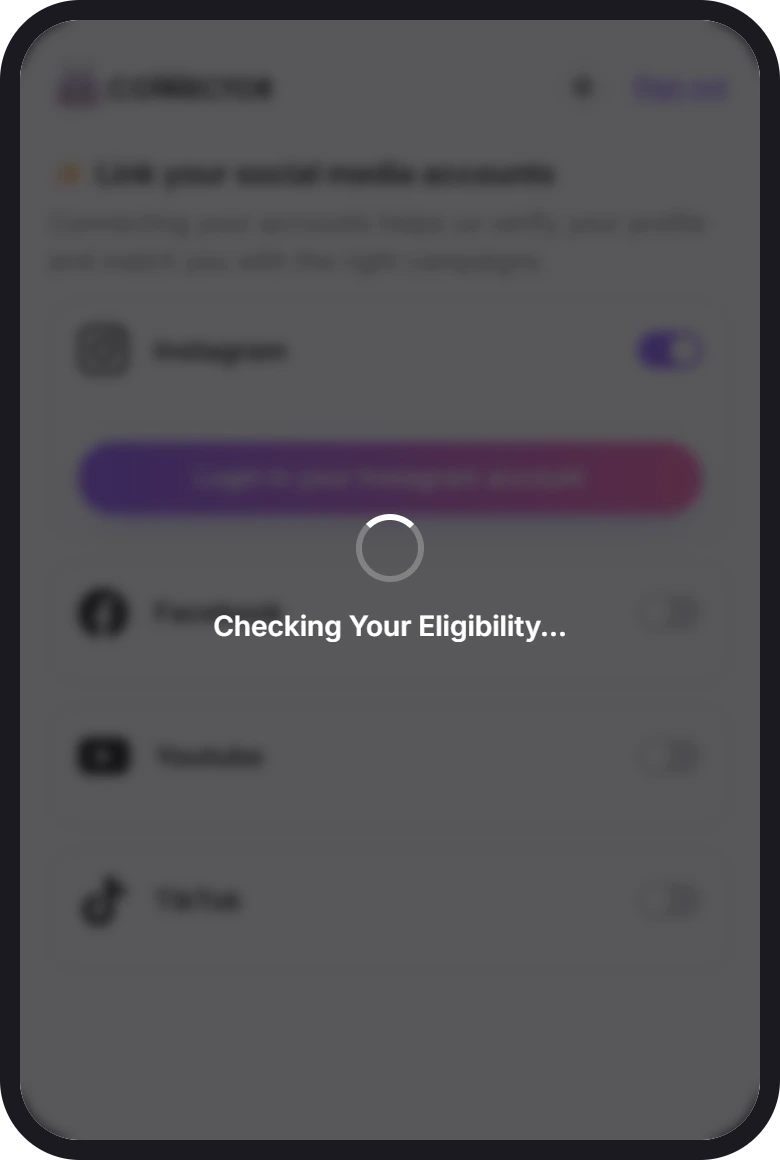
- Wait while it checks. Back in Connector Club, "Checking Your Eligibility..." and then "Syncing your data..." cover the screen. Don't close the page.
- Check that it worked. You'll see "Account linked successfully", and your username and numbers under the platform.
- Tap Next 3. It stays grey until at least one account is linked.
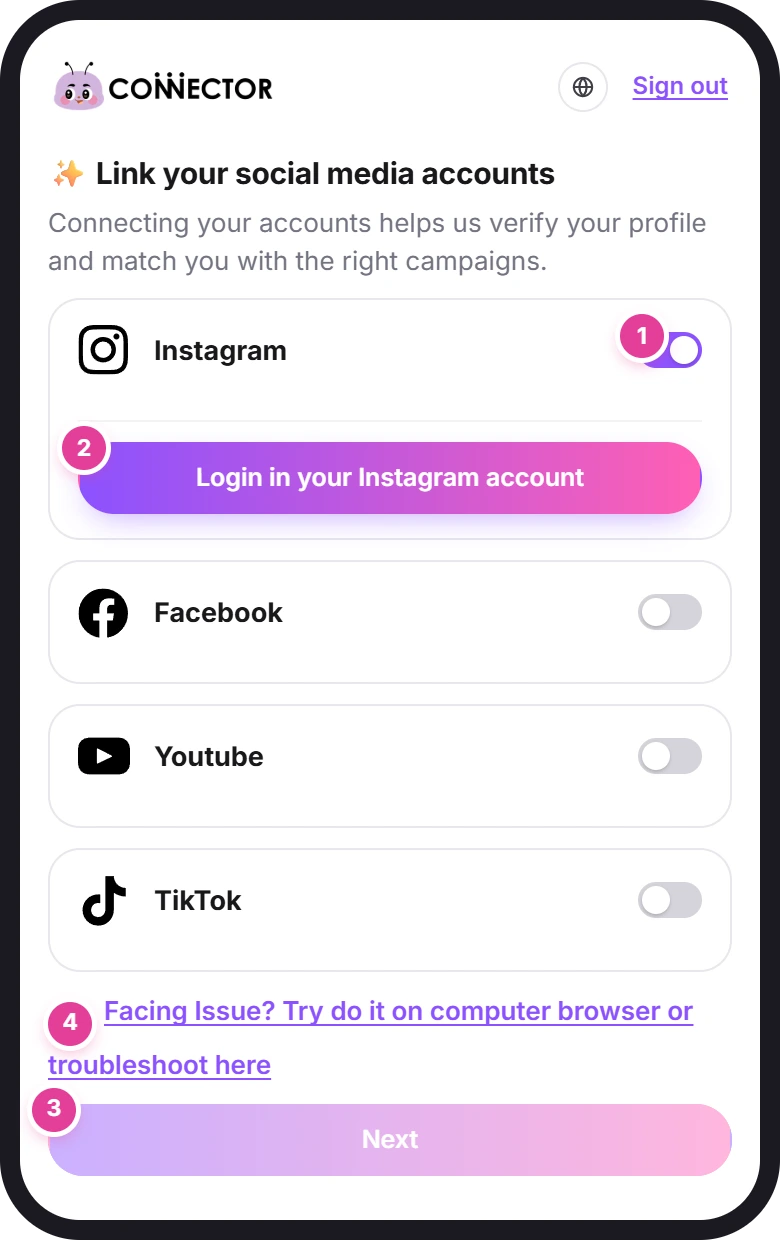
If something goes wrong on this step, the link Facing Issue? 4 under the platforms opens a form to report it (see the end of this guide).
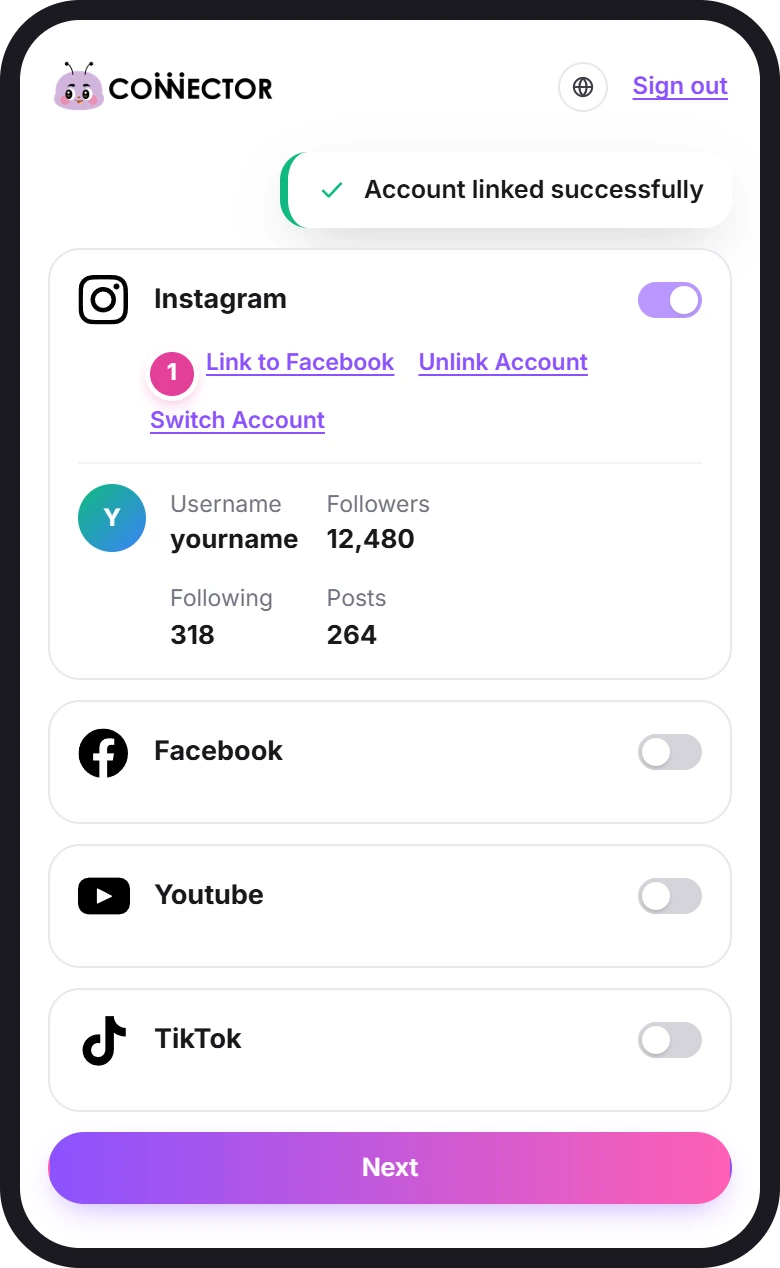
Once Instagram is linked, its row shows Link to Facebook 1. That's optional: it attaches your Facebook Page to your Instagram. You can finish signing up without it.
What each platform needs
- It must be a professional account (Business or Creator). A Creator account is fine; you don't need to switch it to Business.
- Linking uses Instagram's own login. You don't need to connect Facebook first.
- Allow every permission Instagram asks for. If you untick one, linking still works, but your reach and views won't sync, and later you'll see "Action Required: Grant Missing Instagram Permissions". How to fix that.
- You need a Facebook Page you manage. Groups and personal profiles can't be linked.
- If you manage several Pages, they're all read. The account passes if any one of them has enough followers.
YouTube
- Log in with the Google account that owns the channel.
- The channel needs a handle (its @name). If the Google account has no channel, or the channel has no handle, linking stops with "Could not fetch channel information". Log in with the Google account that owns your channel, check that the channel has a handle, then try again.
TikTok
- You go to TikTok, log in, and come back to Connector Club.
- If the page just reloads and nothing is linked, TikTok didn't finish the login. Try again, ideally on a computer browser.
Link or change accounts later
You can add, swap or remove accounts at any time:
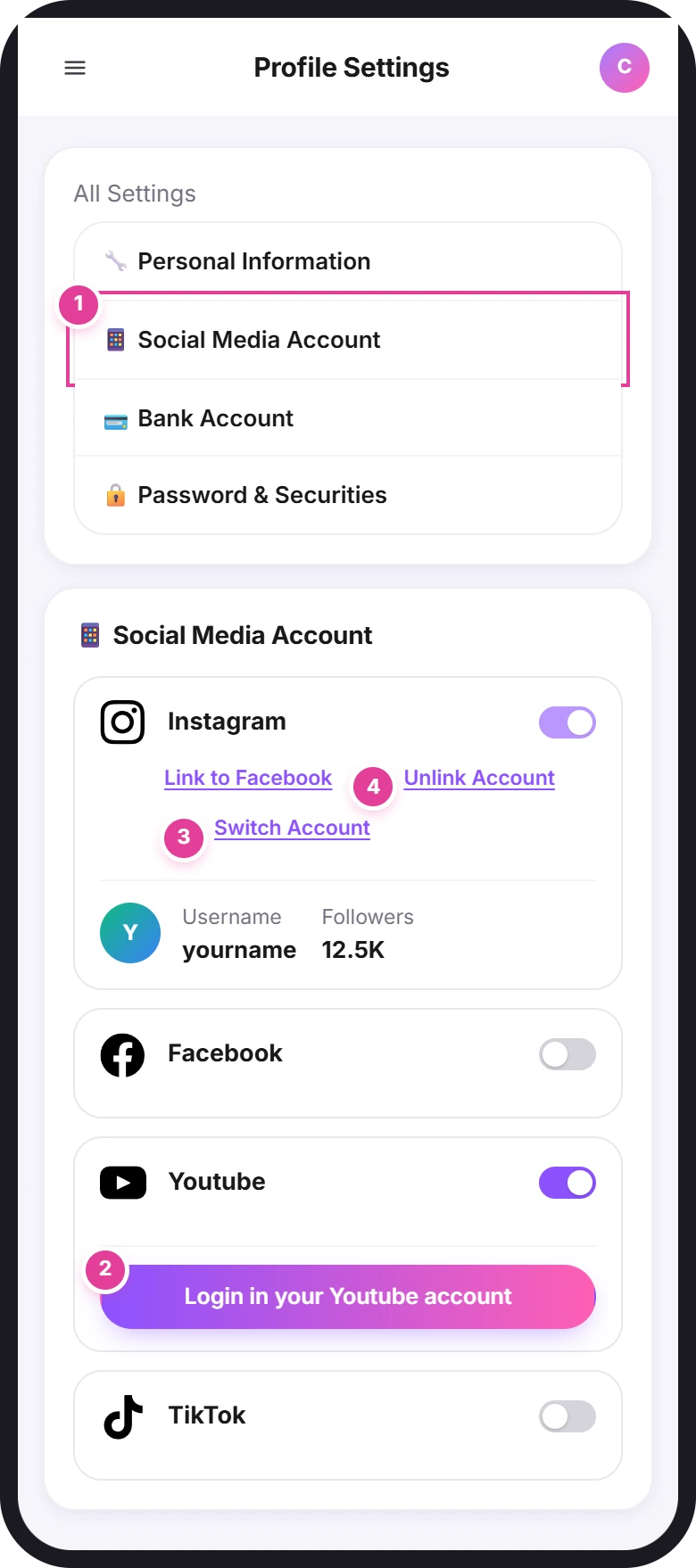
- Open your profile. Tap your picture at the top right, then Profile Settings.
- Choose Social Media Account 1 in the settings list.
- To add a platform, turn on its switch and tap its login button 2, the same as during sign-up.
- To replace an account with a different one, tap Switch Account 3. It runs the same login and follower check.
- To remove one, tap Unlink Account 4, then Submit to confirm. You must keep at least one linked account.
If linking fails
The two messages you're most likely to see pop up at the top of the screen for a few seconds:
| What you see | What it means | What to do |
|---|---|---|
| Your account does not meet the required criteria. Please try with a different account. | That account has fewer followers than the minimum for its platform. | Link a bigger account, or one on another platform. |
| An English error from Instagram, or "Error during Instagram login" | Instagram didn't complete the login. A personal Instagram account is one possible cause. | Check that Instagram is a professional account (Business or Creator), then link again and allow everything. |
Every other message, platform by platform, with what to do, is in Fix problems linking your social accounts.
Report a problem from the sign-up page
On the sign-up step, the link Facing Issue? Try do it on computer browser or troubleshoot here opens Report your issue. Pick the platform 1 and type your handle, describe what happens 2, add a screenshot 3 if you can, and tap Report Error 4. You'll see "Issue reported successfully".
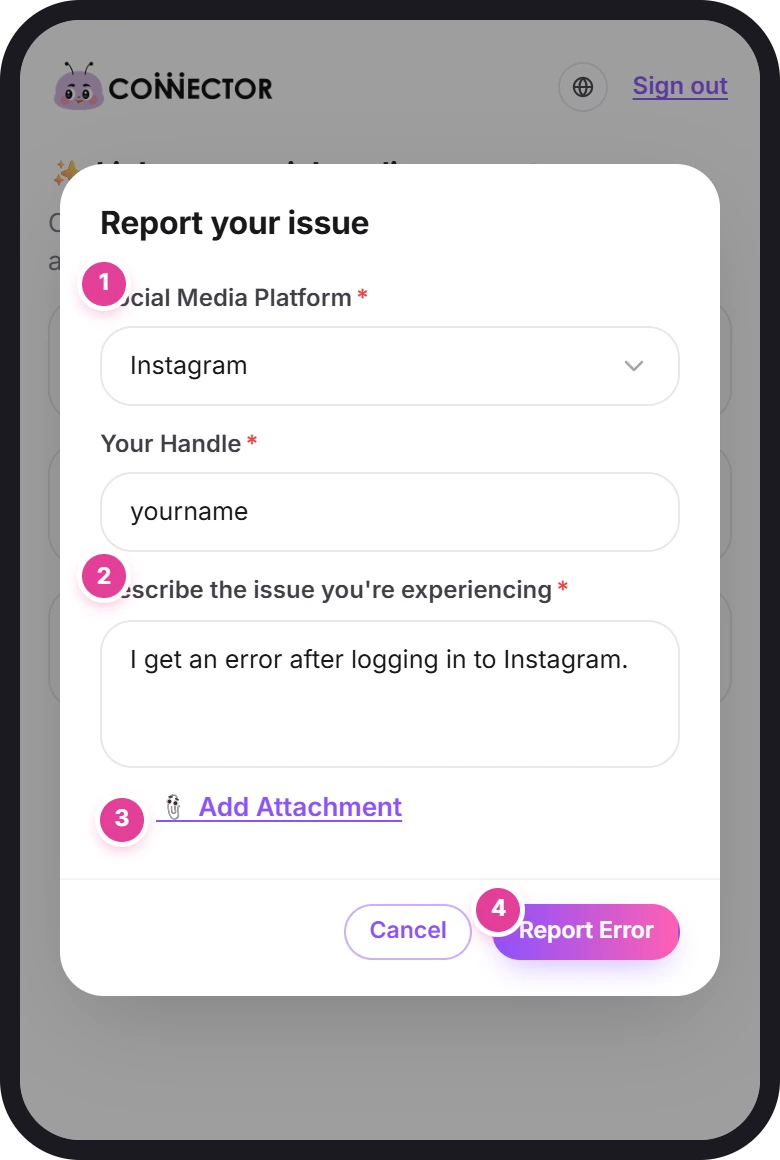
This form is only on the sign-up step. If you've already signed up, email us at info@connector.cc instead.
Did this answer your question?
Thanks. It helps us know which guides work.
Sorry about that. Tell us what was missing and we’ll answer you and fix the guide. Email us