
Applying for a job is how you get work from brands on Connector Club. You find a job on Discover, read the brief, and send your price with Easy Apply. The brand reviews your quote, and the work starts once they approve it.
Find jobs on Discover
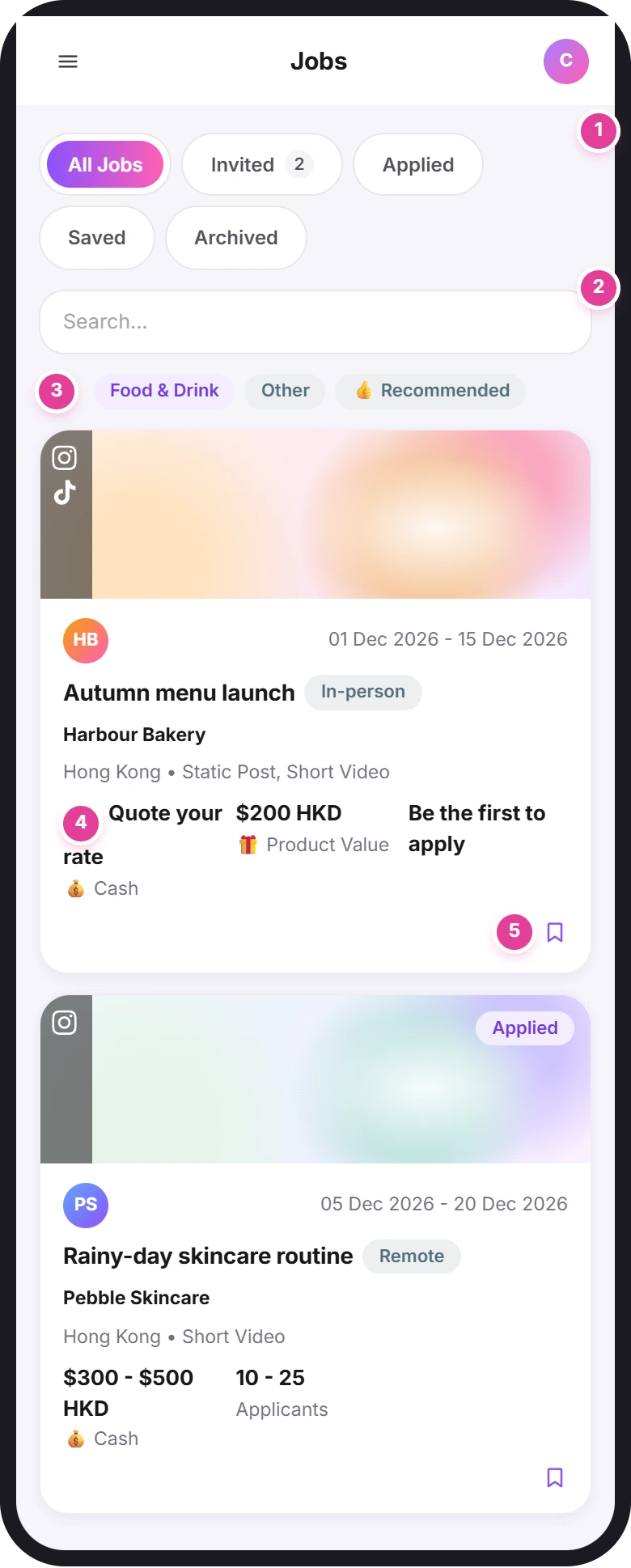
Tap Discover in the menu. The page's title says "Jobs".
All Jobs lists the open jobs in your country for the platforms you've linked. If you expect more jobs, check that your accounts are linked: see Link your social accounts.
- Pick a tab 1: All Jobs, Invited (jobs brands invited you to, with a count), Applied (quotes the brand hasn't approved yet), Saved or Archived (jobs where the brand archived your application).
- Search 2 by typing in the "Search..." box. The list updates when you stop typing.
- Narrow it by category 3. On the All Jobs tab, a row of categories for your country appears, plus Other and 👍 Recommended. It only shows if your profile has a country set.
- Scroll down to load more jobs.
On Home, the Easy Apply button on a recommended job only opens the job. Tap Easy Apply again inside the job to apply.
What a job card tells you
| On the card | What it means |
|---|---|
| Platform icons on the picture | The platforms the job is for: Facebook, Instagram, YouTube or TikTok. |
| Dates at the top right | The posting window. |
| In-person or Remote | Whether you need to be somewhere in person for the job. |
| "Quote your rate" and 💰 Cash 4 | The brand pays cash, and you name the price. |
| "$300 - $500 HKD" and 💰 Cash | The brand pays cash and suggests this range. |
| "$200 HKD" and 🎁 Product Value | You get a product or service worth this much. |
| "Be the first to apply", or a range such as "10 - 25 Applicants" | How many creators have applied so far. |
| Applied | You've already applied to this job. |
| Bookmark icon 5 | Saves the job to the Saved tab. Tap it again to unsave. |
Open a job
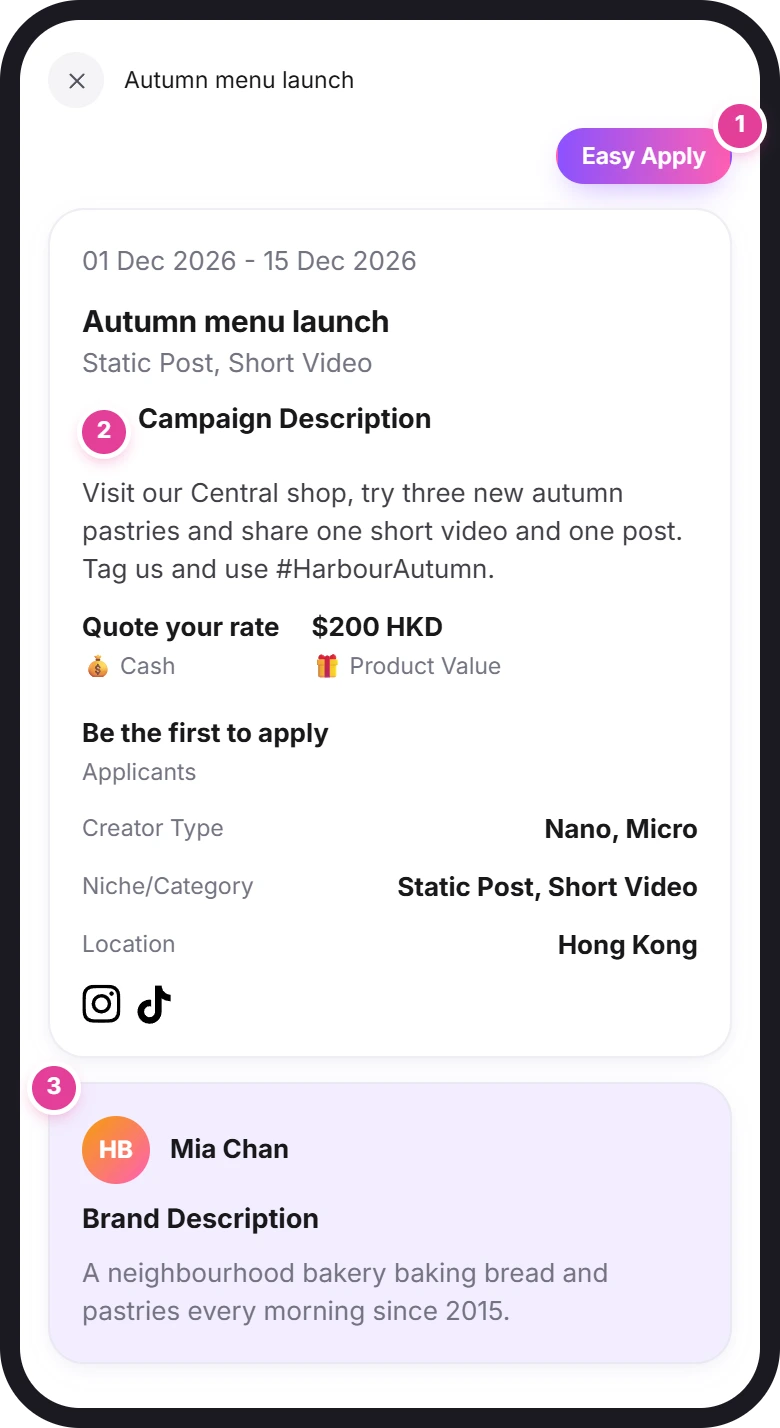
Tap a card to open the job. It slides in over the list.
- Easy Apply 1 sits at the top. If it isn't there, you've already applied, or the campaign isn't open right now.
- Campaign Description 2 is the brief. Read it before you quote.
- Under the pay, you'll see Creator Type, Niche/Category and Location.
- The brand card 3 shows the name of the person at the brand and the Brand Description.
To save a job you haven't applied to, use the bookmark on its card. The job page itself has no Save button until you've applied or been invited.
Apply with Easy Apply
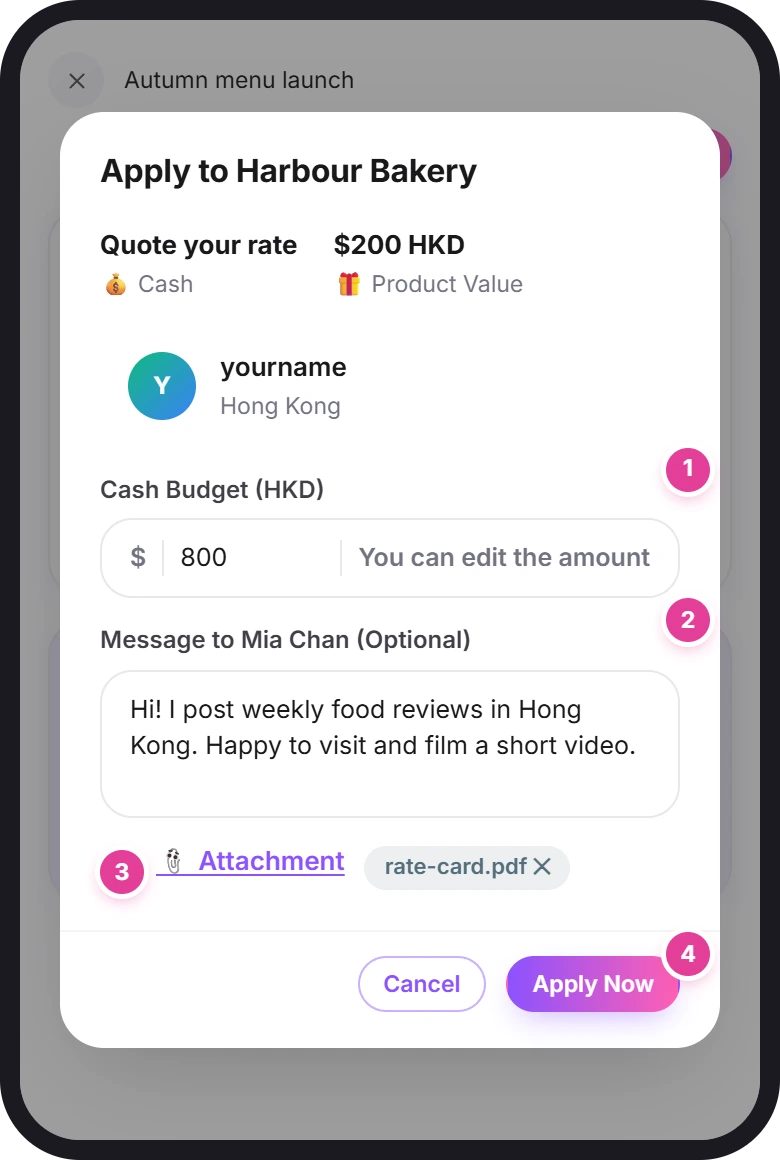
- Tap Easy Apply at the top of the job. A window opens with the title "Apply to" and the brand's name.
- Enter your price 1 under Cash Budget. The currency in brackets, such as HKD, is the campaign's currency. You can't change it.
- Add a message 2 to the brand, if you like. It's optional. Say why you're a good fit.
- Attach files 3 if they help, such as a rate card or past work. Images can be up to 10 MB, documents up to 50 MB and videos up to 500 MB.
- Tap Apply Now 4.
How to quote
- Whole numbers only. "800" works, "800.50" doesn't. The box won't let you type a decimal point, "e", "+" or "-".
- In the campaign's currency, shown in the label: for example "Cash Budget (HKD)".
- What's already in the box. On a "Quote your rate" job the box is empty. When the brand suggests a range, the box starts at the low end. Change it to your price.
- Product-only jobs have no price box. You'll see "Note: This campaign offers a sponsored product or service valued at" the product's value "as a reward, with no cash payment." Your quote is sent as 0.
| What you see | What it means | What to do |
|---|---|---|
| Budget is required. | The price box is empty. | Enter your price. |
| Please enter a valid number | The price has something other than digits. | Type digits only, with no currency sign or commas. |
| Decimal values are not allowed. Please enter a whole amount | The price has cents. | Round it to a whole number. |
| Minimum budget is 4 HKD. (the amount depends on the currency) | Your price is below the lowest amount allowed. | Enter a higher price. |
| Image size must be 10 MB or less. (or the same for video or document) | An attachment is too big. | Attach a smaller file. |
The $0 warning
Check before you quote $0
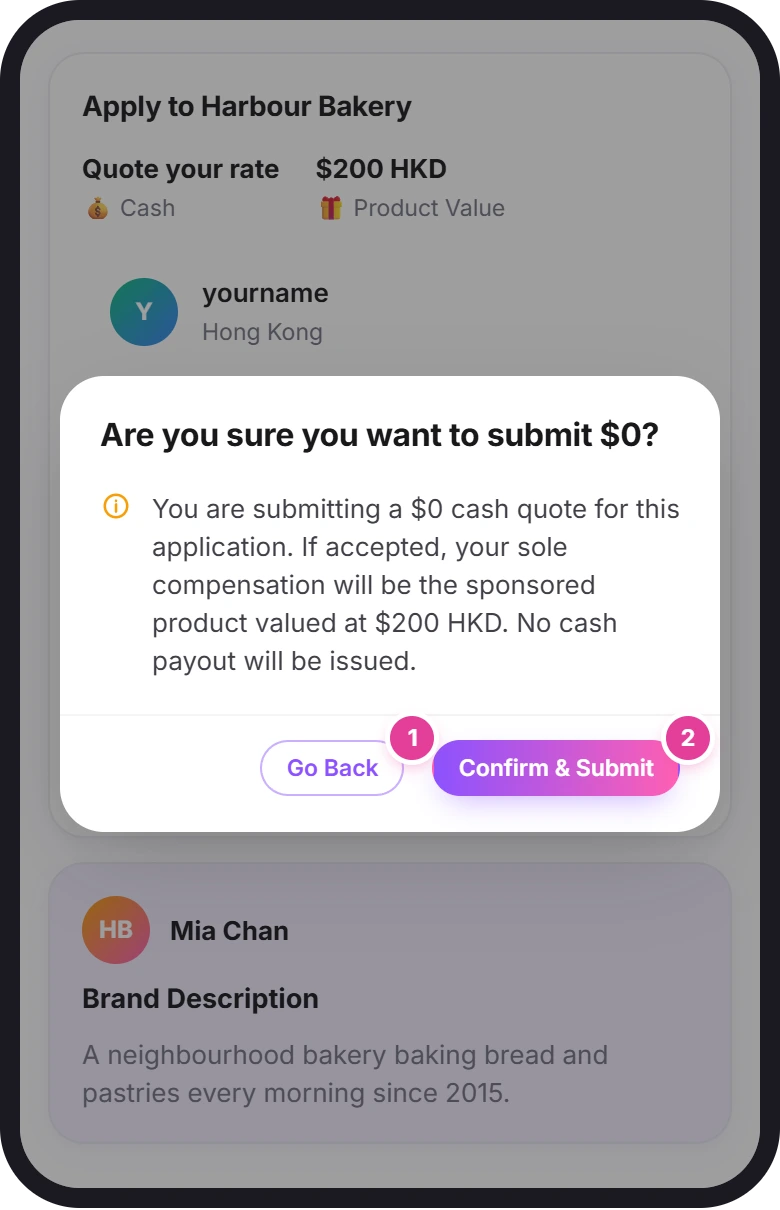
If you enter 0 on a cash job that suggests a budget or also offers a product, the app asks "Are you sure you want to submit $0?" If the brand accepts a $0 quote, the product is your only payment: "No cash payout will be issued." Tap Go Back 1 to change your price. Tap Confirm & Submit 2 only if you mean to do the job for the product alone.
Answer an invitation from a brand
Brands can invite you to quote for a job. You'll see the invitation on the Invited tab on Discover, as a count next to Discover in the menu, and under Invited Jobs on Home.
- Open the invited job. Its title ends in "Quote Pending" 1: the brand is waiting for your price.
- Read the brand's Job Offer in the chat. It has their message, an "Amount" and a "Due On" date (the end of the posting window). The Amount is the brand's budget per creator: the lower figure if they suggested a range, and "$0" on a "Quote your rate" job, where you set the price.
- Tap Make Offer 2 on the Job Offer, or Easy Apply 3 at the top. Both open the same window. Here its title says "Edit Price", and the button says Apply Now.
- Enter your price and tap Apply Now, as above.
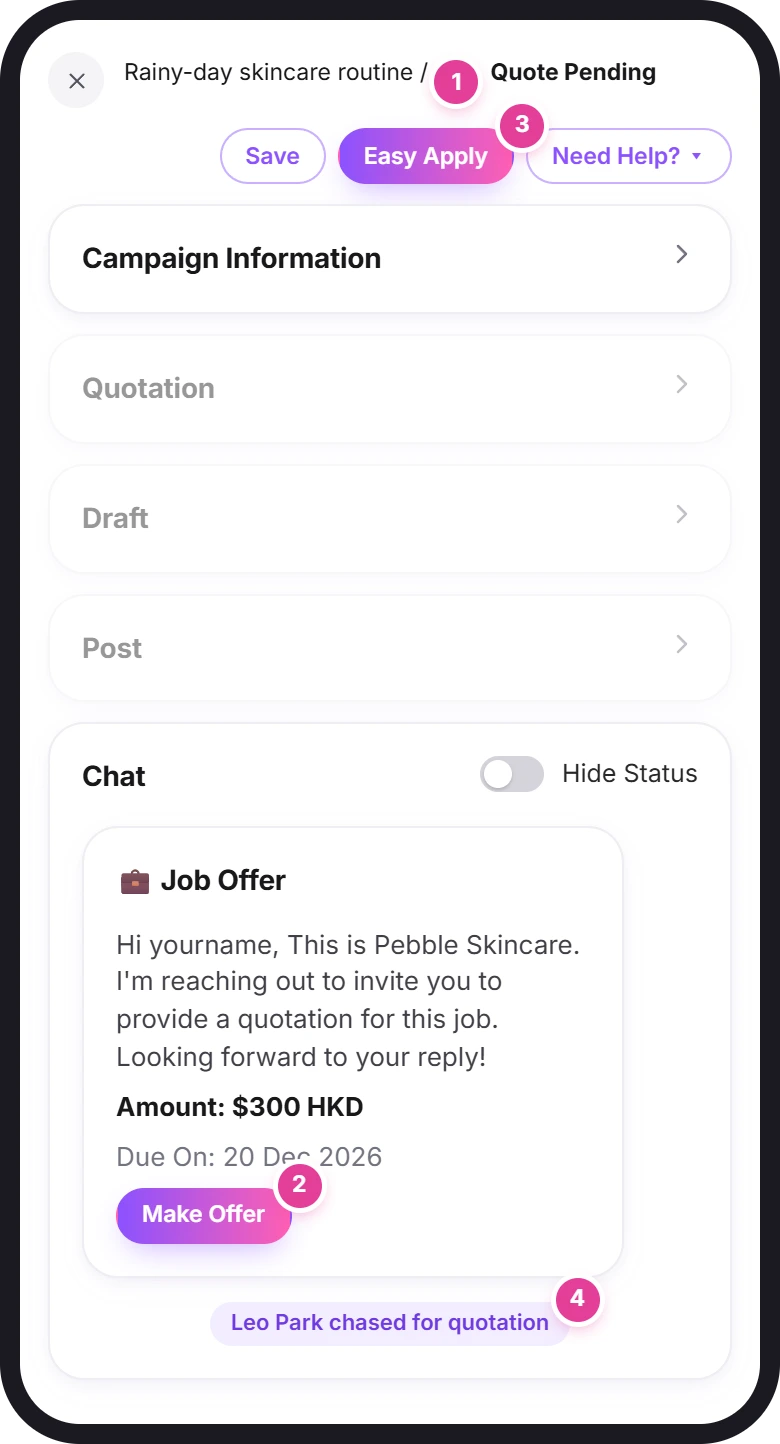
If the brand follows up, a note appears in the chat, such as "Leo Park chased for quotation" 4. The Hide Status switch hides these notes.
There's no button to decline an invitation. If you're not interested, tell the brand in the chat.
After you apply
You'll see "Application Submitted Successfully", then "Thank you for your application! We will review it and get back to you soon." Tap View My Applied Jobs to go to the Applied tab, or Discover More Jobs to keep browsing.
Here's what changes:
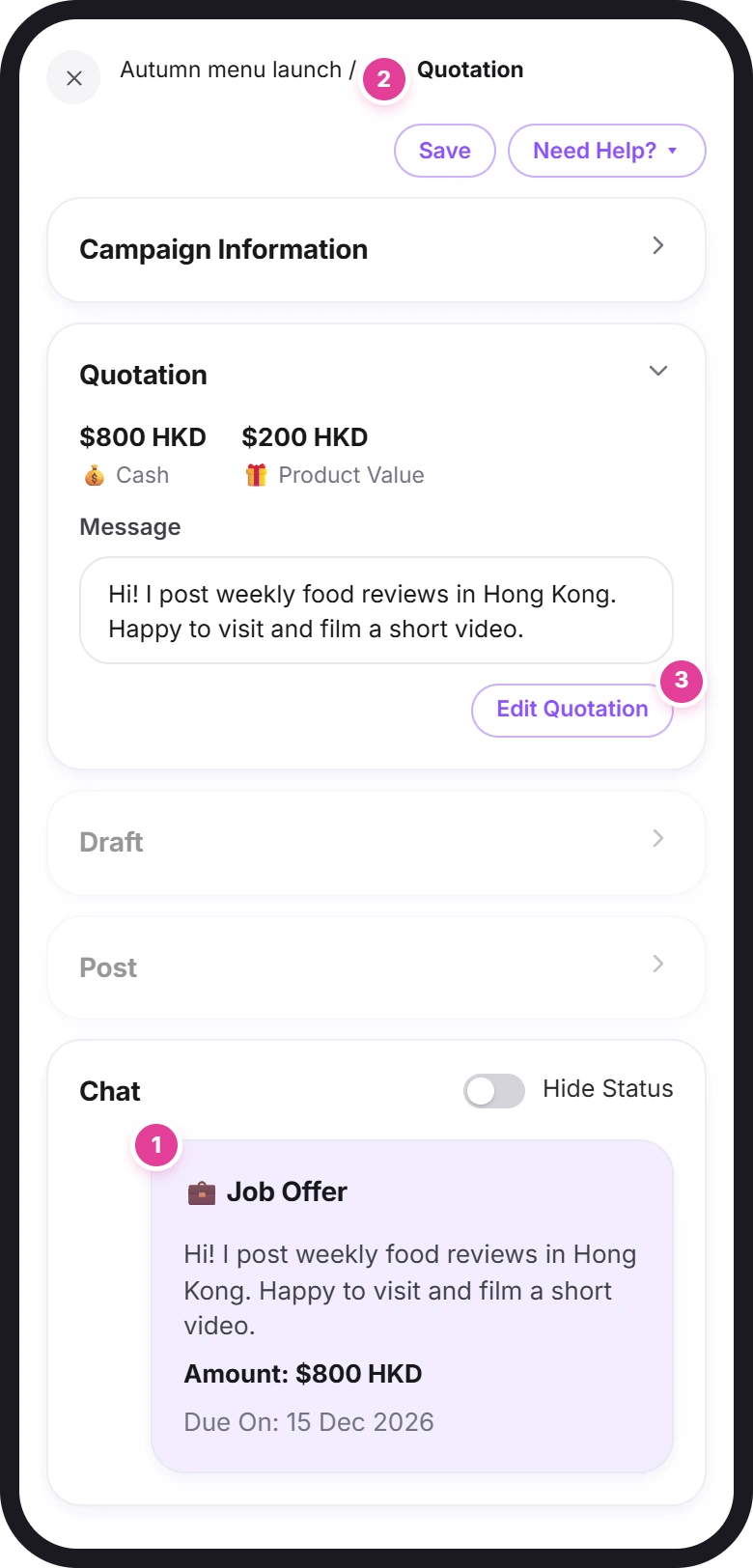
- The brand gets your quote as a Job Offer in the job's chat 1, with your message, the "Amount" and a "Due On" date.
- The job is marked Applied on Discover and appears on the Applied tab. That's where you find it until the brand approves your quote: it isn't on My Jobs yet.
- Inside the job, the title says "Quotation" 2: the brand hasn't approved your price yet.
- You can talk to the brand in the job's chat while you wait.
Change your price
Before the brand approves your quote:
- Open the job and find Quotation.
- Tap Edit Quotation 3.
- Change the amount and tap Update Price. You'll see "Application Updated Successfully".
After the brand approves it, change the price only once you've agreed it with them. The button then says Submit for approval, and the app asks "Revise Agreed Quotation?" with Continue or Cancel. The brand has to approve the new price. Until they do, Quotation shows the old and new prices with an arrow, like "$800 HKD → $900 HKD".
On product-only jobs there's no Edit Quotation. If the brand changes the campaign, a Resubmit button appears there instead.
You can't withdraw an application while it's waiting for approval. If you change your mind, tell the brand in the chat.
Next steps
Once the brand approves your quote, the job moves to My Jobs and the work starts: drafts, the post, then payment. See Submit drafts, post, declare completion and get paid. For what each status means, see the status glossary.
Did this answer your question?
Thanks. It helps us know which guides work.
Sorry about that. Tell us what was missing and we’ll answer you and fix the guide. Email us