Messages is where you chat with the creators in your campaigns. Each chat is between you and one creator about one campaign, so a creator in two of your campaigns has two chats. Above each chat are the buttons for the creator's current step, so you can approve a quote, open drafts or confirm completion without leaving the page.
How a chat starts
A chat appears when you invite a creator with Contact Now and send the message, or when a creator applies to your campaign. There's no button to start a new chat in Messages. See Recruit creators and approve quotes.
Open Messages
- Click Messages in the left menu. It opens on all your campaigns.
- Or, in a running campaign, click Message View next to the campaign's tabs. Messages opens with that campaign selected.
Find a chat
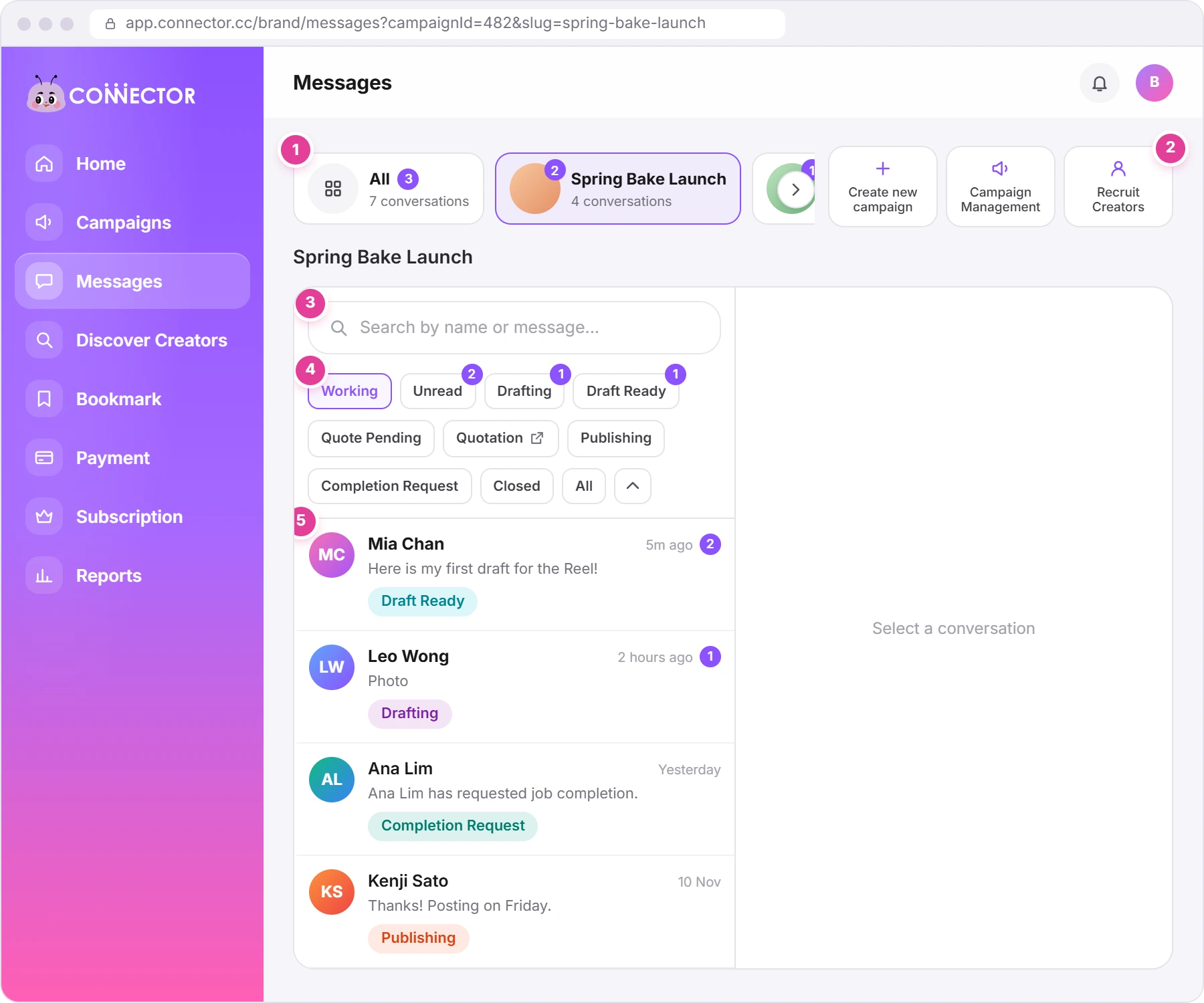
- Campaign cards 1: All, then each running campaign. A purple number shows how many creators have unread messages. Click a campaign to see only its chats; with All, each chat shows its campaign's name.
- Shortcuts 2: Create new campaign and, for the selected campaign, Campaign Management and Recruit Creators (its Applicants list).
- Search 3 looks in creators' names, campaign names and the last message of each chat.
- Filters 4: see the table below.
- Chats 5: the creator, the time and number of unread messages, the last message ("Photo", "Video" or "File" for attachments) and the creator's step.
| Filter | What it shows |
|---|---|
| Working | Opens first. Creators whose quote you've approved: Drafting to Closed. |
| Unread | Chats with unread messages, except chats at Quotation. |
| Drafting, Draft Ready | Creators at that step. |
| Quote Pending, Quotation, Publishing, Completion Request, Closed, All | Click the arrow at the end of the filters to show these. |
A purple number on a filter counts the creators in it with unread messages.
Can't find a creator you invited?
Working only shows creators whose quote you've approved. Invited creators are under Quote Pending, and creators whose quote is waiting for you are under Quotation. Click the arrow to show those filters.
Read and answer a chat
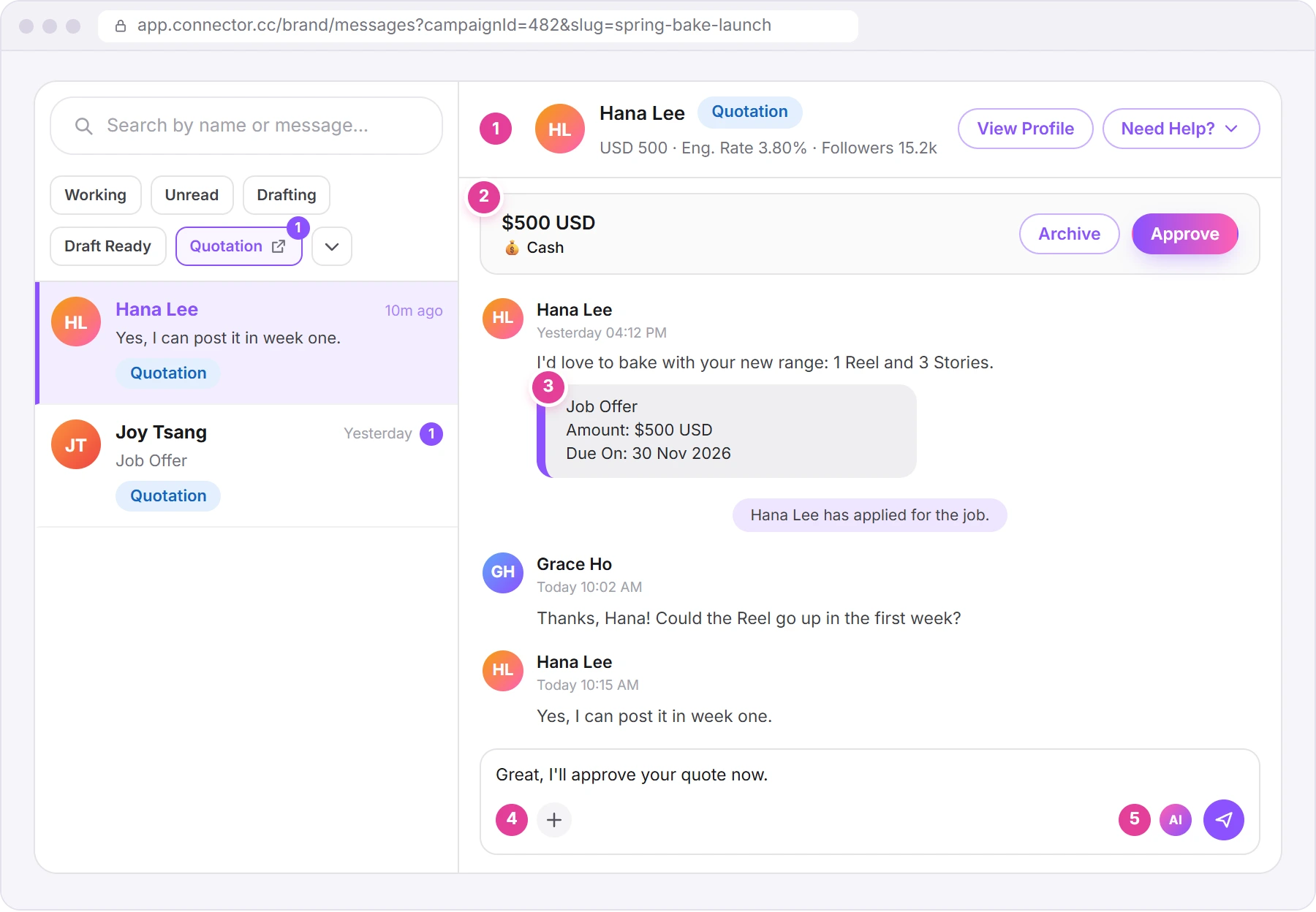
- The creator's bar 1 shows their name, step, price, "Eng. Rate" and Followers. Click it, or View Profile, to open the creator's side panel, as on Campaign Management. The chat then moves into the panel ("Chat is open in the sidebar").
- The action bar 2 holds the buttons for the creator's step (see the table below).
- A Job Offer card 3 carries a quote: the creator's message, the "Amount" and a "Due On" date. Notes in the middle record what happened, such as "You chased for draft". Links in messages can be clicked.
Send messages, pictures and videos
- Type in the box at the bottom and click the send button.
- To attach a file, click the attachment button 4. You can send pictures (JPEG, PNG, WEBP or SVG, up to 10 MB) and videos (MP4, MOV or MKV, up to 500 MB).
- To polish your wording, click the AI button 5 ("Improve politeness and clarity with AI"). It replaces your text with a rewritten version: read it before you send.
Files you send are also kept under Other Attachments in the creator's side panel. Text you haven't sent stays in that chat's box, in the same browser. You can send messages only while the campaign is running.
PDF and Word files can't be sent
The file window lists them, but the app accepts only pictures and videos: "Only JPEG, PNG, WEBP, SVG images and MP4, MOV, MKV videos are allowed." To share a document, paste a link to it instead.
The buttons at each step
| Creator's step | On the creator's bar | In the action bar |
|---|---|---|
| Quote Pending | Need Help? | Nothing |
| Quotation | View Profile, Need Help? | The quote (💰 Cash, and 🎁 Product Value if there's a product), Archive, Approve |
| Drafting | Chase Draft, $+, Need Help? | Nothing |
| Draft Ready | View Profile, $+, Need Help? | Up to three drafts and, for example, "2 drafts pending approval" |
| Publishing | Chase Publish, $+, Need Help? | Nothing |
| Completion Request | View Profile, $+, Need Help? | Up to three posts, Confirm Completion, Reject Completion |
| Closed | Need Help? | Nothing |
Quotes, drafts and completion
- Approve opens Approve and Proceed, as on Campaign Management (how approving works). Archive here sets the creator aside straight away, without asking.
- A draft picture, or "drafts pending approval", opens the draft to comment on or approve. Drafts you've opened show "Seen".
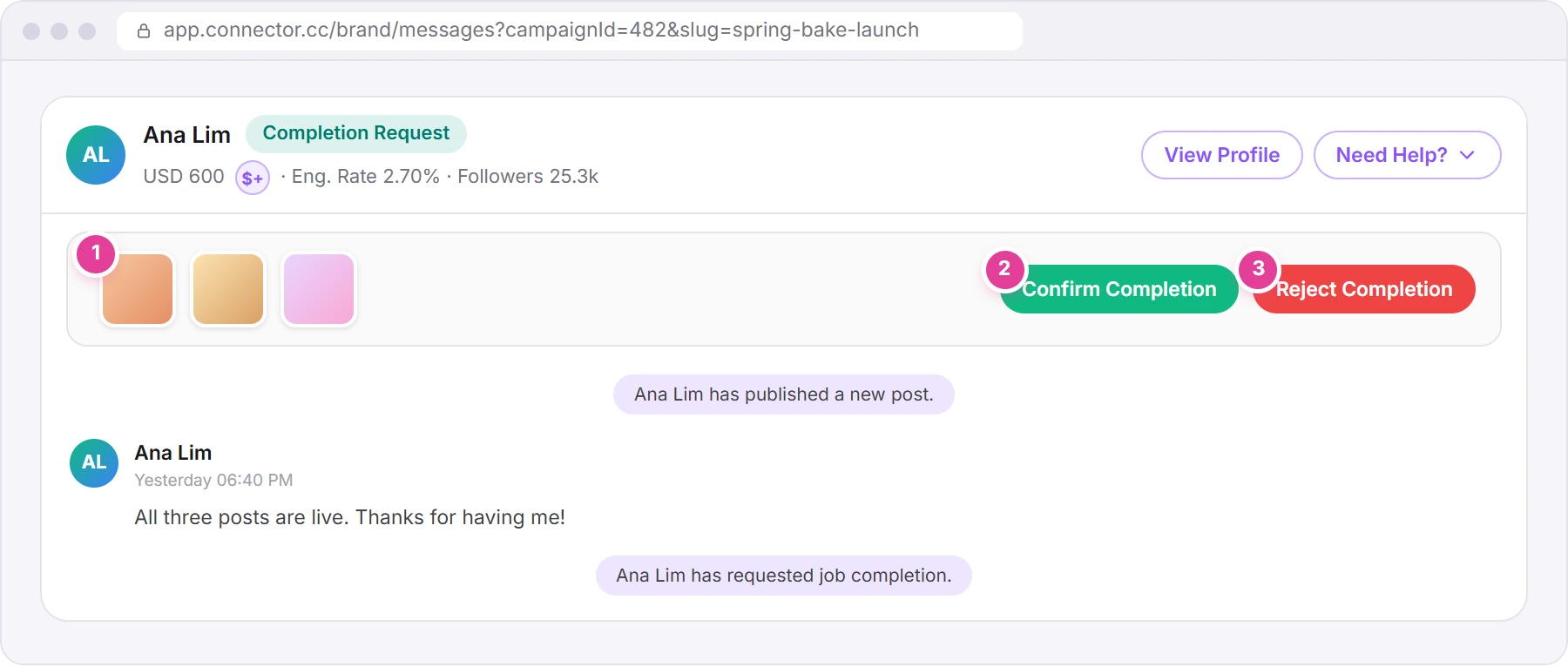
- The post pictures 1 open the post's screenshot in a new tab.
- Confirm Completion 2 closes the creator's work order and, for a cash job, charges your card. Reject Completion 3 sends the work back. See Review drafts and confirm completion.
Reminders, budget and Need Help?
- Chase Draft 1 and Chase Publish send the creator a reminder, and a note such as "You chased for draft" appears in the chat. To chase a quote, use Chase Up on Campaign Management.
- $+ 2 ("Increase budget") raises the creator's cash budget, with the same rules as Increase cash budget (see Payments).
- Need Help? 3 has the same choices as in the side panel, by step. Review drafts and confirm completion explains them.
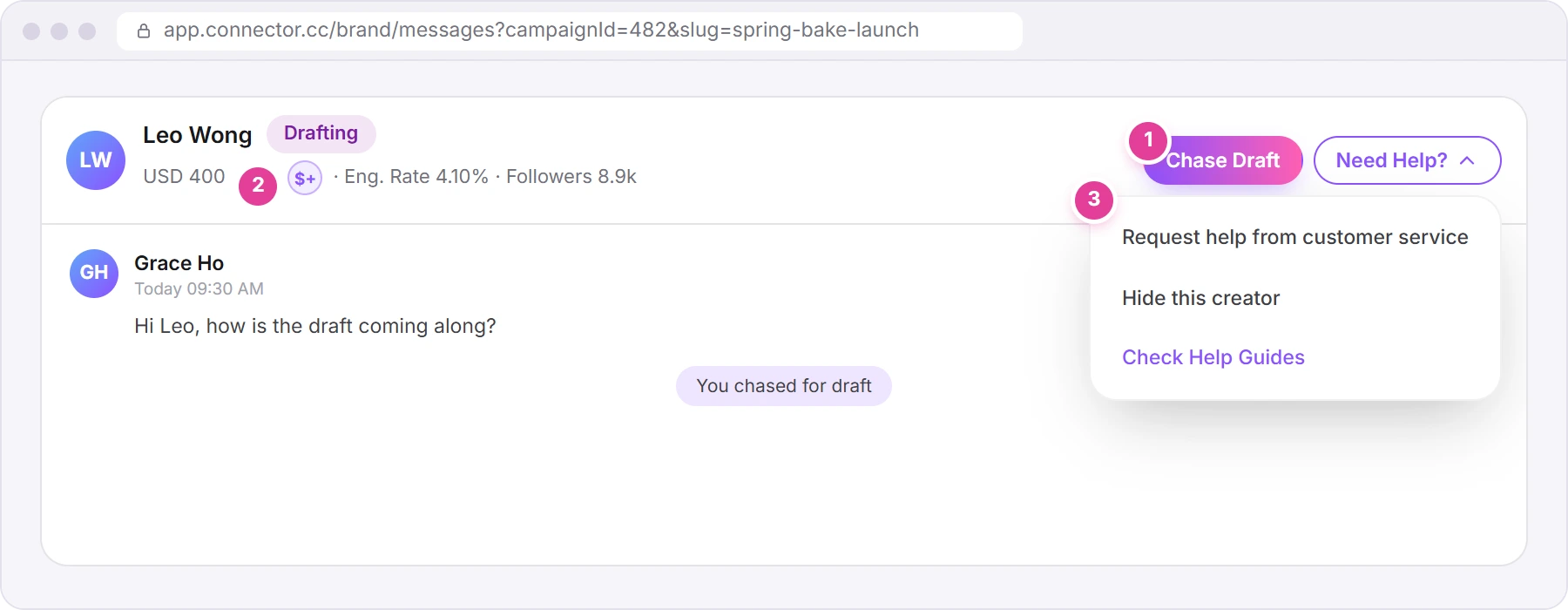
On a phone-sized screen, the creator's bar has no buttons and the action bar is hidden: tap the creator's bar to open their side panel, which has them all.
What the creator receives
Your message appears in the chat on the creator's job page. They're notified in the app ("💌 Harbour Bakery sent you a new message in Spring Bake Launch campaign.", with your company name), by email ("New Message in Spring Bake Launch") and on WhatsApp if they've turned it on. Several messages within 15 minutes bring one notification.
When a creator writes to you, you're notified the same way, and the notification opens the campaign's Campaign Management tab.
If something isn't where you expect
| What you see | What it means | What to do |
|---|---|---|
| "No working chats" | No creator here is past the quote step yet. | Click View all chats. |
| A campaign isn't among the cards | Only running campaigns are listed. Chats of completed campaigns leave Messages. | Open the campaign and click a creator's card on Campaign Management to read the chat. You can't send new messages there. |
| A creator proposed a new price after you approved | Messages has no button for it. | Open their side panel and approve it under Quotation (see Recruit). |
| "Unable to load this conversation. Try again or open it from Campaign Management." | The chat didn't load. | Click the chat again, or open the creator from Campaign Management. |
Did this answer your question?
Thanks. It helps us know which guides work.
Sorry about that. Tell us what was missing and we’ll answer you and fix the guide. WhatsApp us