Recruiting is how creators join your campaign. You add creators you like, or creators apply to your campaign. Each one sends you a price, called a quote, and you approve the quotes you want. Approving doesn't charge you anything: your card is charged only when you confirm the creator's finished work.
Each creator in a campaign has their own work order, with its own quote, drafts, posts and payment. Its status tells you which step it's at. What each status means lists them all.
Before you start
- A running campaign. The buttons in this guide only work while the campaign is running. If you don't have one yet, create a campaign.
- A public campaign, if you want applicants. Creators can only see and apply to a public campaign.
- A saved card. You need a saved card to approve a quote. If you have none, the app asks for one when you approve (see below).
- Room in your plan. Your subscription plan limits how many creators you can browse and how many work orders you can have.
Open your campaign
- Click Campaigns in the left menu, then click your campaign. It opens on Campaign Overview.
- Use the tabs along the top, in order: Campaign Overview, Recruit Creators, Campaign Management and Payment.
While the campaign is running, three buttons sit to the right of the tabs: Message View, Edit Campaign and Complete Campaign. In a narrow window they become round icons at the bottom right.
Find creators and add them
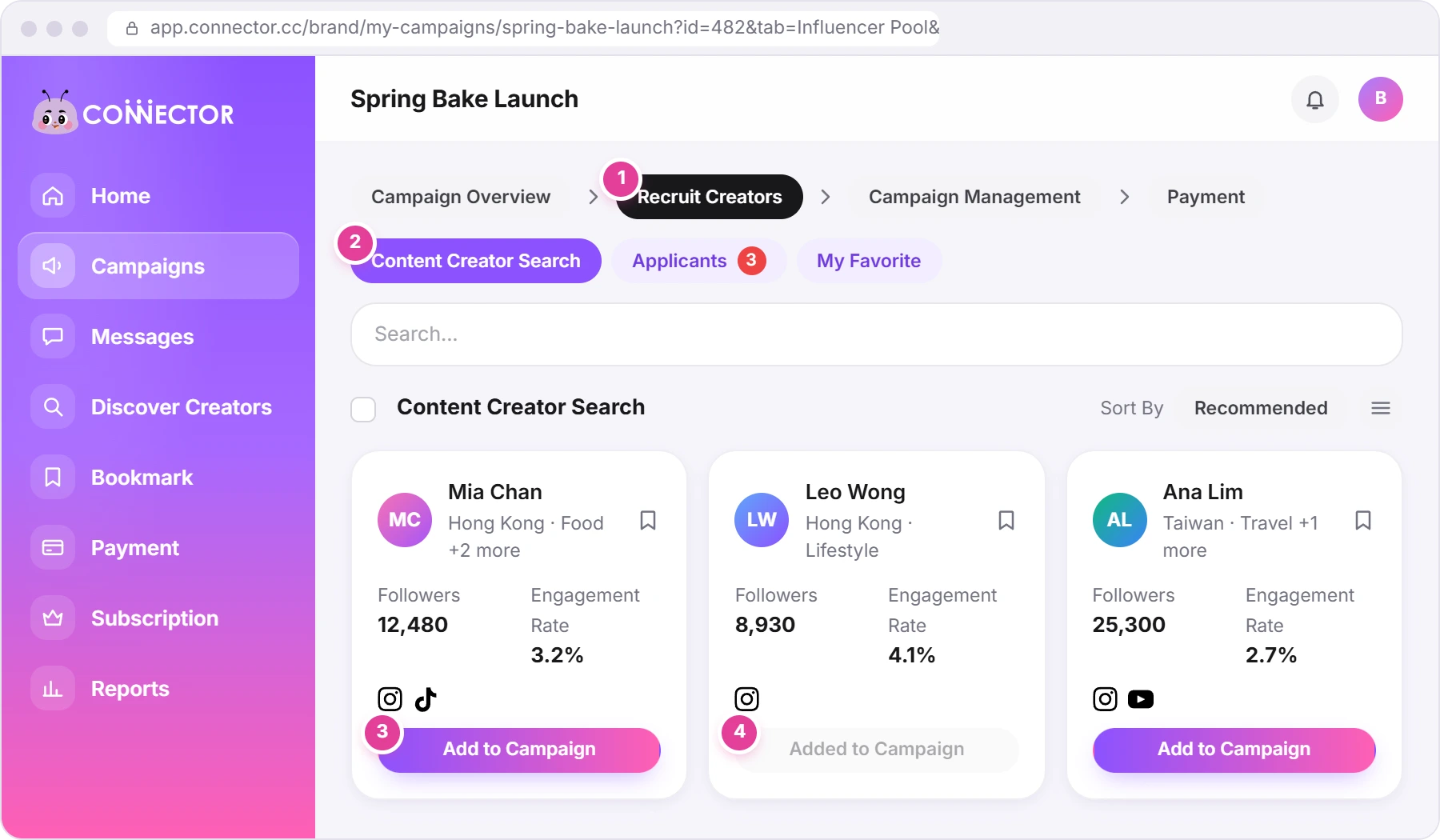
Click Recruit Creators 1. It has three lists 2:
- Content Creator Search: creators on Connector Club, with search, filters and Sort By.
- Applicants: creators who applied to your campaign, with their quotes. It opens first when you have applicants. A red number shows how many you haven't looked at yet.
- My Favorite: creators you bookmarked.
- Open Content Creator Search and narrow the list with the search box and filters.
- Click a creator's card to see their profile, numbers and top posts.
- Click Add to Campaign 3. The button turns grey and reads Added to Campaign 4.
- To add several at once, tick the box next to the heading. This selects every creator in the list you haven't added yet. Click a creator's picture to leave them out (click it again to put them back), then click Add All To Campaign.
Adding a creator doesn't contact them
Add to Campaign only puts the creator on your list, under Uncontacted in Campaign Management. They don't hear about your campaign until you click Contact Now (see "Invite creators to quote" below). The window that opens after adding says so: "You have not yet contacted the influencer."
Review applicants
Creators who apply send a quote with their application.
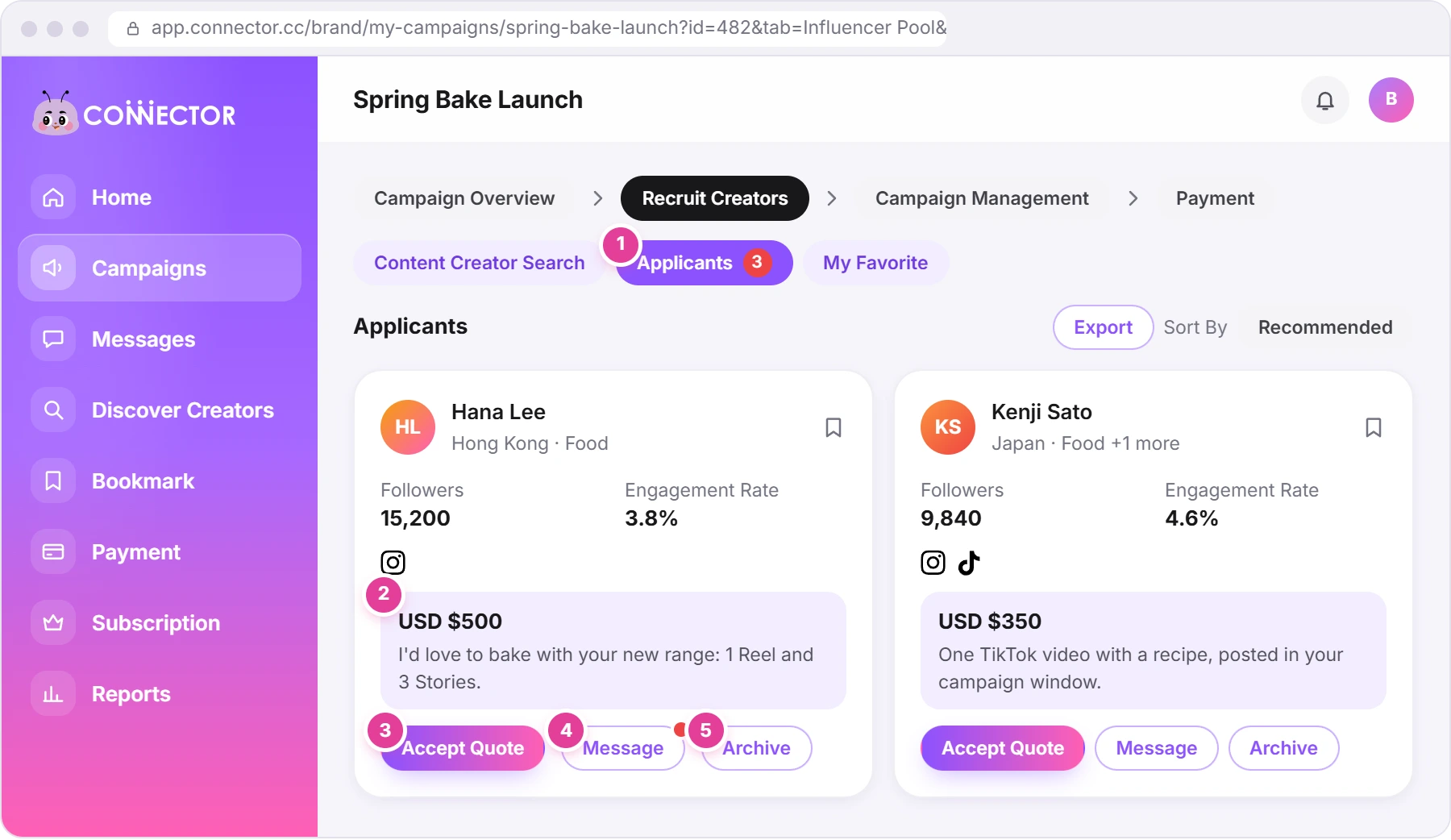
- Open Applicants 1.
- Read the quote 2: the price and the creator's message, in the purple box on each card.
- Click Accept Quote 3 to approve it (see "Approve a quote" below).
- Or click Message 4 to chat first. A red dot means unread messages.
- To set an applicant aside, click Archive 5, then Submit.
Export downloads your list of applicants. It isn't available on the free plan.
If your campaign is private, Applicants shows "Your campaign is currently private." with a Switch to Public button.
Invite creators to quote
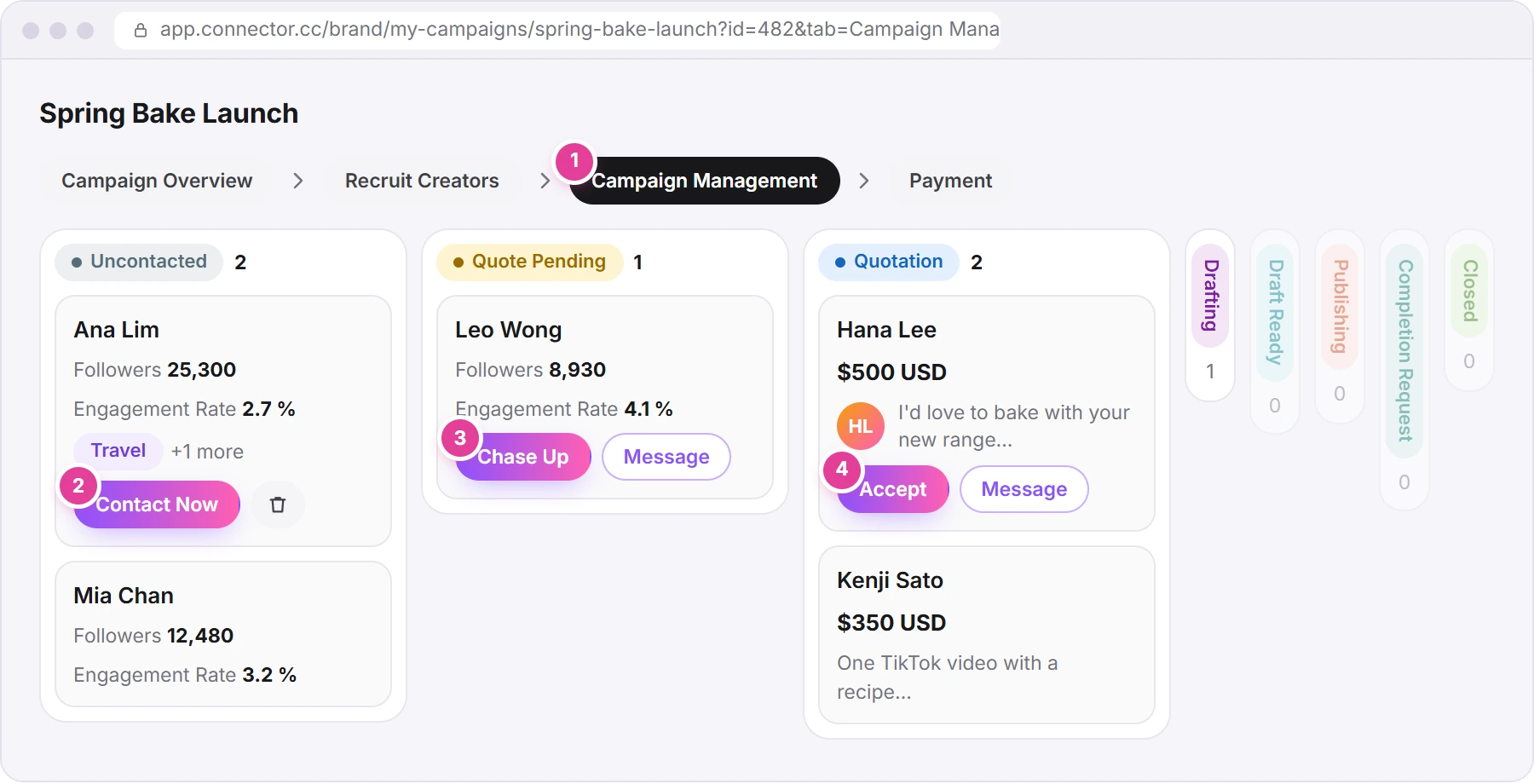
Creators you added wait in Campaign Management 1. It shows each creator as a card in a column for their step: Uncontacted, Quote Pending, Quotation, Drafting, Draft Ready, Publishing, Completion Request and Closed. Empty columns are faded.
- Click Contact Now 2 on a creator under Uncontacted. A side panel opens with a chat, and the message is written for you: "Hi [creator], This is [your name]. I'm reaching out to invite you to provide a quotation for this job. Looking forward to your reply!"
- Change the message if you like, then send it. Nothing is sent until you do. It arrives as a Job Offer card with your budget per creator and the posting due date, and the creator answers with a price.
- Wait for the quote. The creator moves to Quote Pending. To nudge them, click Chase Up 3. You'll see "Chased-up message sent successfully", and "You chased for quotation" appears in the chat.
- When the quote arrives, the creator moves to Quotation. Click Accept 4 to approve it, or click the card to read the quote first.
- To remove someone you haven't contacted, click the bin icon on their card, then Submit. You'll see "Influencer removed successfully".
- The Quotation column shows five cards, then View all. That button opens Applicants, which lists only creators who applied, so creators you invited may not be there. Find them on the board instead.
- If the board is blurred with "To begin with, please return to 'Recruit Creators' and add at least one Creator to the campaign", nobody is in the campaign yet. Click Return to Recruit Creators.
Read a quote
Click a creator's card, or Message, to open their side panel. It's the same panel at every step, and Messages in the left menu opens it too. In Messages, click the creator's bar above the chat (see Messages).
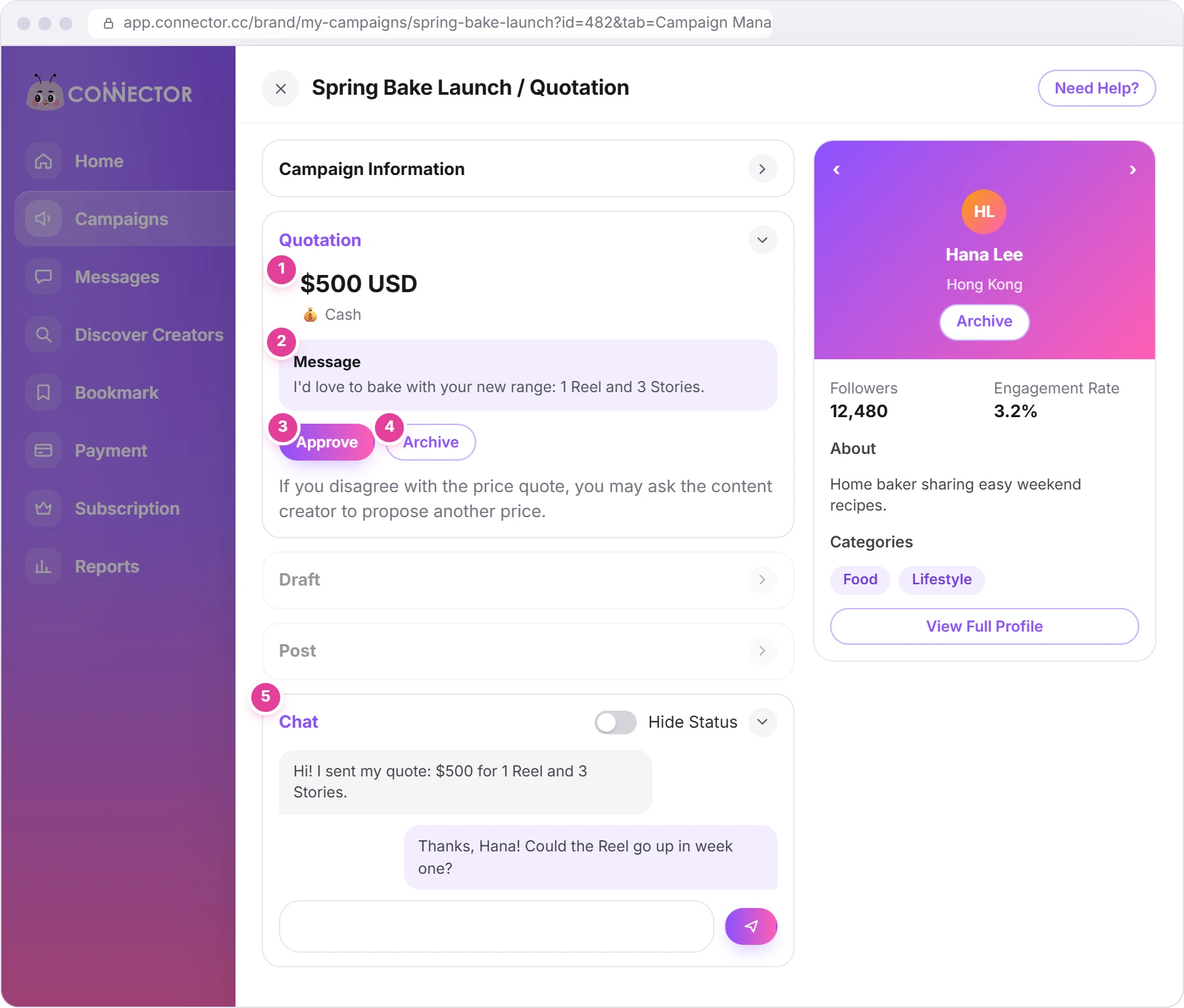
- The top line shows the campaign and the creator's step, for example "Spring Bake Launch / Quotation".
- Quotation 1 shows the price, for example "$500 USD", marked 💰 Cash. If the campaign includes a product, its value shows too, marked 🎁 Product Value.
- Message 2 is what the creator wrote with the quote. The box shows even when they wrote nothing.
- Approve 3 approves the quote. Archive 4 sets the creator aside.
- Chat 5 is where you talk with the creator. As the panel says: "If you disagree with the price quote, you may ask the content creator to propose another price." The creator can then change their quote.
- On the right is the creator's card: followers, engagement rate, categories, top posts and View Full Profile.
Approve a quote
Accept on the board, Accept Quote on Applicants and Approve in the side panel all do the same thing: they open Approve and Proceed.
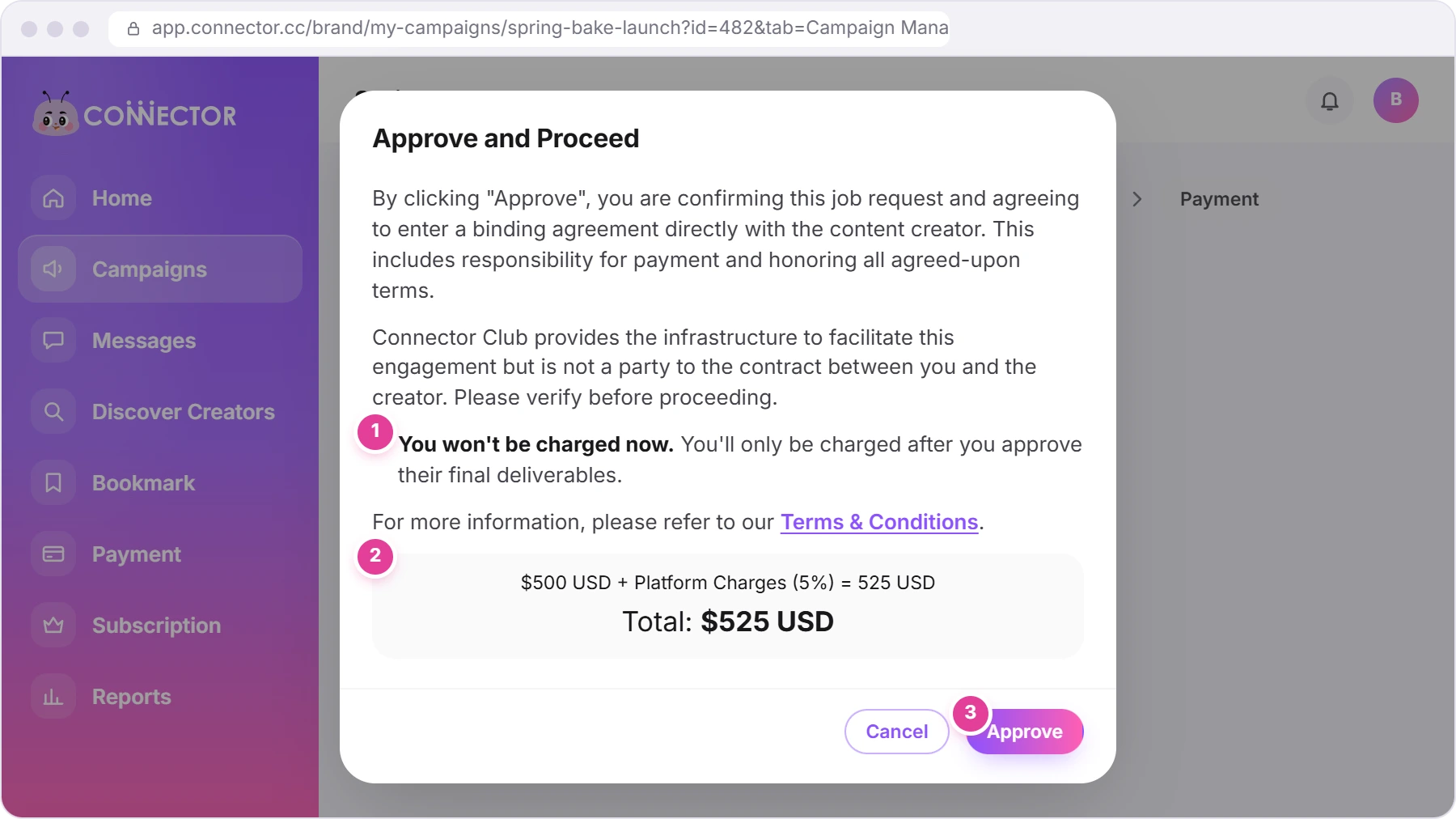
- Read the window. It says: "By clicking "Approve", you are confirming this job request and agreeing to enter a binding agreement directly with the content creator. This includes responsibility for payment and honoring all agreed-upon terms." and "Connector Club provides the infrastructure to facilitate this engagement but is not a party to the contract between you and the creator." The full terms are in our Terms & Conditions. The window also says "You won't be charged now." 1
- Check the price 2. The line shows the quote plus Platform Charges (5%) and the result. Total is what you'll pay for this creator: a $500 USD quote comes to $525 USD.
- Click Approve 3. The window closes, with no confirmation message, and the creator moves to Drafting.
Approving charges nothing. Your card is charged when you confirm the creator's completion request, after they've posted. See Review drafts, collect posts and confirm completion, and Payments, invoices and saved cards for what you pay.
If you have no saved card
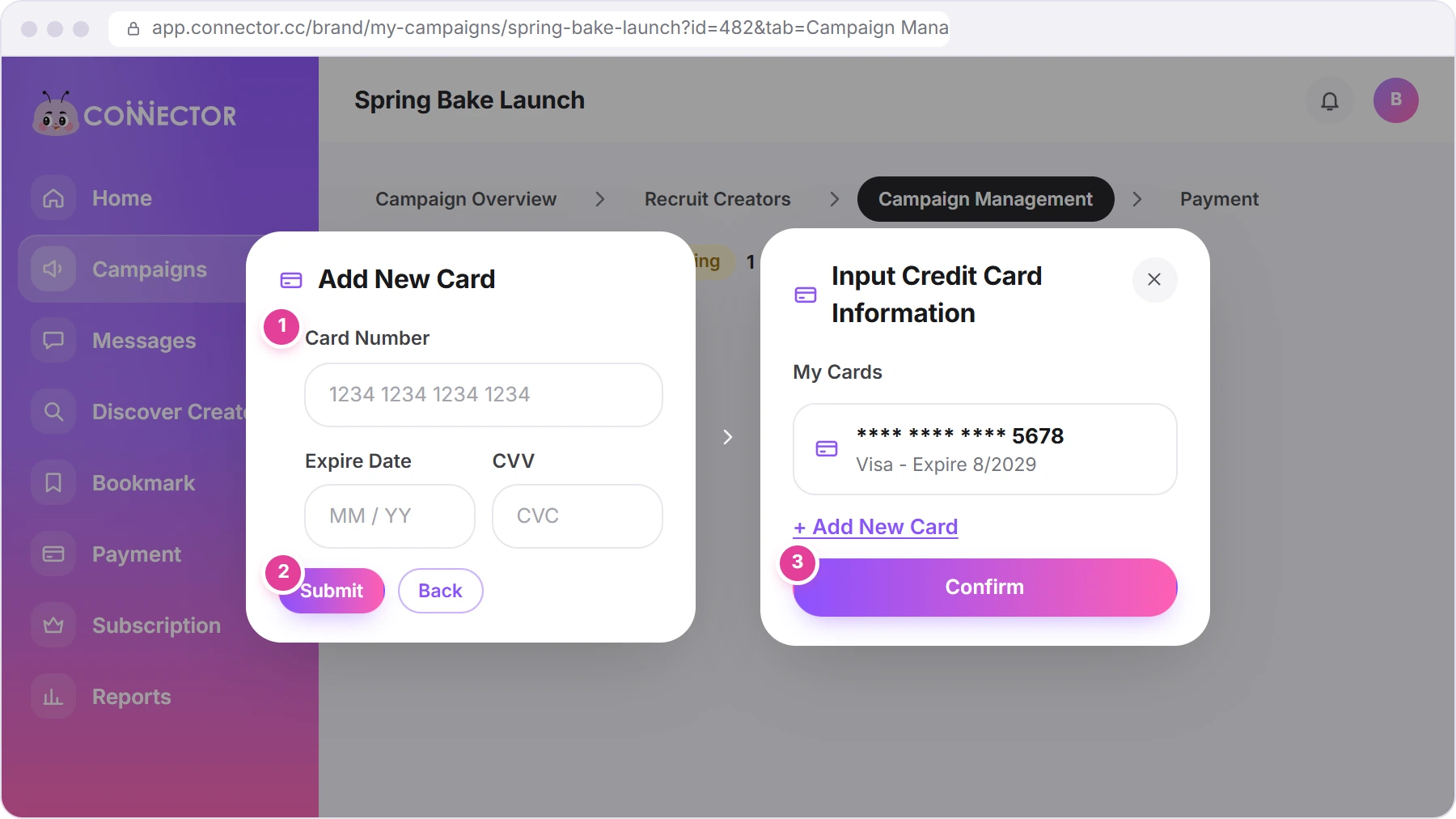
If you have no saved card, clicking Approve in Approve and Proceed opens "Input Credit Card Information" on top of it.
- Click Add New Card.
- Enter the card 1: Card Number, Expire Date and CVV. Click Submit 2. Your bank may ask you to confirm. You'll see "Card Save Successfully", and the card appears under My Cards.
- Click Confirm 3. This closes both windows.
- Click Approve again, then Approve in Approve and Proceed.
Confirm doesn't approve the quote
After you add a card, Confirm only closes the windows. The quote is still waiting. Click Approve again and finish in Approve and Proceed, then check that the creator has moved to Drafting.
The card stays saved for next time, and nothing is charged until you confirm a completion. You can manage your cards in Saved Cards (see Payments).
If the price changes later
A creator can propose a new price after you've approved. Their Quotation section then shows both prices, for example "$500 USD → $600 USD", with Approve. Approving opens Approve and Proceed with "Previous approved amount" and the new total.
To raise a creator's budget yourself, use Increase cash budget in the same section (see Payments).
Say no to a creator
- Uncontacted: click the bin icon on their card, then Submit.
- Quote Pending: open their side panel, click Need Help? → Hide this creator, then Hide.
- Quotation: click Archive on their Applicants card or in their side panel, then Submit. Need Help? → Hide this creator does the same.
Hidden and archived creators show an "Archived" label.
If something stops you
| What you see | What it means | What to do |
|---|---|---|
| "Input Credit Card Information" opens when you click Approve in Approve and Proceed | You need a saved card first. | Add a card, click Confirm, then click Approve again. |
| "You have reached the limit of work orders", and a window with the plans | Your subscription plan's work orders are used up. | Look at the plans in that window, or email info@connector.cc. |
| "Your browser influencers limit has been reached.", or blurred profiles in the search | You've browsed as many creators as your plan allows. Clicking a blurred profile opens the plans. | Look at the plans, or work with the creators you've already added. |
| A red bar: "This campaign is currently being restricted. Please contact connector club staff at info@connector.cc to solve the problem" | Connector Club has restricted the campaign. Most buttons show this message instead of working. | Email info@connector.cc. |
| "Your campaign is currently private." on Applicants | Creators can't see or apply to the campaign. | Click Switch to Public. |
| The buttons are faded | The campaign is completed. | Nothing: a completed campaign can't take new creators. |
Did this answer your question?
Thanks. It helps us know which guides work.
Sorry about that. Tell us what was missing and we’ll answer you and fix the guide. WhatsApp us