Getting started as a brand means creating an account, confirming your email and answering three short questions about your business. After that you can look for creators and post campaigns, within what your plan allows. This guide also explains the plans, the free trial, and what happens when you reach a limit.
Before you start
- Your email. The app recommends a business email if you have one.
- Your name in English letters. First Name and Last Name accept only the letters A to Z, with single spaces between words. Chinese or Korean characters, numbers, hyphens and apostrophes are refused.
- A mobile number, your company name and country, and a password of at least 8 characters.
Create your account
- Open the sign-up page. On the log-in page at app.connector.cc, click Get Started next to "Don't have an account yet?".
- Choose Brand under "Join as" and click Create Account.
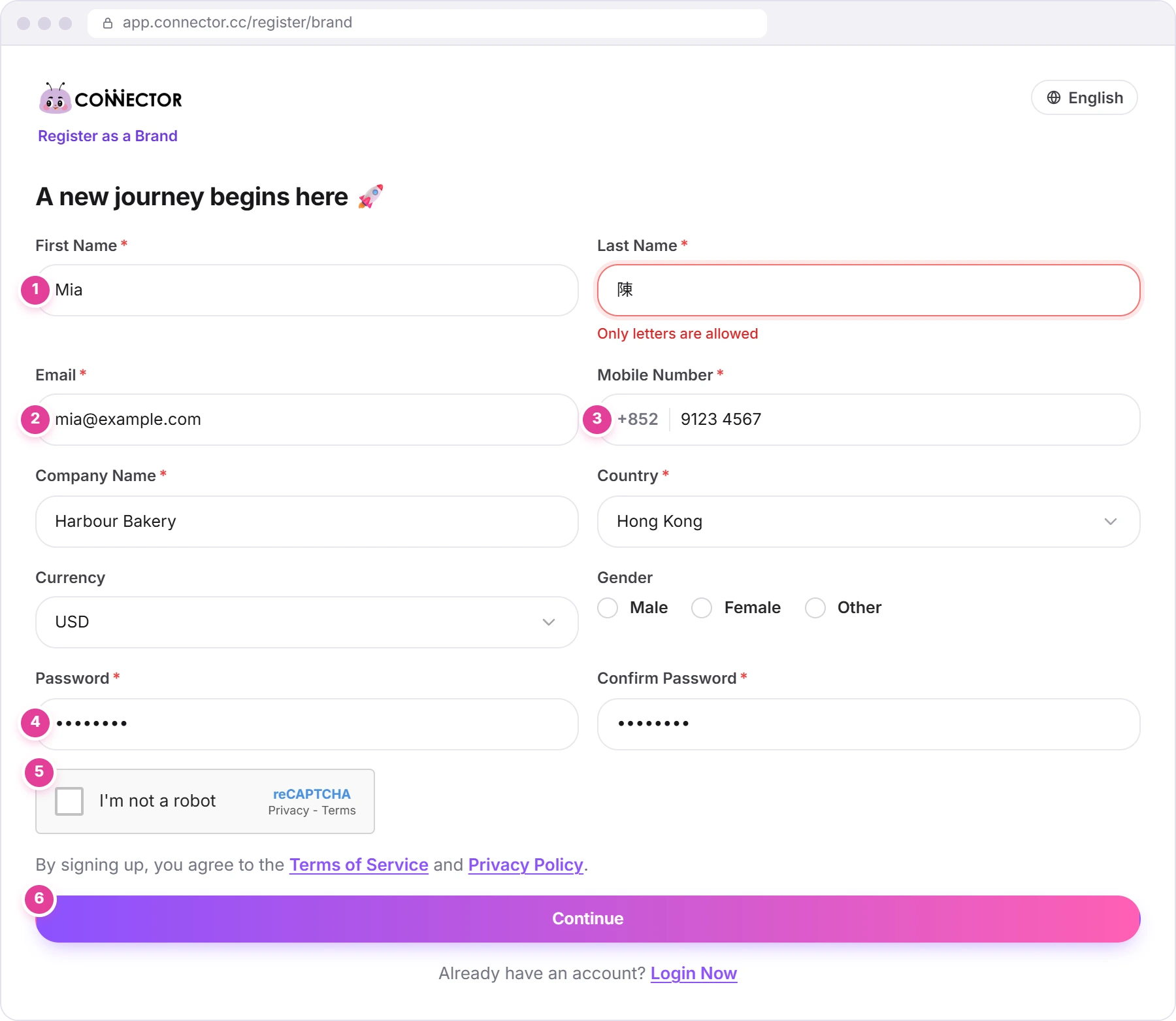
- Fill in the form. The fields and their rules are in the table below. Fields marked with a red * are required.
| Field | Required | Rules |
|---|---|---|
| First Name, Last Name 1 | Yes | English letters only, with single spaces. Anything else shows "Only letters are allowed". |
| Email 2 | Yes | A valid email address. It's greyed out if it came from Google. |
| Mobile Number 3 | Yes | Hong Kong (+852) is selected; change the country code if you need to. Then type 8 to 16 characters. |
| Company Name | Yes | Your company or brand name. |
| Country | Yes | Choose from the list. |
| Currency | No | USD, HKD or SGD. USD is selected. |
| Gender | No | Male, Female or Other. |
| Password 4 | Yes | At least 8 characters, or you'll see "Must contain at least 8 characters". |
| Confirm Password | Yes | The same password again, or you'll see "Passwords must match". |
Once you start filling in the form, Google's I'm not a robot box 5 appears under it: tick it. Then click Continue 6.
Signing up with Google: on the log-in page, click Login with Google. If that Google account is new to Connector Club, the app takes you to sign-up: choose Brand, and the form opens with your name and email filled in. If your Google name isn't in English letters, retype it. If Google has already confirmed your email, you skip the email code.
Confirm your email
We email you a 6-digit code.
- Type the code in the six boxes 1.
- Click Submit 2.
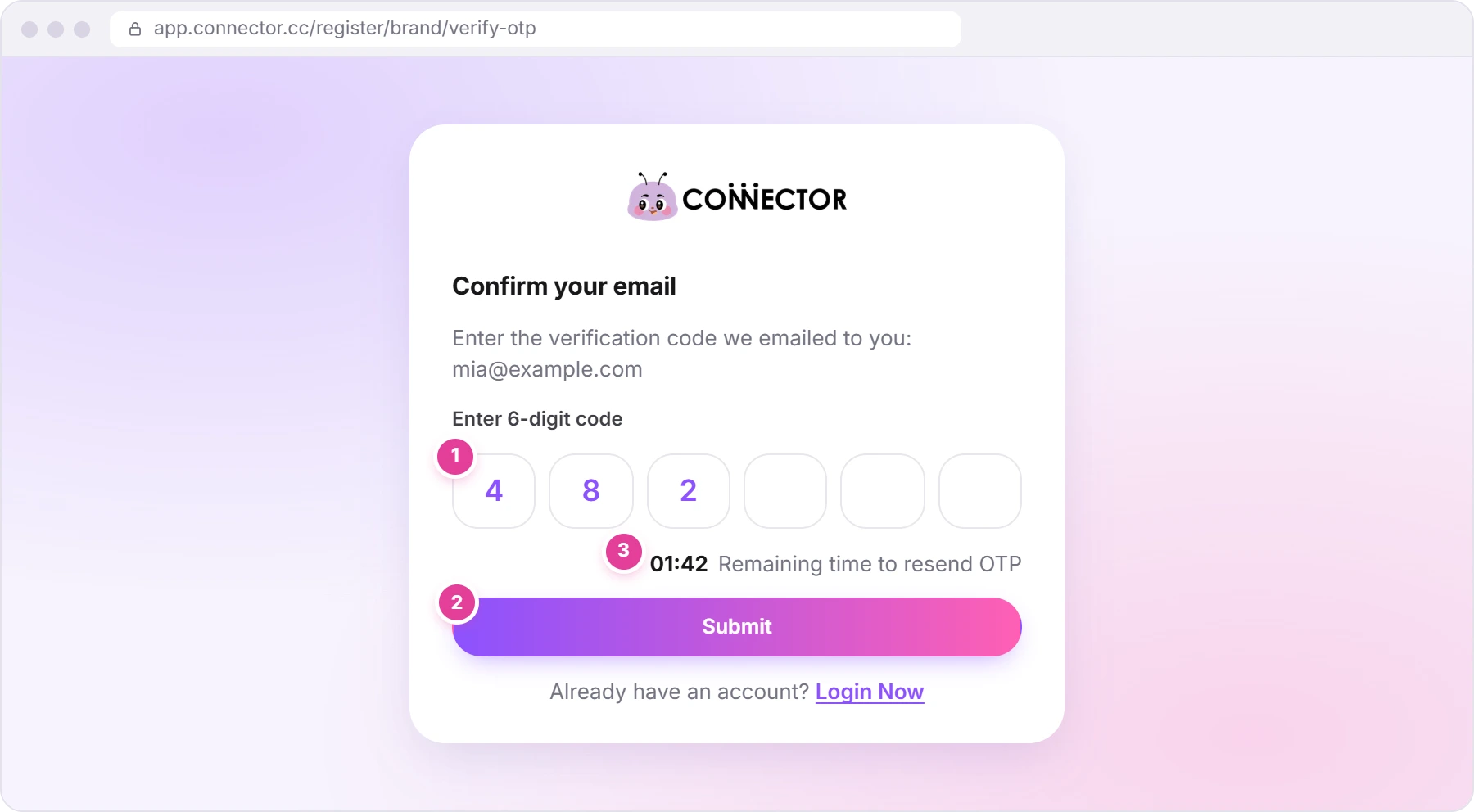
No email? The timer 3 counts down from 02:00. At 00:00 it turns into the link Resend OTP. Click it and you'll see "Resend OTP Successfully"; the timer starts again.
Tell us about your business
Three questions follow, one per page. Click Next after the first two and Submit after the last.
- "Which of the following describe you the best?" Choose Agency, In-house or Small Business Owner.
- "How many people work at your company?" Choose Just me, 2-10, 11-50, 51-500 or 500+.
- "Select Your Industry 🔧" Pick your industries. The app uses them to recommend creators on your Home page.
On steps 2 and 3, the back arrow takes you back a step. If you stop halfway, the app brings you back to the same step the next time you log in.
Your first visit to Home
After Submit, Home opens with two windows on top of it: the plans, and a welcome window that says "Amazing!".
- Close the plans with their close (X) button if you're not choosing one now. You can see them any time under Subscription.
- Pick what you'd like to do in the welcome window: Find Creators, Create Campaign or Just Exploring.
- Click Continue to exploring connector. Find Creators takes you to Discover Creators, Create Campaign to the campaign form, and Just Exploring leaves you on Home.
If you close the welcome window any other way, both windows open again every time you go to Home. Click Continue to exploring connector to stop them.
Find your way around
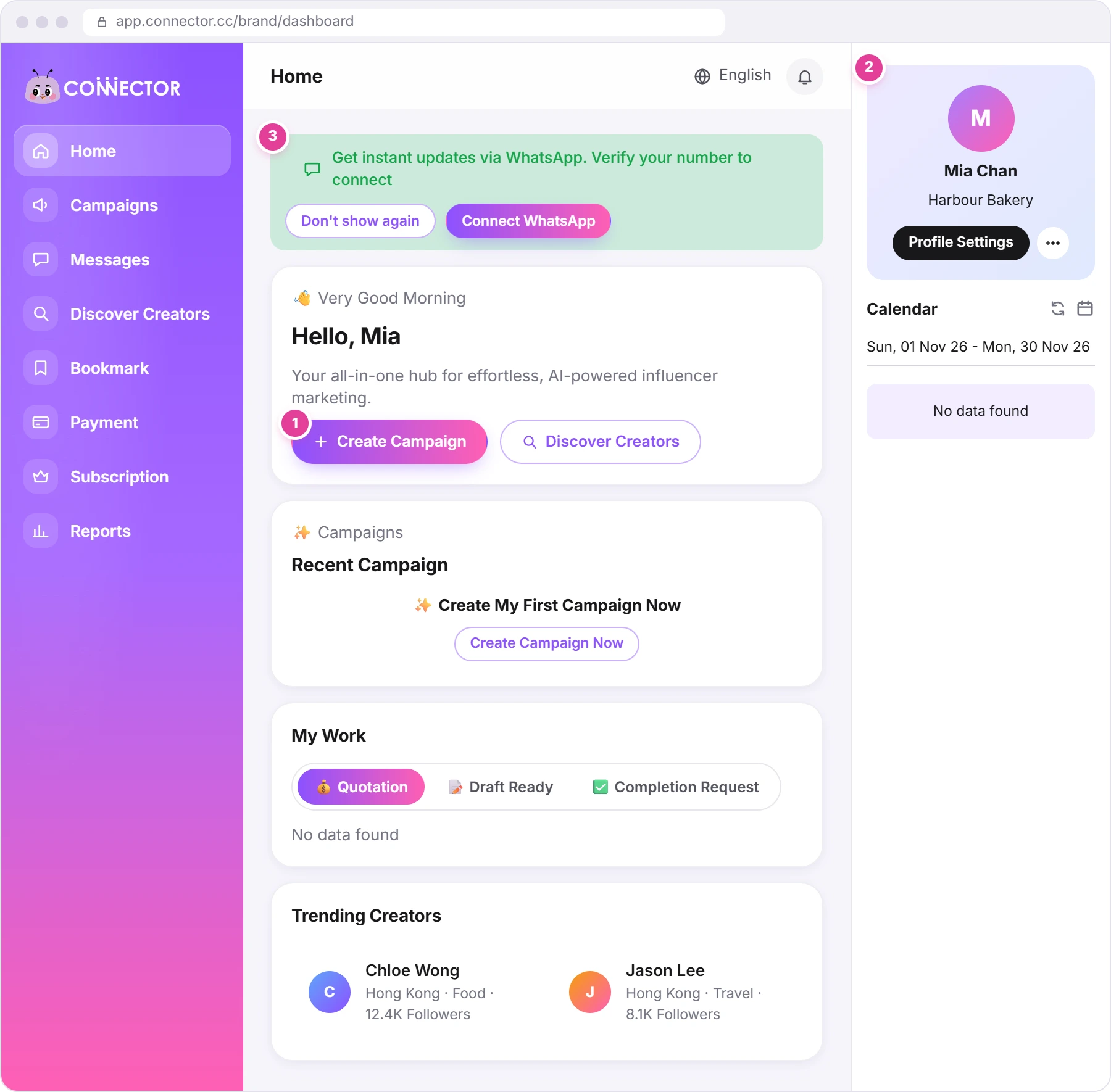
The sidebar on the left takes you to every part of the app. On a smaller screen, open it with the menu button at the top left.
| Sidebar | What it's for |
|---|---|
| Home | Your start page: Create Campaign 1, your running campaigns, the quotations, drafts and completion requests waiting for you, and trending creators. |
| Campaigns | All your campaigns, running and completed. Create new ones here too. |
| Messages | Your chats with creators (see Messages). |
| Discover Creators | Search for creators. |
| Bookmark | Creators you've saved. |
| Payment | Your campaign payments. |
| Subscription | The plans. Upgrade or manage your plan here. |
| Reports | Campaign reports, if your plan includes them. |
At the top right are the language menu, your notifications and your profile picture. Click the picture to open your profile panel, with Profile Settings. On Home, on a wide screen, the panel 2 is always open on the right instead, and the picture isn't at the top.
Until you connect WhatsApp, Home shows a green bar 3: "Get instant updates via WhatsApp. Verify your number to connect". Click Connect WhatsApp to verify your number, or Don't show again to hide the bar.
Plans and the Subscription page
Click Subscription in the sidebar. For what each plan includes, see our pricing page. Three things to know before you choose:
- The Free Plan allows one open campaign at a time.
- Barter campaigns (paying creators with products instead of cash) need the Premium Plan or Pro Plan.
- The Standard Plan comes with a 7-day free trial, one per account.
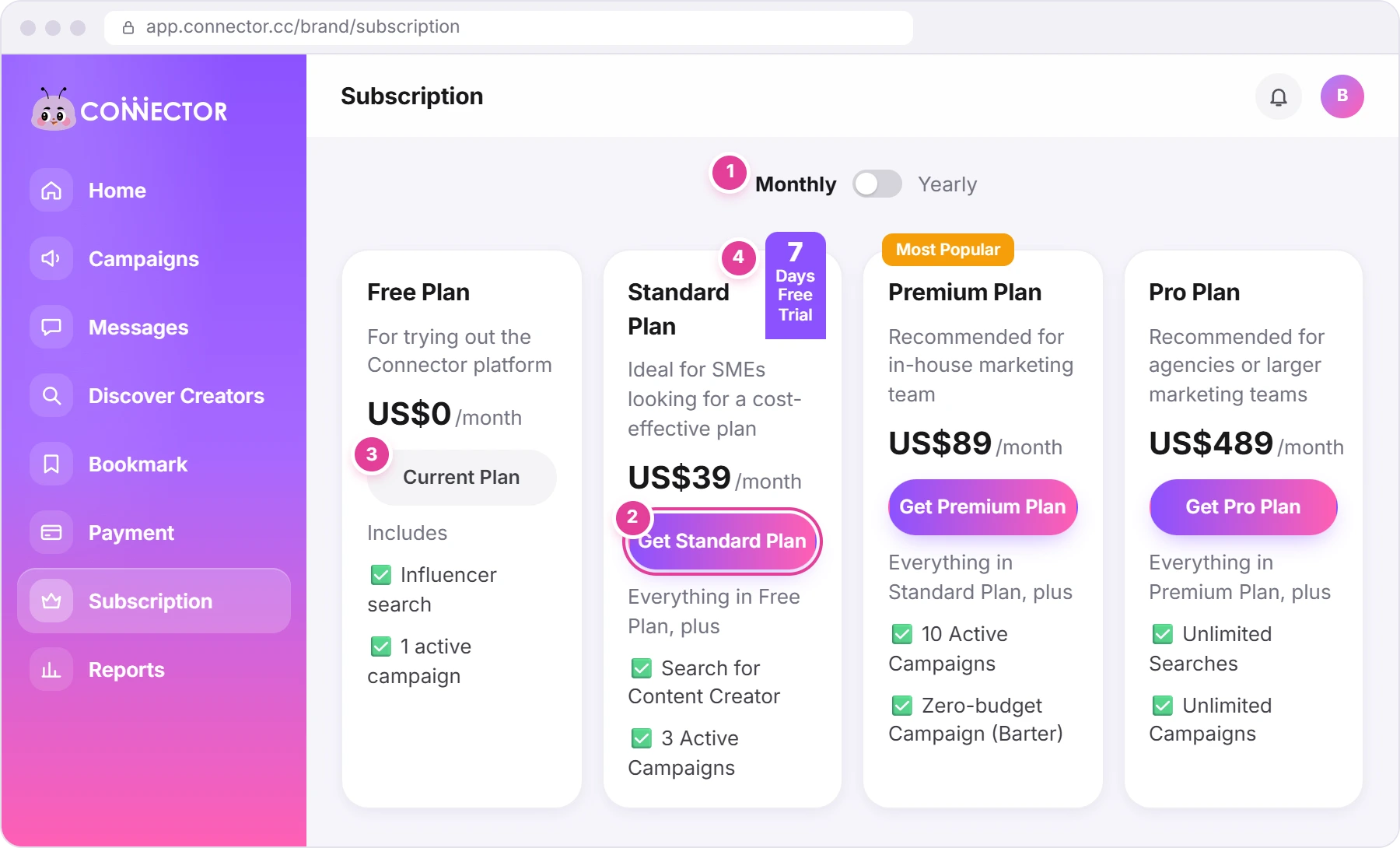
- Choose Monthly or Yearly 1. In the Yearly view each card shows the price per month, with "Billed yearly at US$…" under it. Prices are in US dollars.
- Click the plan's Get button, for example Get Standard Plan 2. You'll see "Redirecting to stripe..." and go to Stripe's checkout page to pay.
- Wait when you come back. "Please wait until payment confirmed..." shows for a few seconds, then "Payment Successful".
The card of the plan you're on says Current Plan 3, on both the Monthly and the Yearly view. A plan you've scheduled to switch to says Upcoming Plan. On a paid plan, clicking either one opens Stripe's billing portal, where you manage your plan and payment.
The free trial
The Standard Plan's card has a 7 Days Free Trial tab on its corner 4. Each account gets one free trial. To start it, click Get Standard Plan and go through Stripe's checkout, the same as above.
To see your trial or your plan, open Profile Settings (see above), then Subscriptions:
- During the trial, the box at the top says Active Free Trial.
- On a paid plan it shows the plan's name and the date it renews.
- On a paid plan or a trial, Manage Subscription opens Stripe's billing portal. That's where you change or cancel your plan: there's no cancel button in the app.
- Billing History lists your payments, each with its invoice.
Check what you have left
Your remaining usage is shown in one place only:
- Open Profile Settings. Click your profile picture at the top right, then Profile Settings. On Home, on a wide screen, click Profile Settings in the panel on the right.
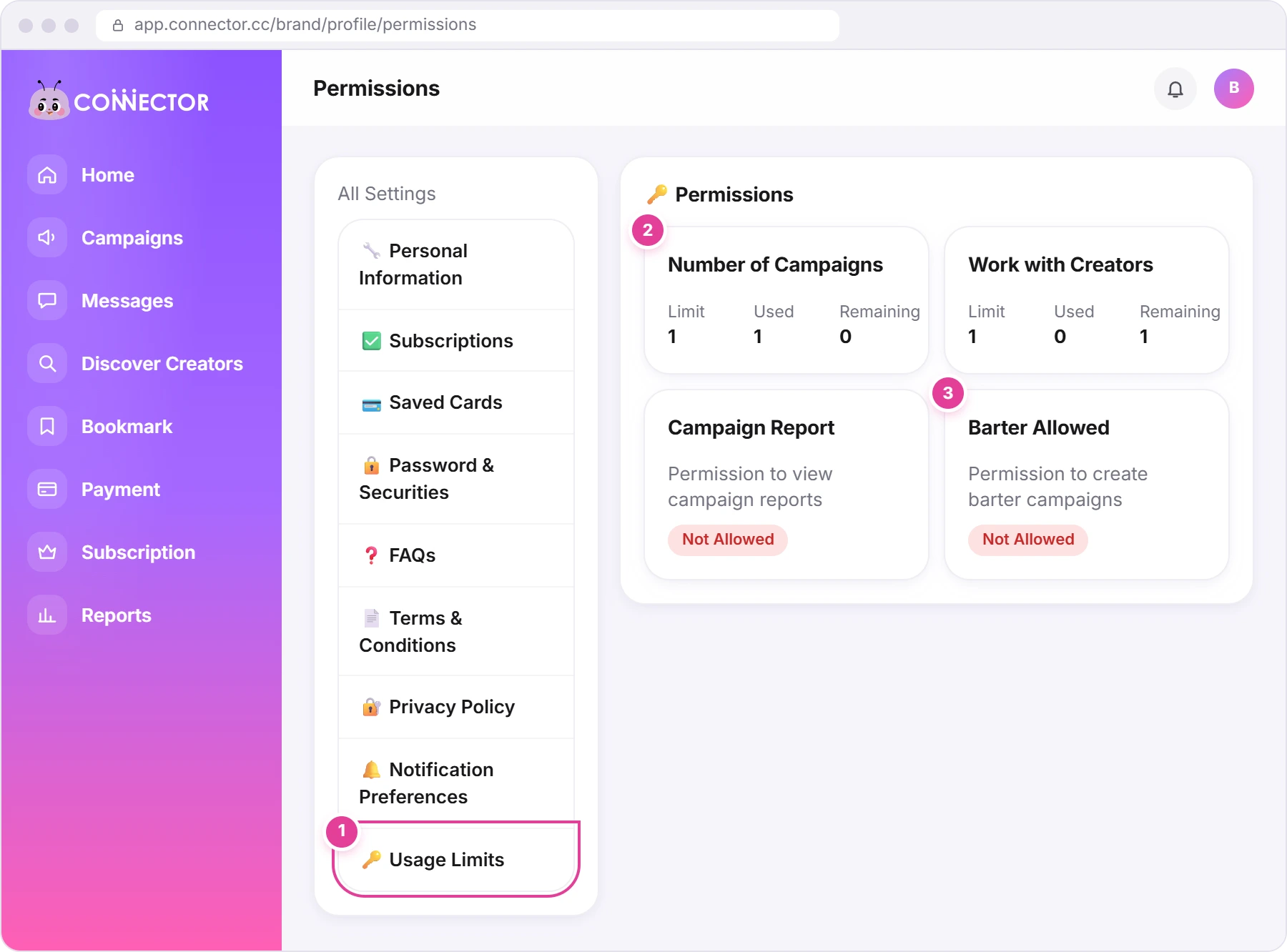
- Click Usage Limits 1 at the bottom of the settings menu. The page's heading says Permissions.
| Card | What it shows |
|---|---|
| Number of Campaigns 2 | How many campaigns you can create: Limit, Used and Remaining. |
| Work with Creators | How many creators you can hire. Each quotation you approve uses one. |
| Browse Influencers | How many creators you can load when you search. |
| Export Influencer | How many creator and applicant lists you can export. |
| Campaign Report, Barter Allowed 3 | Allowed or Not Allowed on your plan. |
The cards come from your plan, so you may see more or fewer of them.
When you reach a limit
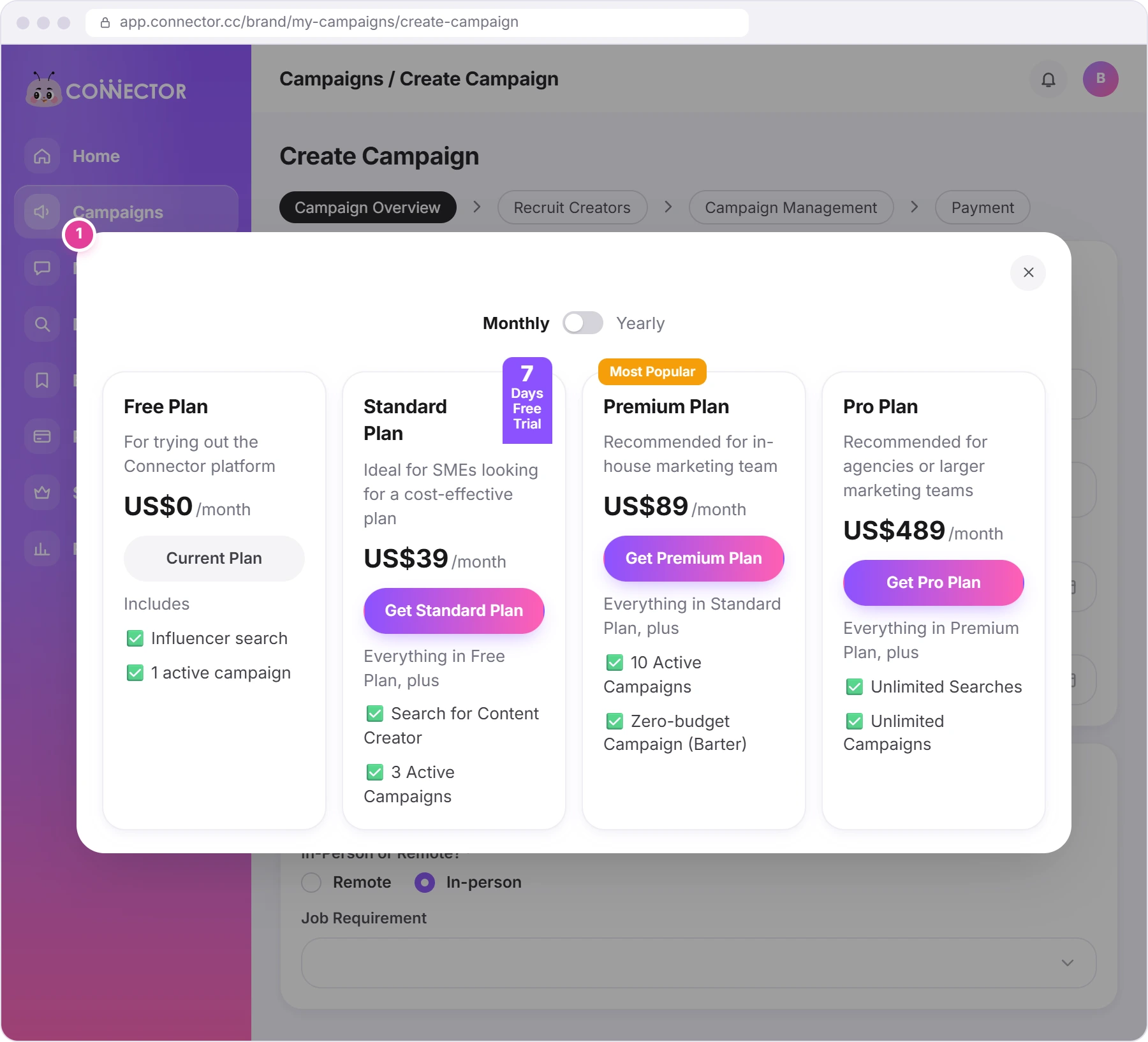
At a limit, the app opens a window with the plan cards 1 and a close button. It doesn't say which limit you reached. Close it with the X to go back, or choose a plan to upgrade. To find out what happened, check this table and your Usage Limits (see above).
| What you were doing | What you see | The limit |
|---|---|---|
| Opening Create Campaign | On the Free Plan, the plan window opens straight away. On a paid plan, the message "You have reached the limit of creating campaigns". | Number of Campaigns |
| Ticking Barter? on the campaign form | The plan window. The box stays unticked. | Barter Allowed |
| Approving a creator's quotation | "You have reached the limit of work orders", then the plan window. | Work with Creators |
| Loading more creators in Discover Creators, Recruit Creators or Bookmark | The plan window, or "Your browser influencer limit has been reached." | Browse Influencers |
| Exporting a campaign's applicants | The plan window, or an error message. | Export Influencer |
| Opening Reports | A blurred sample with "You have to upgrade your plan to access this feature." and Become Premium. | Campaign Report |
Ready for your first campaign? See Create your first campaign, field by field.
Did this answer your question?
Thanks. It helps us know which guides work.
Sorry about that. Tell us what was missing and we’ll answer you and fix the guide. WhatsApp us