
You pay per creator, when you confirm that creator's finished work. The amount is the quote you agreed plus Connector Club's 5% platform charge. This guide covers what you pay and when, the Payment page, invoices and your saved cards.
What you pay, and when
| When you… | What happens to your card |
|---|---|
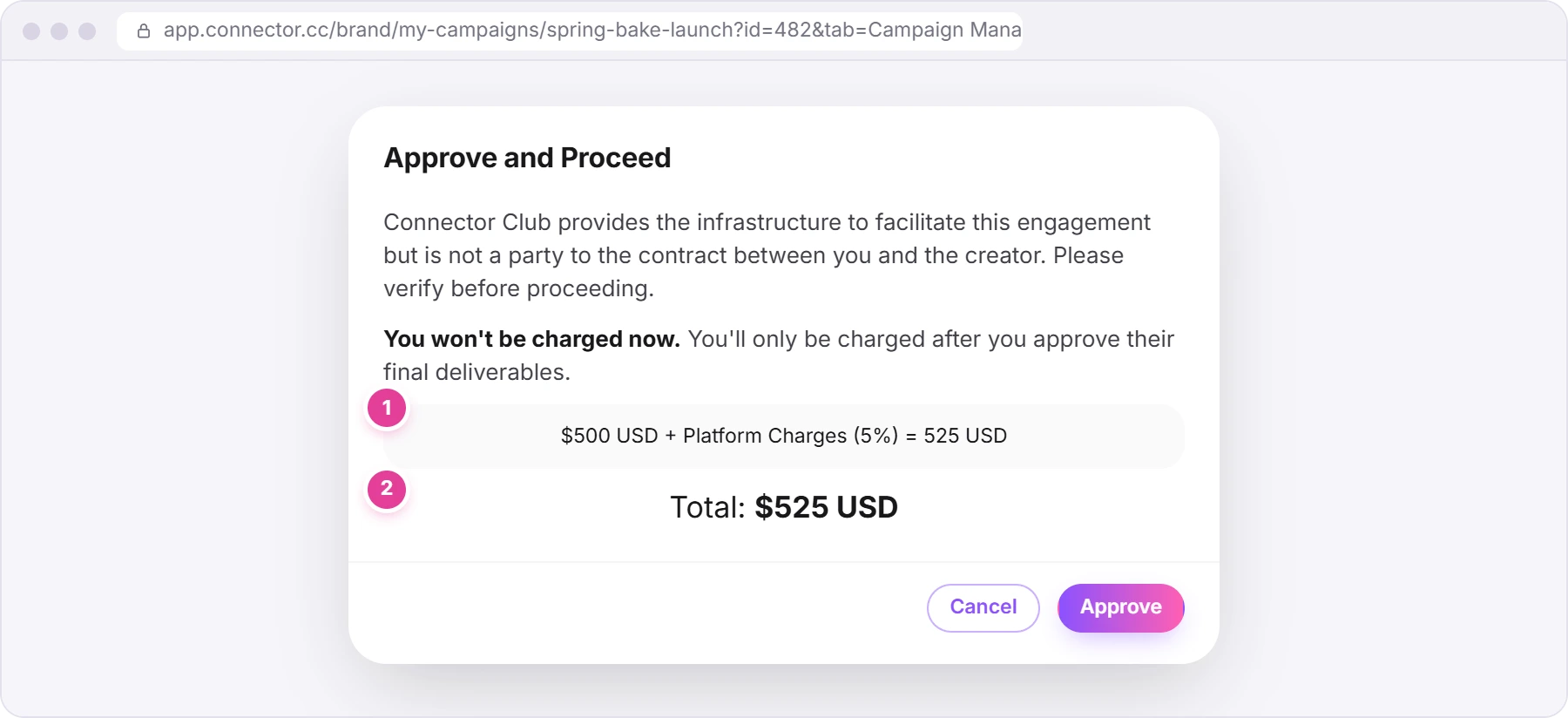
| Approve a quote | Nothing. Approve and Proceed shows the total you'll pay later. |
| Raise a creator's budget | Nothing yet. The extra amount is charged later, with the rest. |
| Confirm a creator's completion request | Charged: the agreed quote plus the 5% platform charge. |
| Complete the whole campaign | Nothing by itself. |
The platform charge is 5%, added on top of the quote. A $500 USD quote costs you $525 USD. The approval window shows the sum before you approve: the quote, "+ Platform Charges (5%)" and the result 1, then Total 2. When you raise a budget, the same 5% is called "Processing fee", and it applies only to the extra amount.
Product-only jobs (a quote of 0) aren't charged to your card.
How to approve and confirm: Recruit creators and approve quotes and Review drafts, collect posts and confirm completion.
Raise a creator's budget
After you've approved a quote, the creator's Quotation section in their side panel shows Increase cash budget. It's there for cash campaigns, and on Barter campaigns for creators who have a cash budget. It's hidden while a new price from the creator is waiting for your approval.
- Open the creator's side panel and click Increase cash budget.
- Enter the new budget 1. It must be higher than the "Current cash budget".
- Add a note if you like, up to 300 characters. "The creator will see this note."
- Check the Payment breakdown 2: the Additional budget, the 5% Processing fee on it, and the Total.
- Click Confirm increase 3. The window closes; no other message appears.
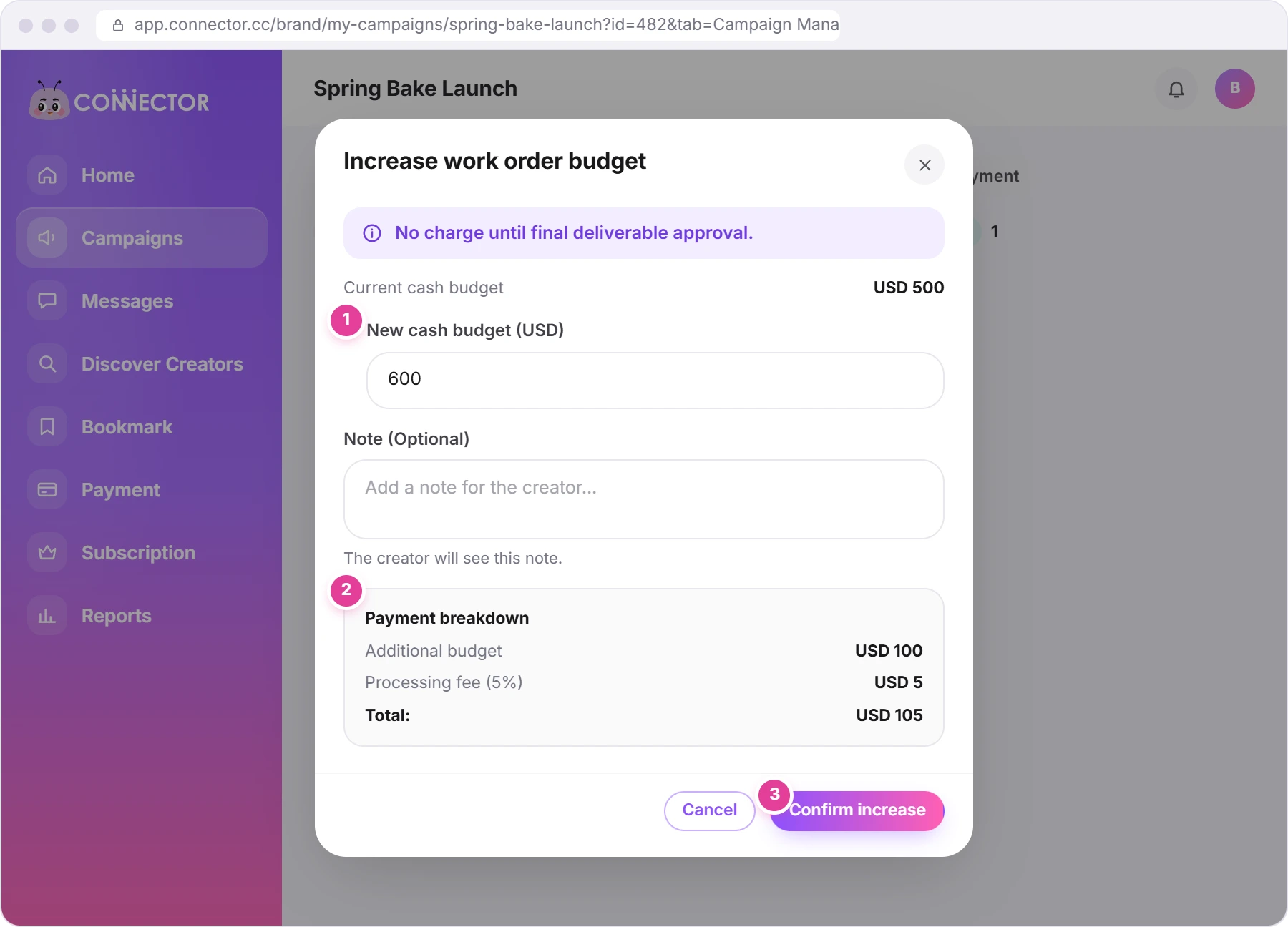
As the window says: "No charge until final deliverable approval." The extra is charged when you confirm the creator's completion.
The Payment page
Click Payment in the left menu.
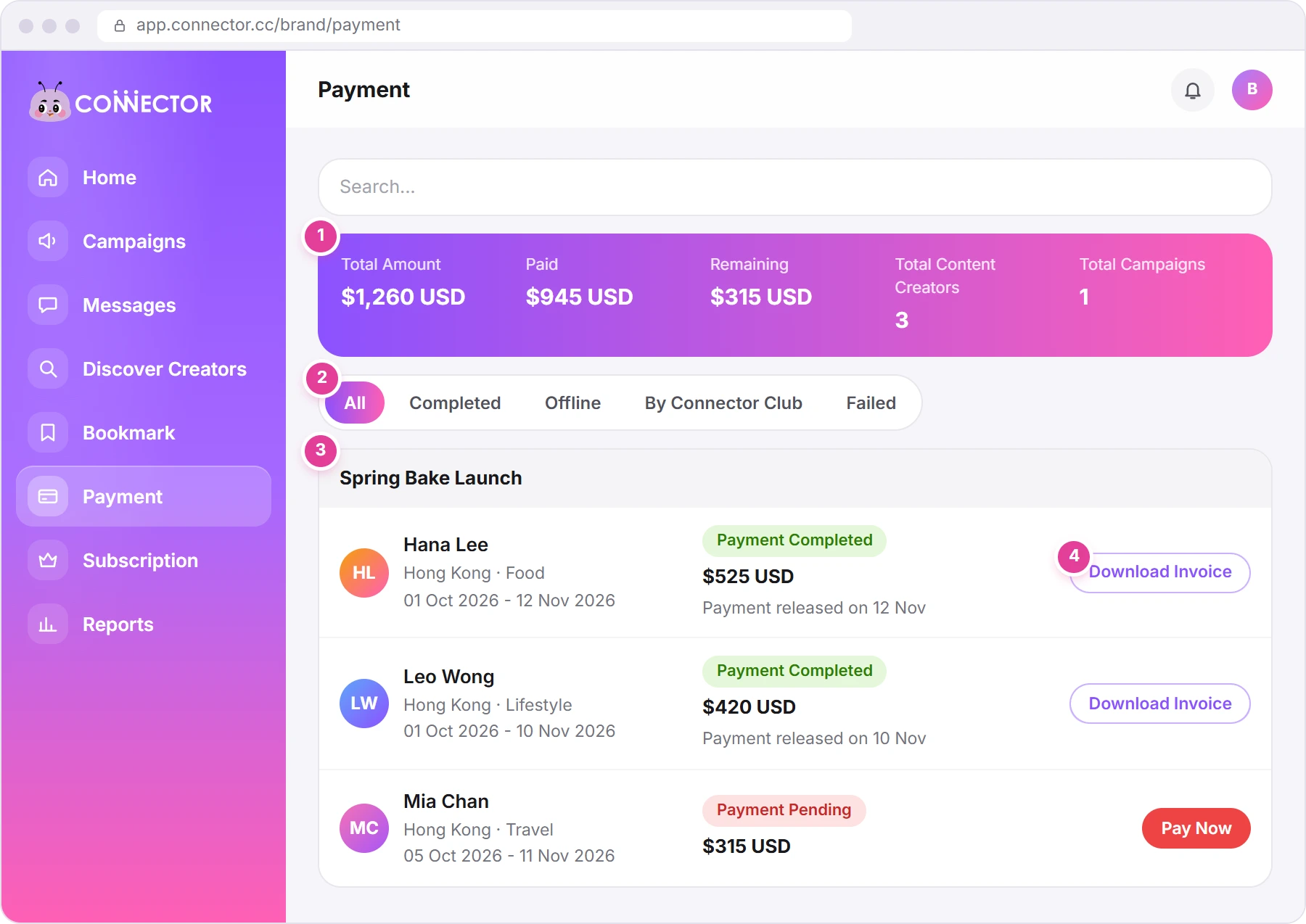
- The purple strip 1 adds up your payments: Total Amount, Paid, Remaining, Total Content Creators and Total Campaigns.
- The tabs 2 filter the list, for example to Completed or Failed payments.
- One box per campaign 3, with a row per creator: who, the dates of their work order, the status, the amount, and a button. Amounts include the 5% platform charge.
| Status | What it means | What to do |
|---|---|---|
| Payment Completed, with "Payment released on" and a date | Your card was charged. | Download Invoice 4 for the invoice. |
| Payment Pending | The charge hasn't been confirmed yet, or it failed. | If the row is in the Failed tab, see "If a charge doesn't go through" below. If it isn't, don't pay again: the charge may still be going through. |
Each campaign also has its own Payment tab (the fourth tab on the campaign page), with the same rows for that campaign and the tabs All, Completed and Failed.
If a charge doesn't go through
When you confirm a completion and the charge fails, you'll see an error message and the creator stays under Completion Request. Nothing is charged, and the work order stays open.
- To pay with a different card, add it first in Saved Cards (see below). With one saved card, the app always charges that card.
- Confirm again. Open the creator's side panel, click Confirm Completion, then Confirm. With more than one saved card, pick the card in the Pay Now window.
The confirm steps are in Review drafts, collect posts and confirm completion.
If a charge fails after the work order has closed, the creator's row appears in the Failed tab of the Payment page.
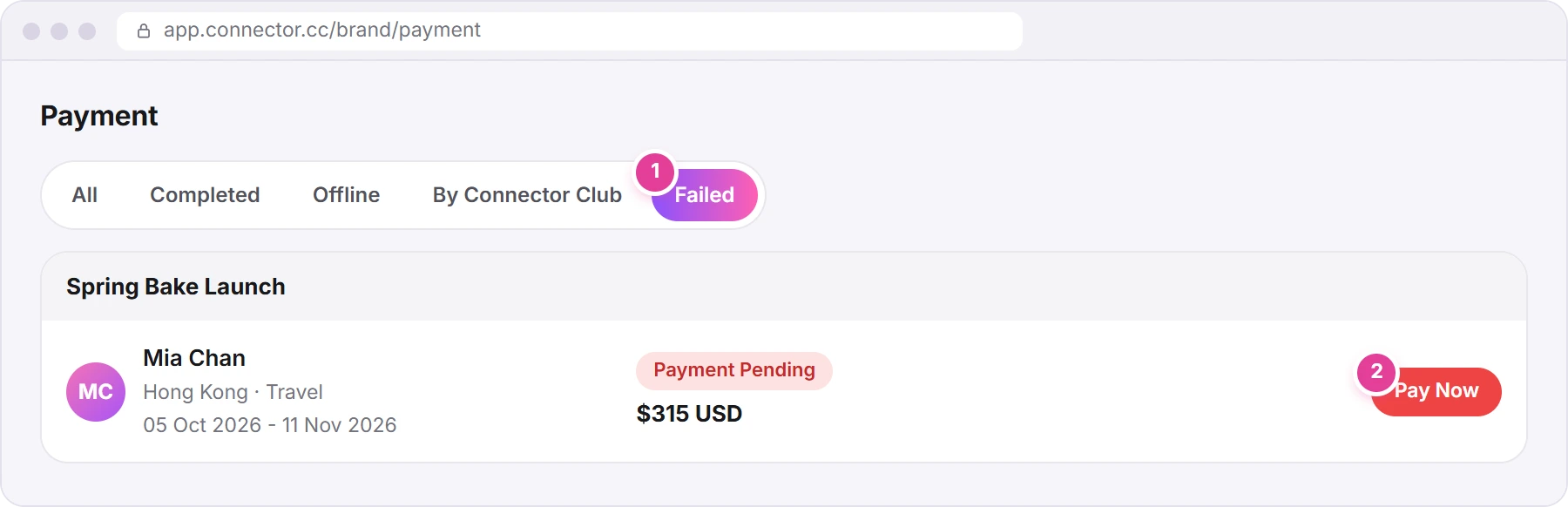
- Open the Failed tab 1 on the Payment page.
- Click Pay Now 2 on the creator's row.
- Pick a card under My Cards, or click + Add New Card to add one.
- Click Pay Now. Don't refresh while "Payment is processing..." shows. You'll see "Payment Successful".
If you click Pay Now without picking a card, you'll see "Please Select Card".
Use Pay Now only in the Failed tab
A Payment Pending row that isn't in the Failed tab may still be going through. Don't click Pay Now on it.
Invoices
Download Invoice shows on payments charged to your card once they're completed. The first time you click it, the invoice is created (the button shows a spinner) and opens in a new tab. After that, it opens straight away.
Saved cards
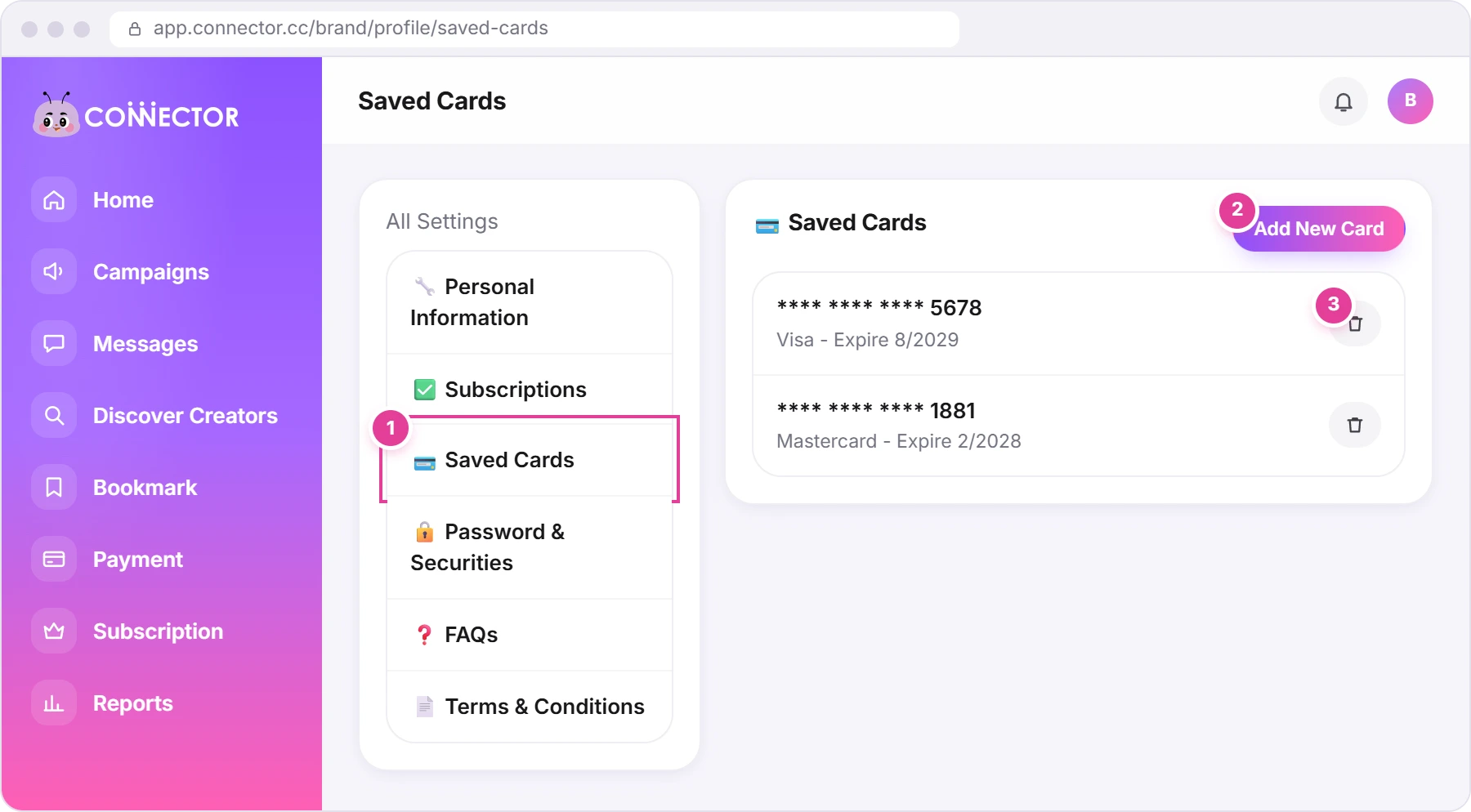
Click your picture at the top right, then Profile Settings, then 💳 Saved Cards 1.
- To add a card, click Add New Card 2 (see below).
- To delete a card, click the bin icon 3 next to it, then Submit. You'll see "Card deleted successfully".
- You can't delete your last card. The bin only shows when you have two or more. To replace your only card, add the new one first, then delete the old one.
- There's no default card. With one saved card, that card is charged automatically when you confirm a completion. With several, the Pay Now window asks which card to charge each time.
- Click Add New Card.
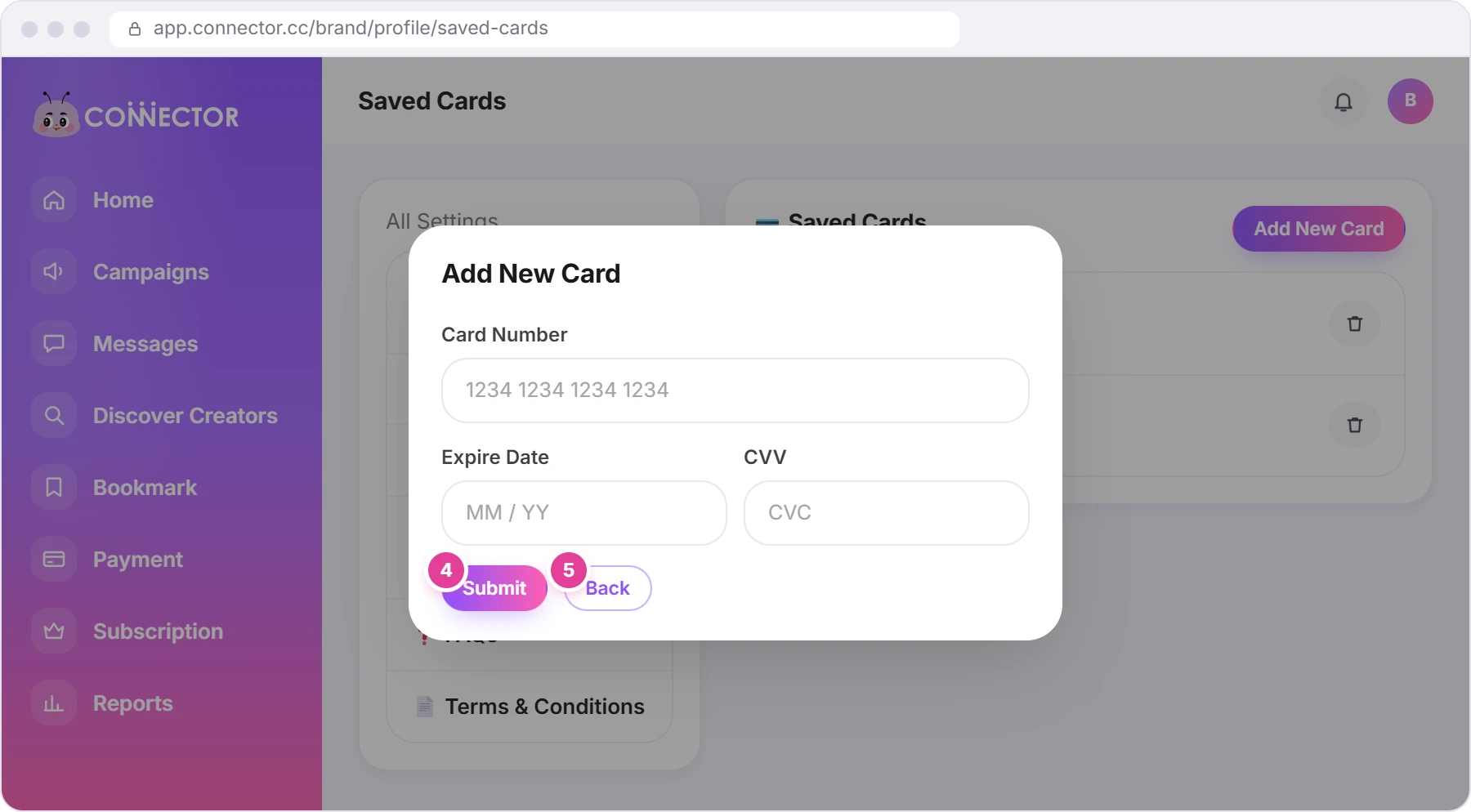
- Enter the Card Number, Expire Date and CVV, then click Submit 4. Your bank may ask you to confirm. You'll see "Card Save Successfully".
- To leave without saving, click Back 5. Clicking outside the window doesn't close it.
Did this answer your question?
Thanks. It helps us know which guides work.
Sorry about that. Tell us what was missing and we’ll answer you and fix the guide. WhatsApp us