Once a brand approves your quote, the job has three stages. You send a draft for the brand to approve, publish and submit the post, then declare the job complete. When the brand confirms, your payment shows on the Payment page. You do all of this inside the job, which you open from My Jobs.
Before you start
- Your payout details. Add them under Profile Settings → Bank Account. You can't declare a job complete without them, even when you're paid in product only.
- The account you'll post from, linked. You submit a post by picking it from a linked Instagram, Facebook Page, TikTok or YouTube account. There's no box to paste a link.
- Your draft as a file. Images: JPEG, PNG, WEBP, SVG, HEIC or HEIF, up to 10 MB. Videos: MP4, MOV, MKV or WEBM, up to 500 MB.
Find your jobs in My Jobs
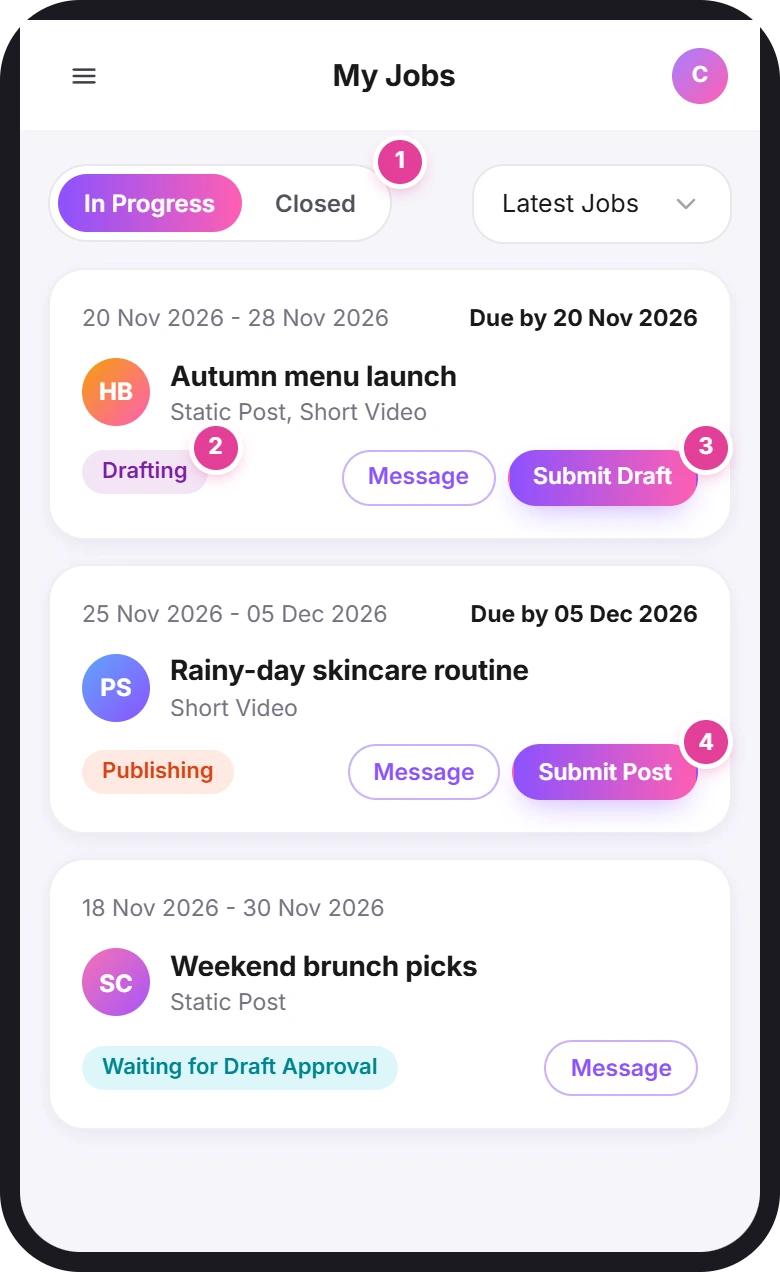
Tap My Jobs in the menu. A job appears here once the brand approves your quote.
- Two tabs 1: In Progress and Closed. The menu next to them sorts the list by Latest Jobs, Old Jobs or Due Date.
- Each card shows the draft and post due dates. While a draft or post is due, "Due by" shows that deadline.
- The status 2 says where the job is, such as "Drafting", "Waiting for Draft Approval", "Publishing" or "Waiting for Completion". The status glossary explains each one.
- Submit Draft 3 or Submit Post 4 appears when it's your turn. Message opens the job and its chat.
Inside a job, the title uses different words for some statuses. "Waiting for Draft Approval" on My Jobs is "Draft Ready" inside the job, and "Waiting for Completion" is "Completion Request". They mean the same thing.
Submit a draft
A draft lets the brand check your content before you post it.
- Tap Submit Draft on the job's card in My Jobs, or open the job and tap + 1 under Draft.
- Choose your image or video.
- Write a description. It's required. Tell the brand what they're looking at, then tap Upload Draft.
- Look for the new tile 2. The window closes without a message. The tile says "Pending" while the brand reviews it, and the job's title changes to "Draft Ready".
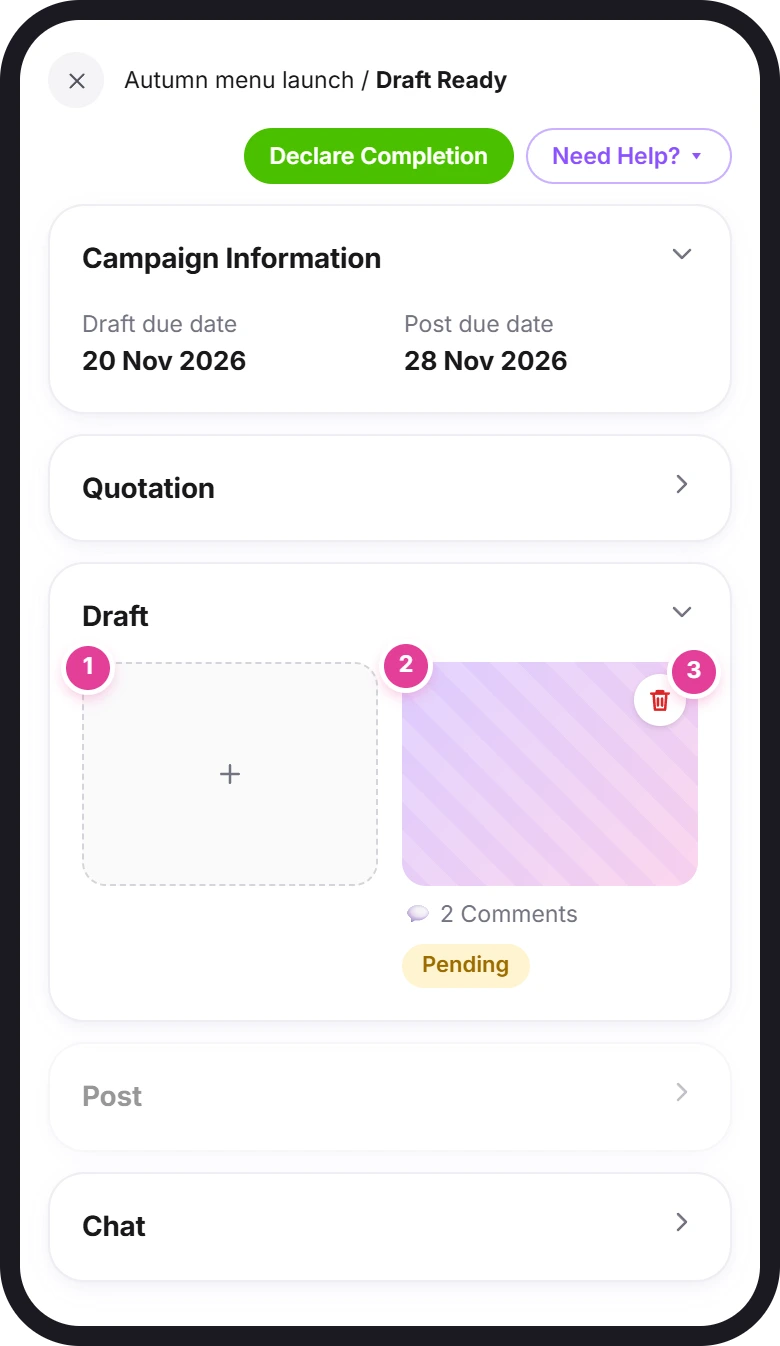
You can upload more than one draft. Each gets its own tile.
You can also send a draft from the job's chat: the + there asks "What would you like to upload?" Upload Draft works like the + under Draft. Upload Attachment only sends a file in the chat, and the brand can't approve it as a draft.
To remove a draft the brand hasn't approved, tap the bin 3 on its tile. The app asks "Are you sure you want to delete this draft?" Tap Submit to delete it. Approved drafts can't be deleted.
Revisions
A draft is never marked as rejected. When the brand wants changes, they comment on it.
- Tap the draft tile to open it. The brand's comments are under All Comments.
- Reply in "Write a comment..." and tap Comment.
- Tap Upload a new version to send the changed file. It follows the same rules as the first upload, including the description.
- Wait for approval. The tile shows "✓ Approved" once the brand approves it. After that, you can't upload a new version of that draft.
Older Version shows the earlier versions of a draft.
Submit your post
First publish the post on your social account, as agreed with the brand. Then:
- Tap Submit Post on the job's card in My Jobs, or open the job and tap + under Post. If you've sent drafts, the Post section stays grey until the brand approves one.
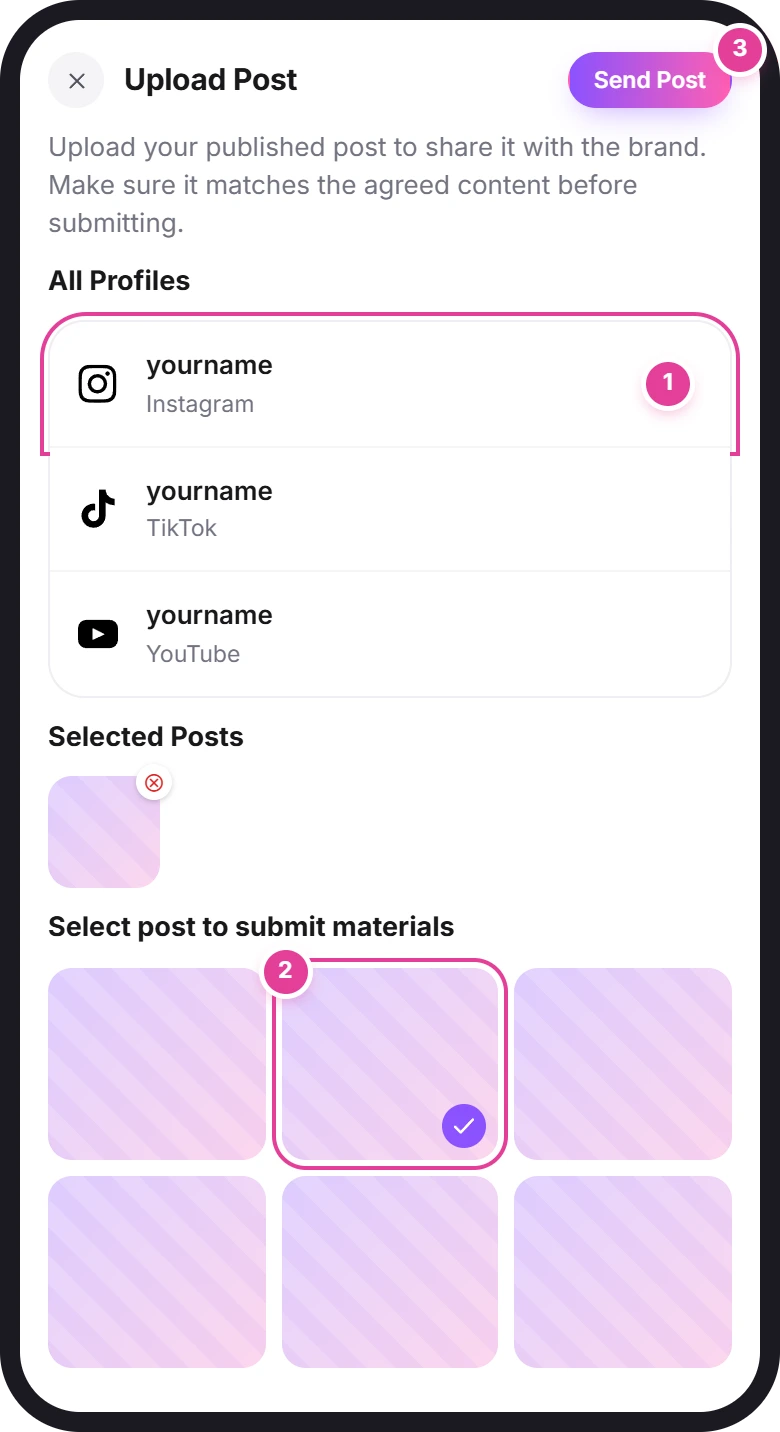
- Pick the account 1 you posted from, under All Profiles.
- Tap your post 2 in the grid of your recent posts. It appears under Selected Posts. You can select more than one.
- Tap Send Post 3.
- Never sent a draft? The app first asks you to "Please make sure you have already obtained approval of this deliverable with the brand". Tap OK only if the brand has approved your content.
- Can't find your post? Only posts from linked accounts show up. Link the account first: see Link your social accounts.
- "Your Instagram session has expired." (or Facebook, TikTok or YouTube) means Connector Club lost access to that account. Tap Login Now and log in again. See Reauthorize an account.
While the post is due, the + in the job's chat asks "Already published your work?" Post Deliverable opens the same Upload Post screen. Upload Attachment only sends a file in the chat.
Declare completion
When your post is live and submitted, tell the brand the job is done.
Submit your post first
Declare Completion shows at the top of the job from the drafting stage on, before you've posted. Don't tap it early. The app warns that "False or premature declarations may result in dispute escalation or impact your account standing."
- Tap Declare Completion 1 at the top of the job.
- Add bank details if asked. If you haven't saved any, you'll see "To complete this campaign and receive payment, please add your bank details first." Tap Add Bank Details, save them (see below), then come back and tap Declare Completion again.
- Read the confirmation. By confirming, you say you've delivered everything in the brief and nothing more is left to do.
- Leave the box about receiving payment directly from the brand unticked 2, unless you and the brand agreed on that. It only shows on some jobs.
- Tap Confirm 3.
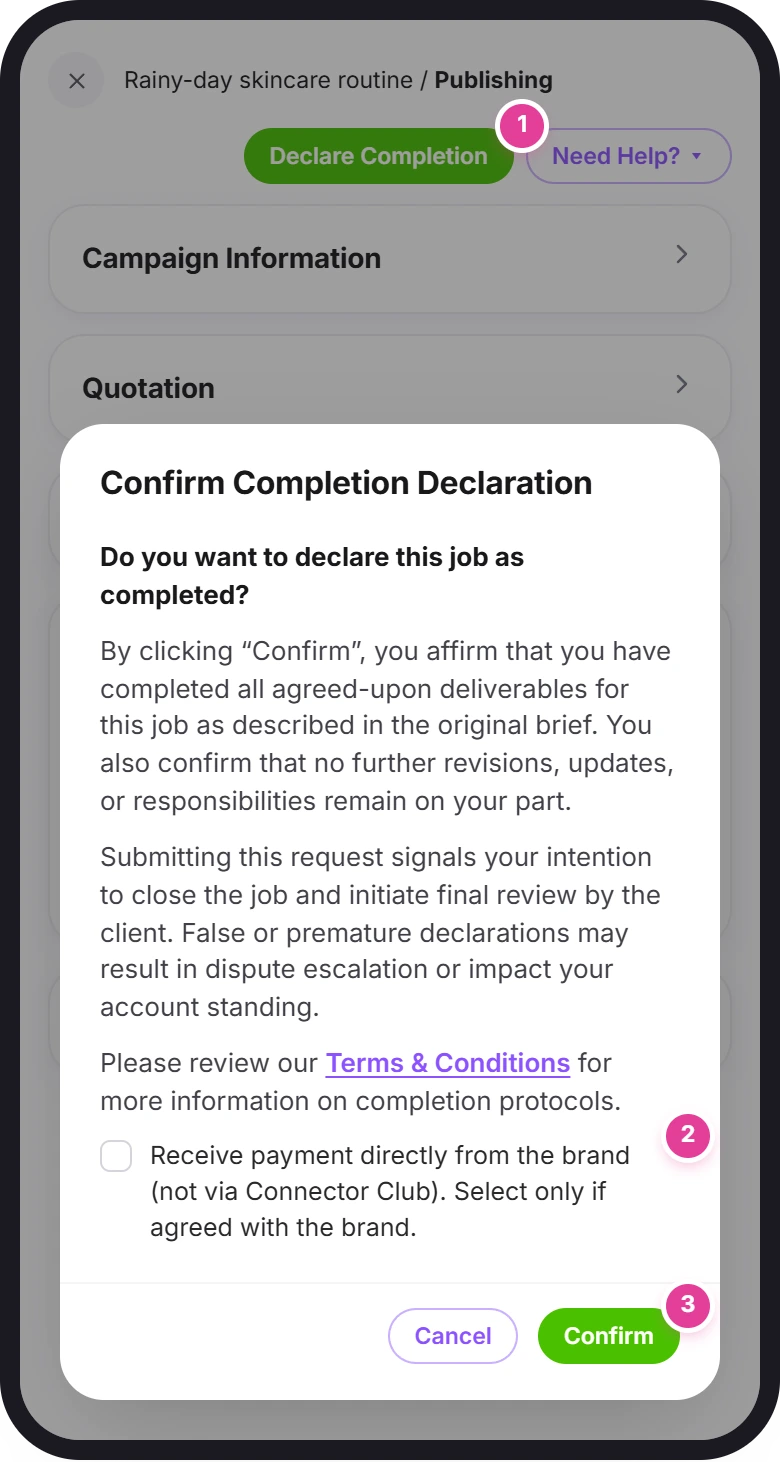
You'll see "Your content is in! The brand is reviewing your post." Tap Got it, thanks! The job's status becomes "Waiting for Completion", and the brand confirms or rejects it.
If the brand rejects it, the job goes back to Drafting. Ask the brand in the chat what's missing, fix it, then declare completion again.
If you believe you did everything the brief asked:
- Open Need Help? at the top of the job and choose Brand unfairly rejected work.
- Tap Open Dispute in the "Escalate to a Dispute?" window.
- Write a Description of what you delivered. Add files under Upload Supporting Documents if they help.
- Tap Submit Dispute. Our team reviews it.
Add your bank details
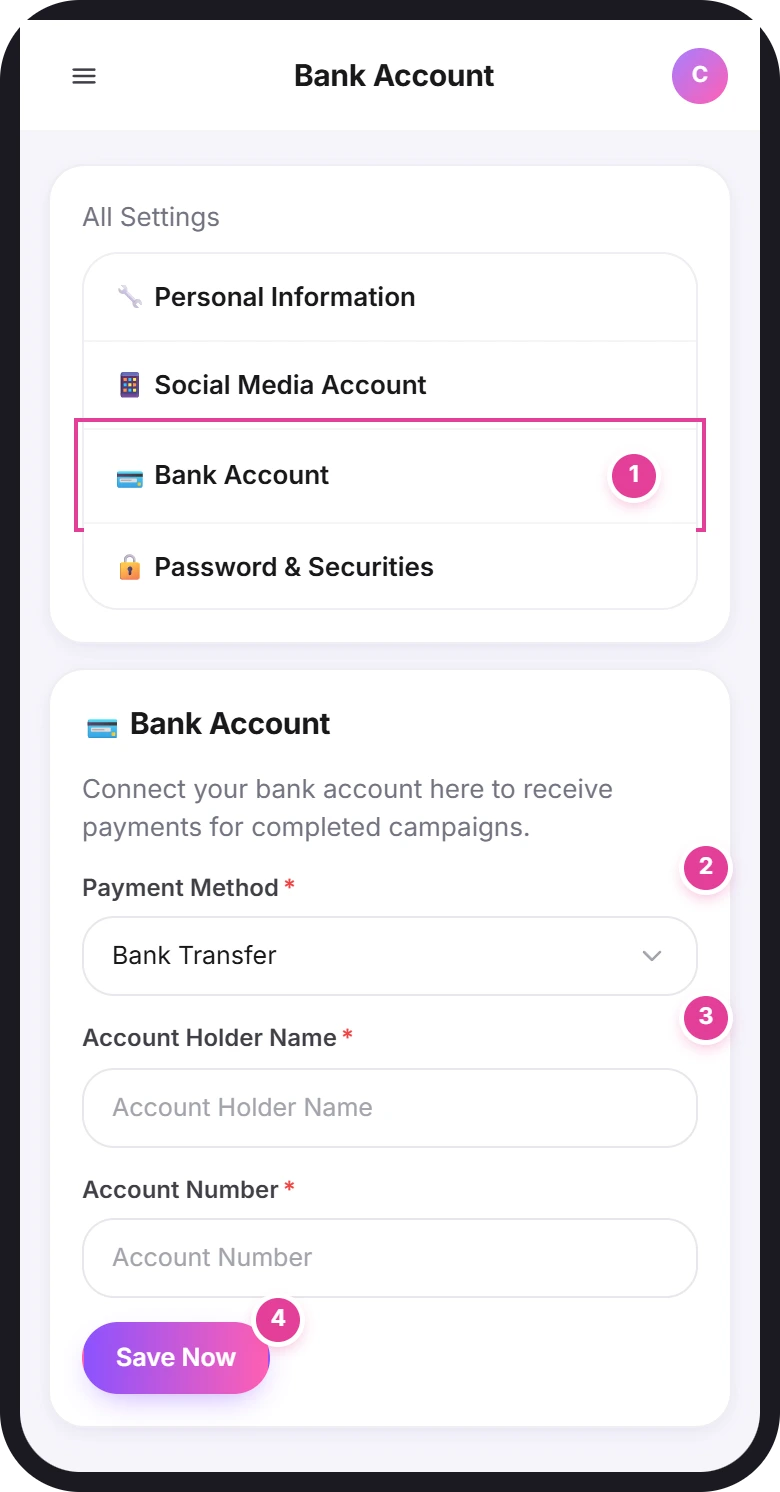
- Tap your picture at the top right, then Profile Settings, and choose Bank Account 1.
- Choose a Payment Method 2. The list shows the methods available in your country.
- Fill in the fields 3 for that method. They differ from method to method, and those marked * are required. If one asks for an image, such as a QR code, use a PNG or JPEG up to 10 MB.
- Tap Save Now 4. You'll see "Payment details saved successfully".
If the list has no payment methods, email info@connector.cc.
Track your payment
Tap Payment in the menu.
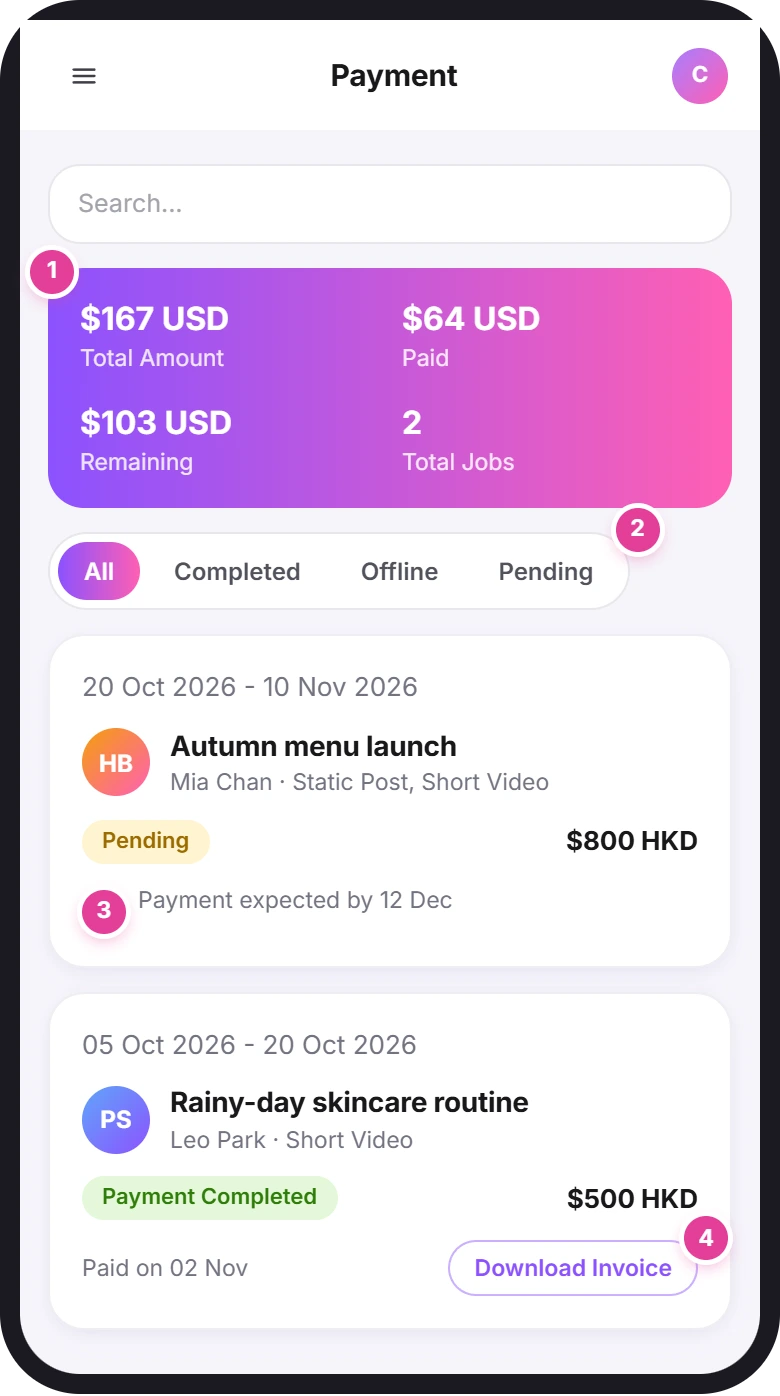
- The totals 1: Total Amount, Paid, Remaining and Total Jobs. The amounts are converted to US dollars. Each job's card shows its own currency.
- The tabs 2: All, Completed, Offline and Pending.
- One card per job, with the amount, a status and a date.
| What you see | What it means | What to do |
|---|---|---|
| Pending, and "Payment expected by" a date 3 | Connector Club hasn't paid you for this job yet. The date is when to expect the payment. | Nothing. |
| Payment Completed, and "Paid on" a date | Connector Club has paid you. | Tap Download Invoice 4 if you need a copy. |
Questions about a payment? Email info@connector.cc.
Withdraw from a job
If you can't finish a job, you can withdraw once the work has started: from drafting until the brand confirms completion. You can't withdraw while your quote is waiting for approval, or after the job has closed.
Withdrawing has consequences
You give up all pay for the job. Unless the brand agrees otherwise, you must return any products they sent you. The app also warns that withdrawing "may negatively impact your rating and future collaborations on the platform."
- Open the job and tap Need Help? at the top.
- Choose Withdraw from Job.
- Read "Withdraw from this Job?" and tick "I understand that I forfeit all rewards and must return any received products to the brand."
- Tap Confirm Withdrawal. It stays grey until you tick the box. Go Back cancels.
You'll see "Withdraw from job successfully". The job moves to My Jobs → Closed, marked "Withdrawn on" and the date.
Need Help? also has Raise Dispute, once you've declared completion, and Check Help Guides.
Did this answer your question?
Thanks. It helps us know which guides work.
Sorry about that. Tell us what was missing and we’ll answer you and fix the guide. Email us