Reauthorizing means logging in to a linked social account again, so Connector Club can keep reading your reach, views and engagement. A link can stop working without you doing anything, and while it's broken you can't pick posts from that account when you upload your work for a job. To fix it, you log in again and allow everything the platform asks for.
The app gives these reasons when it asks you to reauthorize Instagram:
- "Your Instagram access token has expired (Meta refreshes tokens periodically for security)"
- "You recently changed your Instagram or Facebook password."
- "Account permissions were reset or revoked on Instagram or Facebook."
- "System or security updates that require confirming access again."
Missing permissions is a different case: when you linked Instagram, you unticked one of the permissions it asked for. Linking still worked, but your reach, views and engagement can't sync until you allow everything.
Where the app tells you
| Where | Platforms | What you see |
|---|---|---|
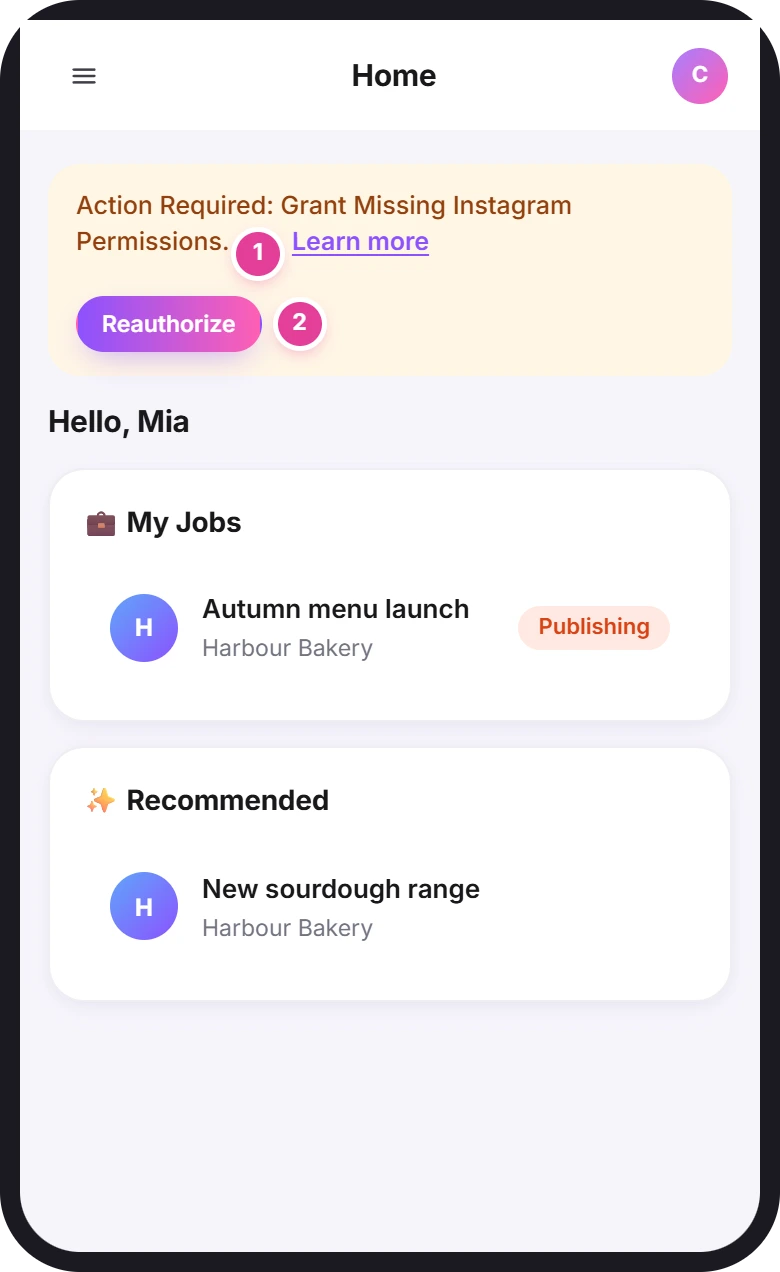
| Home | Instagram only | A pale yellow bar at the top: "Action Required: Reauthorize Your Instagram Account." or "Action Required: Grant Missing Instagram Permissions." |
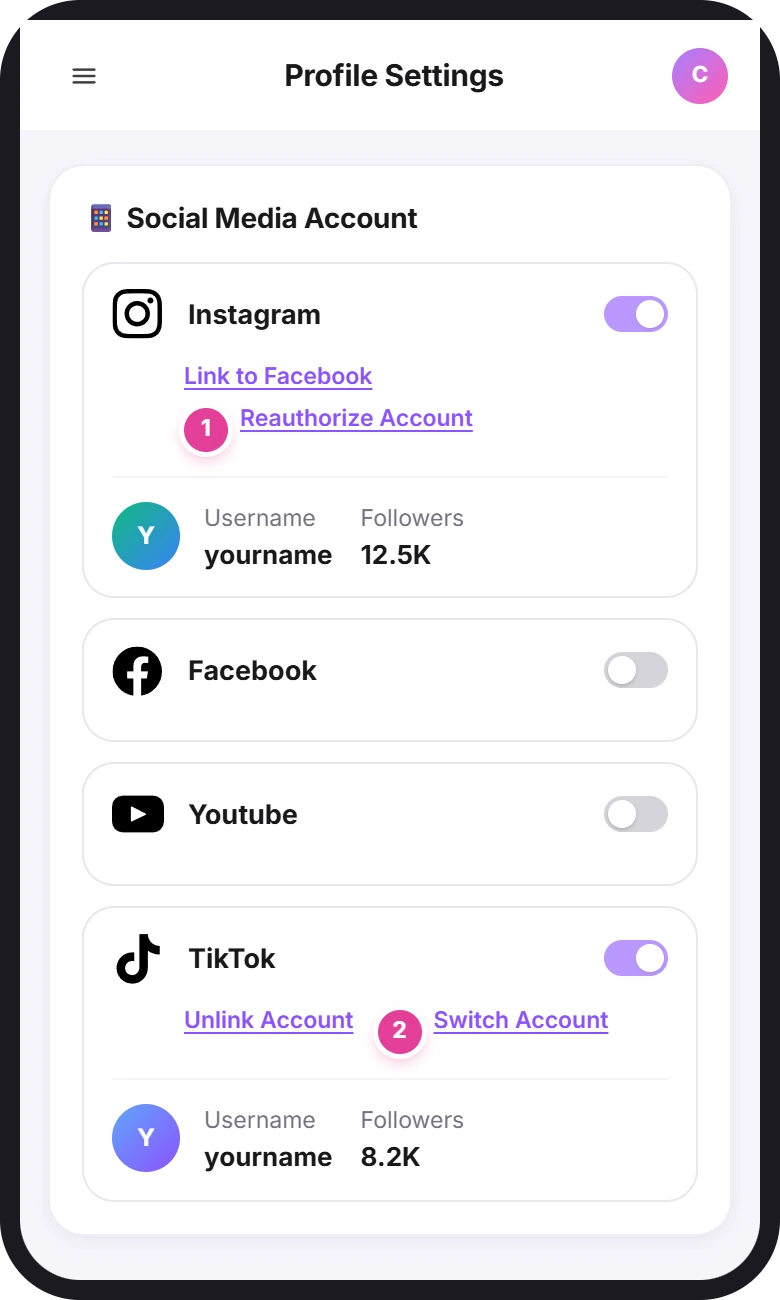
| Profile Settings → Social Media Account | Instagram only | Reauthorize Account in the Instagram section, in place of Unlink Account and Switch Account. |
| Upload Post, inside a job | Instagram, Facebook, YouTube, TikTok | The profile has a red edge. Tap it and you see "Your … session has expired." |
The Home bar and the profile link don't always show together. An expired Instagram connection can show only the profile link, and missing permissions show only the Home bar. Either one fixes it.
Facebook, YouTube and TikTok don't warn you
For these three, nothing shows on Home or in your profile. The first sign is a red profile in Upload Post when you go to submit a post. If you think one of them may have expired, for example after you changed its password, re-link it with Switch Account before you need it (see below).
Fix it from Home (Instagram)
The bar sits at the top of Home. Its wording tells you which case you're in:
| The bar says | What it means |
|---|---|
| Action Required: Reauthorize Your Instagram Account. | Instagram needs you to confirm access again. |
| Action Required: Grant Missing Instagram Permissions. | You didn't allow every permission when you linked Instagram. |
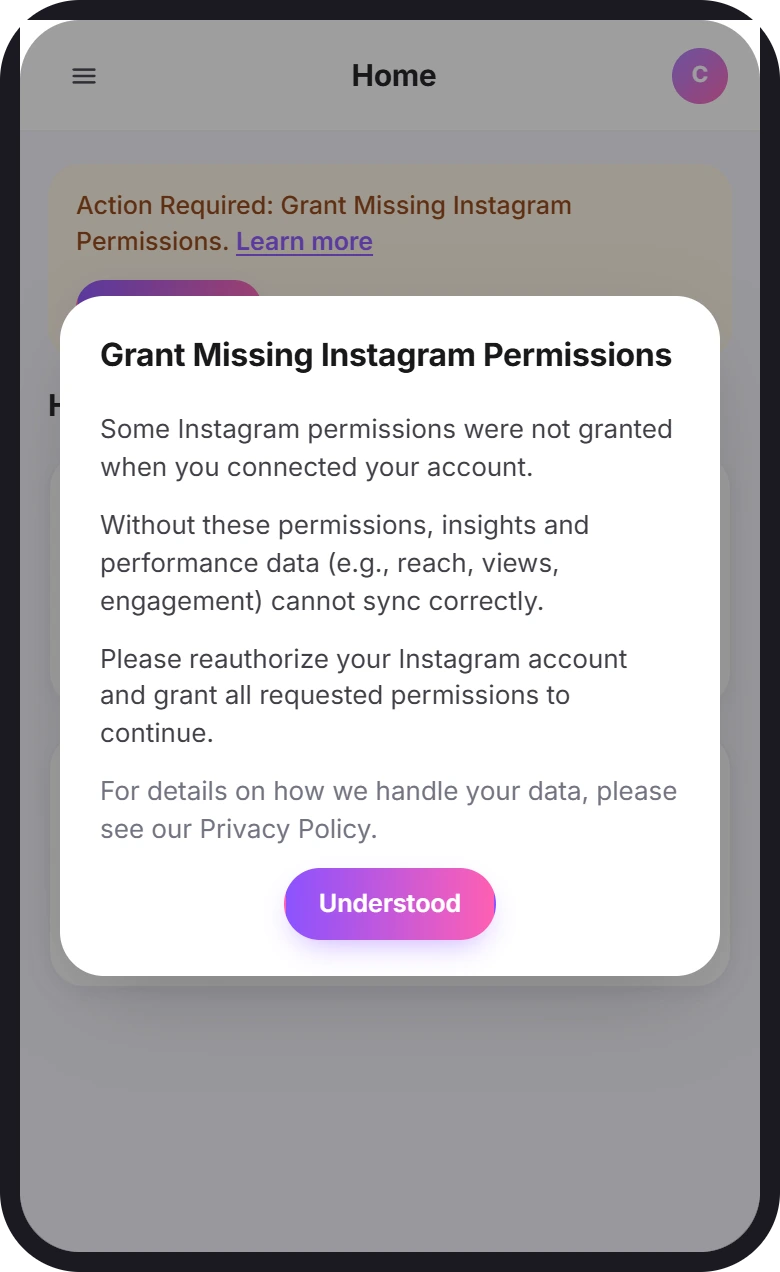
- Tap Learn more 1 if you want the reasons. Tap Understood to close it.
- Tap Reauthorize 2. Instagram's login page opens.
- Log in to the Instagram account you linked, and allow every permission it asks for.
- Wait. Back on Home, "Checking Your Eligibility..." shows while the app checks your followers, then "Account linked successfully".
Fix it from your profile (Instagram)
- Open your profile. Tap your picture at the top right, then Profile Settings, then Social Media Account.
- Tap Reauthorize Account 1 in the Instagram section. While the connection needs renewing, it replaces Unlink Account and Switch Account. Nothing else on the page changes colour or warns you.
- Log in to Instagram and allow everything. You come back to this page and see "Account linked successfully".
Re-link Facebook, YouTube or TikTok with Switch Account
These three have no Reauthorize link. To renew one before Upload Post asks, use the same page:
- Open Profile Settings → Social Media Account.
- Tap Switch Account 2 in that platform's section (TikTok in the picture above).
- Log in with the same account and allow everything. The app updates the account you already have, and you'll see "Account linked successfully".
Fix it while uploading a post (all platforms)
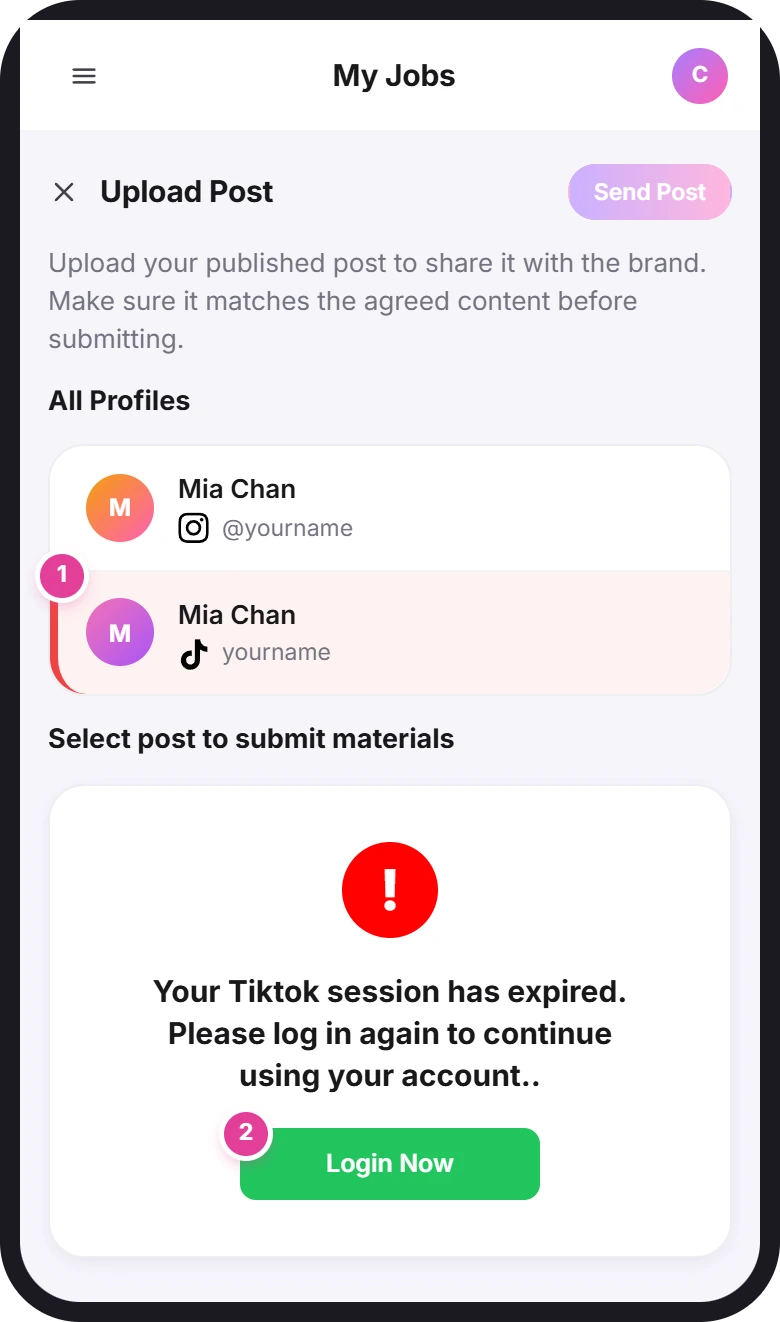
When you open Upload Post in a job, All Profiles lists your linked accounts. One whose connection has expired has a red edge and a light red background 1, with no words.
- Tap the red profile. Instead of your posts you'll see "Your Instagram session has expired." (or Facebook, Tiktok, YouTube) and "Please log in again to continue".
- Tap Login Now 2, the green button. Log in with the same account, and allow everything it asks for.
- Carry on from where you land. It depends on the platform (see the table).
| Platform | After you log in |
|---|---|
| You go to Instagram, then come back to My Jobs. The job and Upload Post open again by themselves. | |
| Facebook, YouTube | A login window opens over the app, and you stay in the job. |
| TikTok | You come back to Profile Settings → Social Media Account, not to the job. When you see "Account linked successfully", open My Jobs and the job again to upload your post. |
For Instagram, Facebook and YouTube you'll see "Account reauthorized successfully".
If reauthorizing fails
Each message pops up at the top of the screen for a few seconds.
| What you see | What it means | What to do |
|---|---|---|
| Your account does not meet the required criteria. Please try with a different account. | The follower check runs again every time you reauthorize, and this account is now below the minimum for its platform. | You can't renew this account while it's below the minimum. Link a different account, or one on another platform. If you're in the middle of a job, email info@connector.cc. |
| Error during Instagram login | Instagram didn't complete the login. | Try again and allow everything. |
| Your Facebook account doesn't manage any Pages. A managed Page (not a personal profile) is required. | You logged in to a Facebook profile that has no Page. | Log in with the Facebook account that manages your Page. |
| Could not fetch channel information. Please try again. | The Google account you chose has no YouTube channel, or the channel has no handle (the @name). | Log in with the Google account that owns your channel, and check that the channel has a handle. |
| The page reloads and nothing changes (TikTok) | TikTok didn't finish the login. | Try again, ideally on a computer browser. |
For every message you can see while linking, and what to do about it, see Fix problems linking your social accounts.
Did this answer your question?
Thanks. It helps us know which guides work.
Sorry about that. Tell us what was missing and we’ll answer you and fix the guide. Email us